
Guides
Guide
Project manager
Project manager
You want to review, approve or remove submitted proposals and comments, and reply to citizens.
Moderate contributions
Your goal
You want to review, approve or remove submitted proposals and comments, and reply to citizens.
Open project area
What you need
- The project has a proposal phase.
- You have the “Administer project” or “Moderate content” right in the project.
How to do it
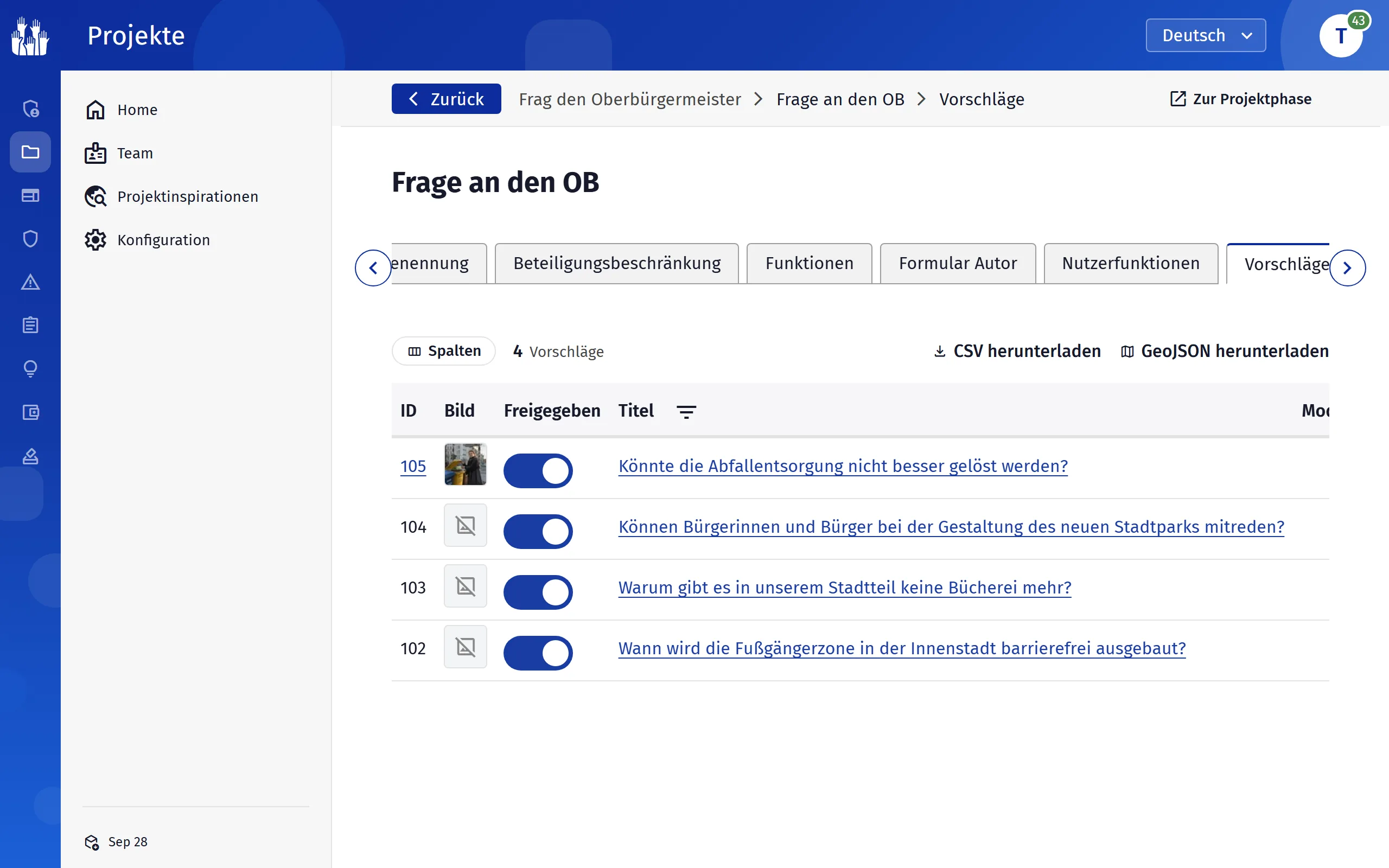
- In the project, open “Participation phases”, then open the proposal phase.
- In the “Proposals” tab you see all submissions. Use the search and the moderation status filter to narrow the list.
- If “Admin approval” is on, approve new proposals in the “Approved” column.
- Remove inappropriate proposals with “Hide”. Bring them back with “Restore”.
- Use “View” to open the detail view. There you write the “Official response”, record “Internal notes” and, if “Admin approval” is on, switch the “Approval status”.
- In the “Comments” tab you moderate comments the same way, with “Hide”, “Restore” and “Ignore flag”.
The decisions
- Review first or afterward?
- “Features” tab, “Admin approval” toggle. If it is on, a new proposal appears only after you approve it. If it is off, the proposal is visible right away and you moderate afterward.
- Hide it or ignore the flag?
- Reported contributions offer both. “Hide” makes the contribution invisible to citizens, but it stays in the system. Choose “Ignore flag” if the contribution is fine.
- Respond publicly or keep it internal?
- The “Official response” appears on the website at the top, above the proposal. Only administrators and project managers see “Internal notes”. Use “Send notification” to inform colleagues by email.
- What to do about duplicate proposals?
- If “Check for similar contributions” is active, the list shows hints such as “2 ähnliche Beiträge” (2 similar contributions). In the detail view, “Copy this answer” pulls in an answer that was already published. “Not a duplicate” removes a match from the group.
Common pitfalls
An email about the official response goes out only if “Email notification on official answer (proposals)” is turned on in the platform-wide “System-E-Mails” (system emails).
Authors can open their own proposal after logging in, even before it is approved. Everyone else sees it only after approval.
Project managers without the “Administer project” right see only the “Proposals” and “Comments” tabs in the phase. Moderators also handle reported proposals from all projects in the “Moderation” dashboard under “Proposals”.