
Guides
Guide
Project manager
Project manager
You want the automatic emails of a phase to carry your own subject and text, such as the confirmation after a submission.
Customize the emails of a phase
Your goal
You want the automatic emails of a phase to carry your own subject and text, such as the confirmation after a submission.
Open project area
What you need
- The phase has been created.
- You have the “Administer project” permission in the project.
How to do it
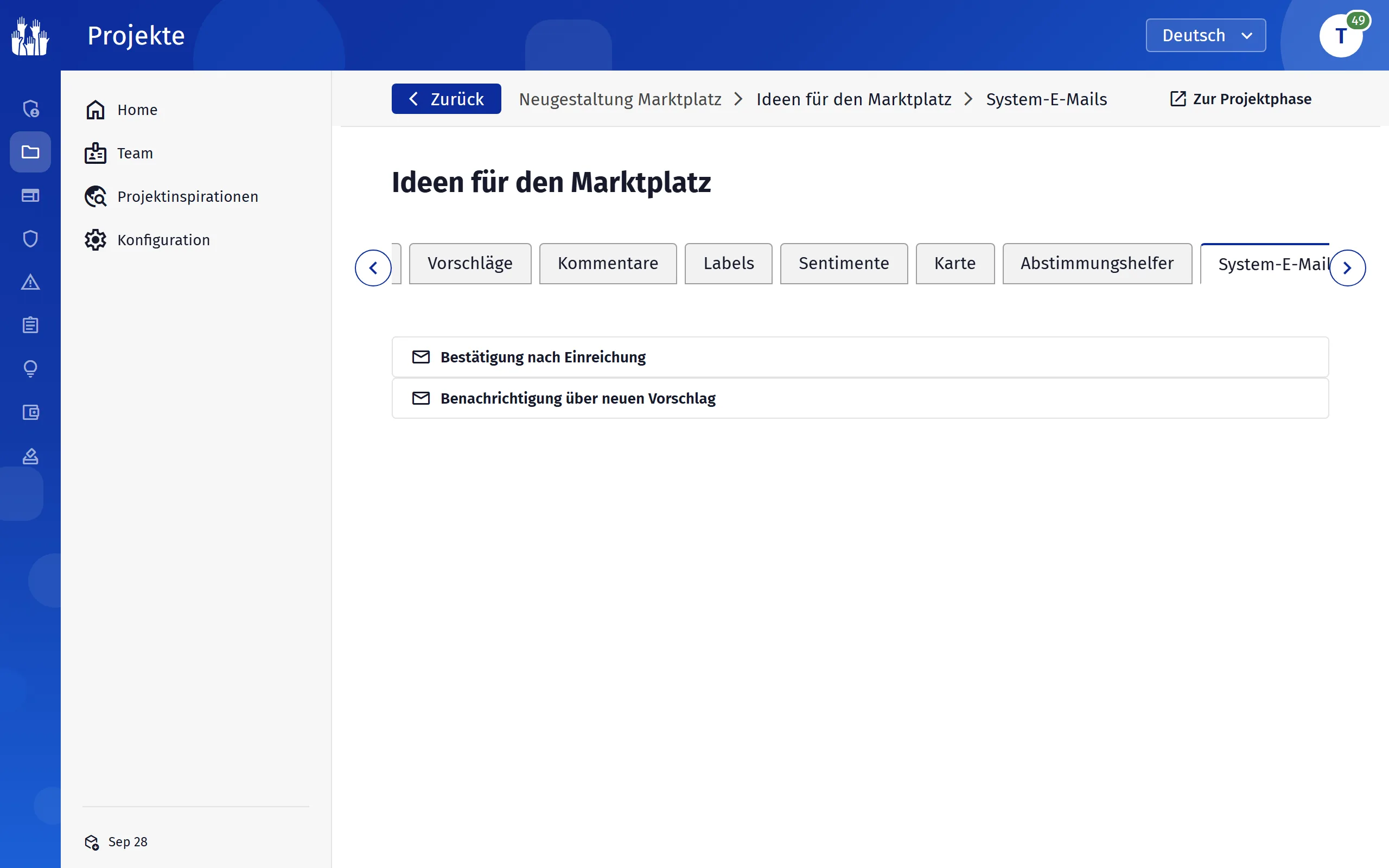
- In the project, open “Participation phases”. For the phase, open the “System emails” tab from the actions menu.
- Expand the email you want. “Trigger” tells you when it is sent. “Default template” shows the current text.
- Enter a “Subject” and “Content”. Take names or links from the “Available variables” list.
- Click “Save”. The email now has the “Customized” badge.
- Check the result with “Send test email to me”.
The decisions
- Which emails are there?
- That depends on the type of phase. For proposals, for example, there are “Submission confirmation” and “Notification of new proposal”.
- Who receives them?
- The badge next to the title tells you. “To: Author” goes to the person who submitted something. “To: Subscribers” goes to everyone who subscribed to the project.
- Only for this phase?
- Yes. Your changes apply to this one phase only. Other phases and projects keep their own texts.
Pitfalls
Your text completely replaces the “Default template”. Insert links using the variables, or they will be missing from the email.
“Send test email to me” only appears after you have customized and saved the email.
An administrator customizes emails that are not tied to a phase in the administration under “System emails”.