
Guides
Guide
Project manager
Project manager
You want to fill the project page with text, images, and sections the way visitors should see it.
Designing the project page
Your goal
You want to fill the project page with text, images, and sections the way visitors should see it.
Open project area
What you need
- The project has been created.
- You have the “Administer project” permission in the project.
How to do it
- In the project’s menu, open “Go to project page”. “Admin view” must be selected at the top left.
- Click the plus between two blocks and pick a template in the template catalog. It appears at that spot with sample text.
- Hover over a block, click the pencil, and write directly in the page. Click “Save”.
- In the text editor, replace sample images with your own from the media gallery using “Replace image”.
- Move blocks by the handle and delete unneeded ones with the trash can. If a block should appear only for a while, enter “Visible from” and “Visible until” using the calendar icon. “Reset” removes the period again.
- Check the page with “User view”.
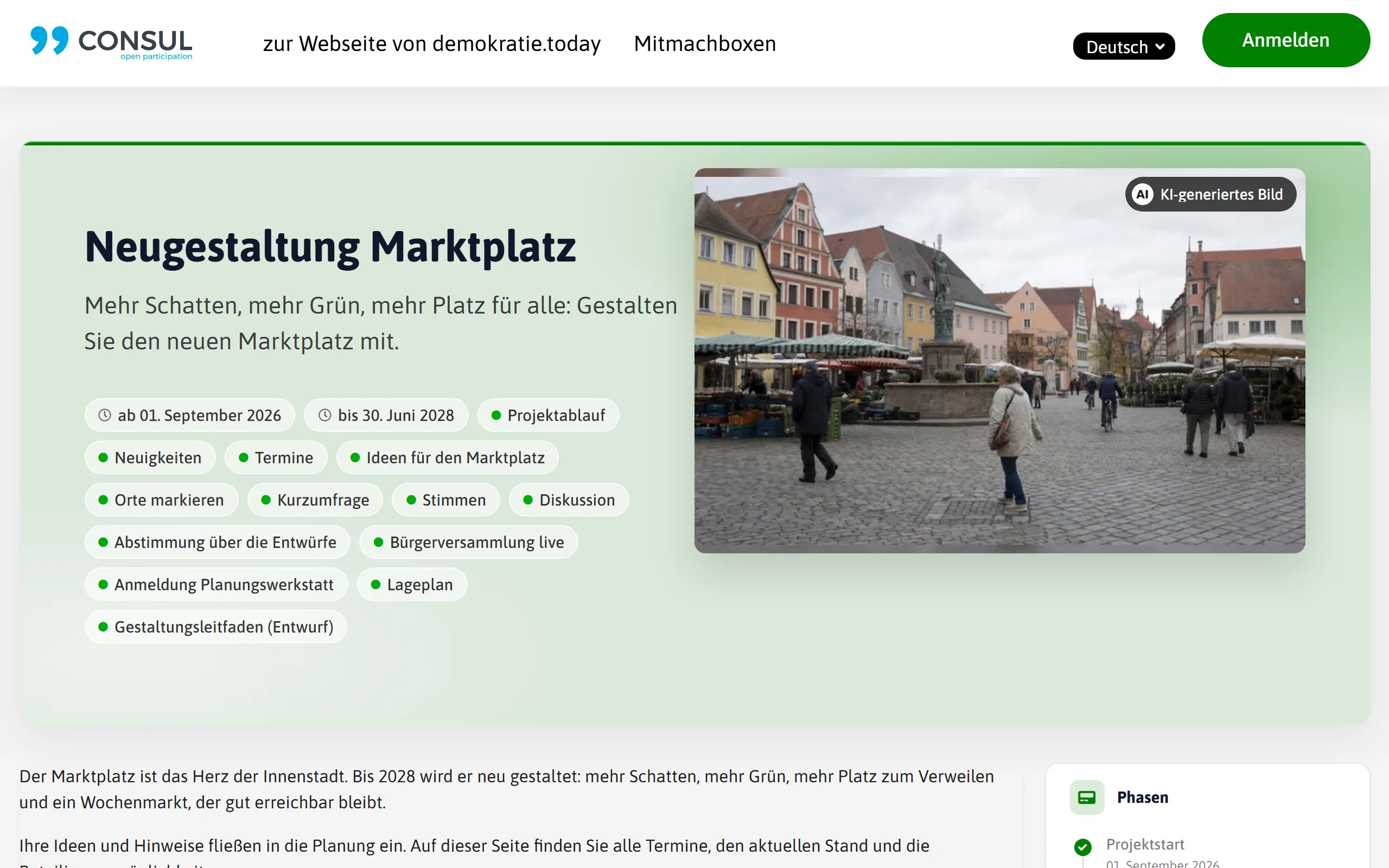
The decisions
- Template or AI?
- A template gives you a structure and sample text that you fill in yourself. With “Create with AI” in the template catalog, you describe what the block should show, and the AI designs it to fit the project.
- Rewrite it yourself or let the AI revise it?
- The pencil opens the text editor. The magic wand opens the AI editor, where you give an instruction, for example “Make the text shorter and use plain language.” If the AI should change the text as well as the design, select “Allow text content modification”.
- Your own image or an AI image?
- You upload your own images through the media gallery. The AI creates a cover image when you use the magic wand in the image area and click “Generate”, from your own prompt if you like.
- Background and color?
- In the bar at the top of the project page, you show or hide the background behind the content and set your own project color.
The AI features are available if AI is set up on your platform.
Next steps
- Create the participation phases, for example to collect ideas or run a poll.
- To find out when and where visitors see the page, read Set where the project appears.
Pitfalls
The block shows the AI editor’s suggestion after a few seconds, but it is not saved yet. “Save” applies it. “Cancel” leaves everything as it was.
A block from “Create with AI” and an AI cover image, on the other hand, are saved immediately. Check both before you publish the project.
An AI cover image automatically carries the label “AI-generated image”. If you upload an image yourself that was created or edited with AI, turn on the “AI” switch. The label is required by law.