
Guides
Guide
Project manager
Project manager
You want to make the project available to visitors and decide where it appears on the platform.
Set where the project appears
Your goal
You want to make the project available to visitors and decide where it appears on the platform.
Open project area
What you need
- The project has been created.
- You have the “Administer project” right in the project.
How it works
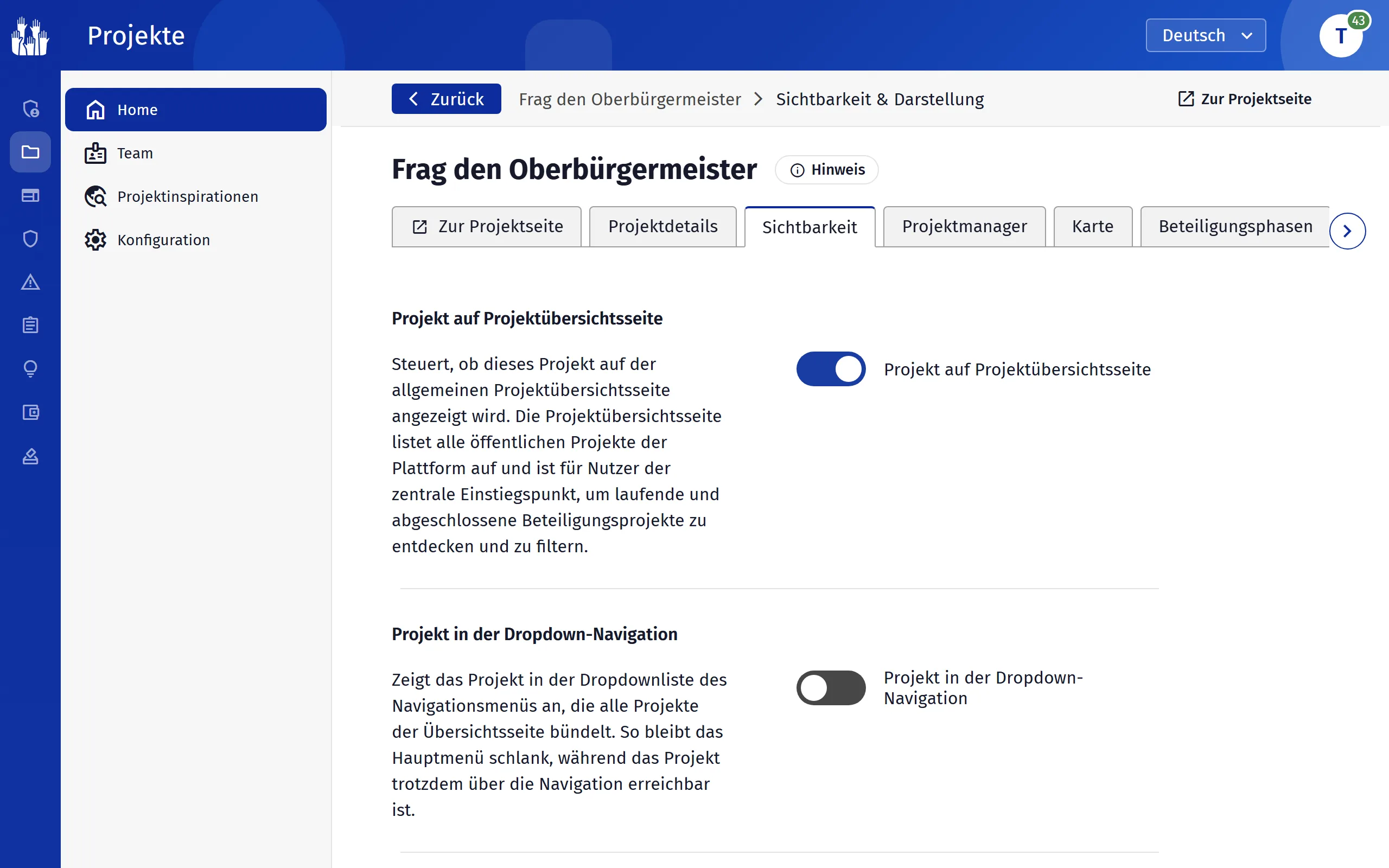
- In the project menu, open “Visibility”. On the “Visibility & display” page, use the switches to set where the project appears.
- Open “Go to project page”. In the “Admin view”, use the eye icon to show or hide each area of the sidebar, such as phases, map or sharing.
- Under “Participation phases”, check which phases are “Active” and “Visible”.
- Check the page with “User view”.
- In the project menu, open “Project details” and turn on “Project activated”. Only then can visitors see the project.
The decisions
- Where should the project appear?
- “Project on projects overview page”, “Project on the homepage”, “Project in the navigation menu”, “Project in the dropdown navigation”. Only a few central projects belong in the navigation menu.
- In the project filter of the overviews?
- “Project in the sidebar filter” adds the project to the filter that visitors use to narrow proposals, debates and polls by project.
- Findable through search engines?
- “Search-engine indexing”. If it is off, the page is still reachable through the platform, but it does not appear in search engines.
- Show the project as ongoing between two phases?
- “List project as active participation” lists the project in the overview as active participation, even when no phase is running.
- Only for certain groups?
- “Restrict visibility to strong groups” appears if strong groups are set up on your platform. Then only their members can see the project.
Common pitfalls
As long as “Project activated” is off, only administrators and the responsible project managers can see the project. New, imported and copied projects start deactivated.
The “Area allocation” in the project details is only a filter option of the projects overview. It does not change visibility. You set who can take part for each phase under “Participation restriction”.
A phase that is “Active” but not “Visible” has no tab in the project’s navigation bar. It can still be reached through its address.