
Guides
Guide
Project manager
Project manager
You want to bring another web page or a news feed into the project page as its own phase.
Embed external content
Your goal
You want to bring another web page or a news feed into the project page as its own phase.
Open project area
What you need
- The project has been created.
- You have the “Administer project” right in the project.
- You have the address of the web page or the widget at rss.app.
How to: embed a web page
- In the project, open “Beteiligungsphasen” (participation phases), click “Create new phase” and select “Iframe”.
- On the “Features” tab, enter the “Iframe URL”.
- If needed, adjust “Iframe width” and “Iframe height”. The defaults are 1240 and 800 pixels.
- Set “Duration” and “Participation restriction”. Outside these settings, visitors see a notice instead of the content.
- Open the project page and check that the content appears.
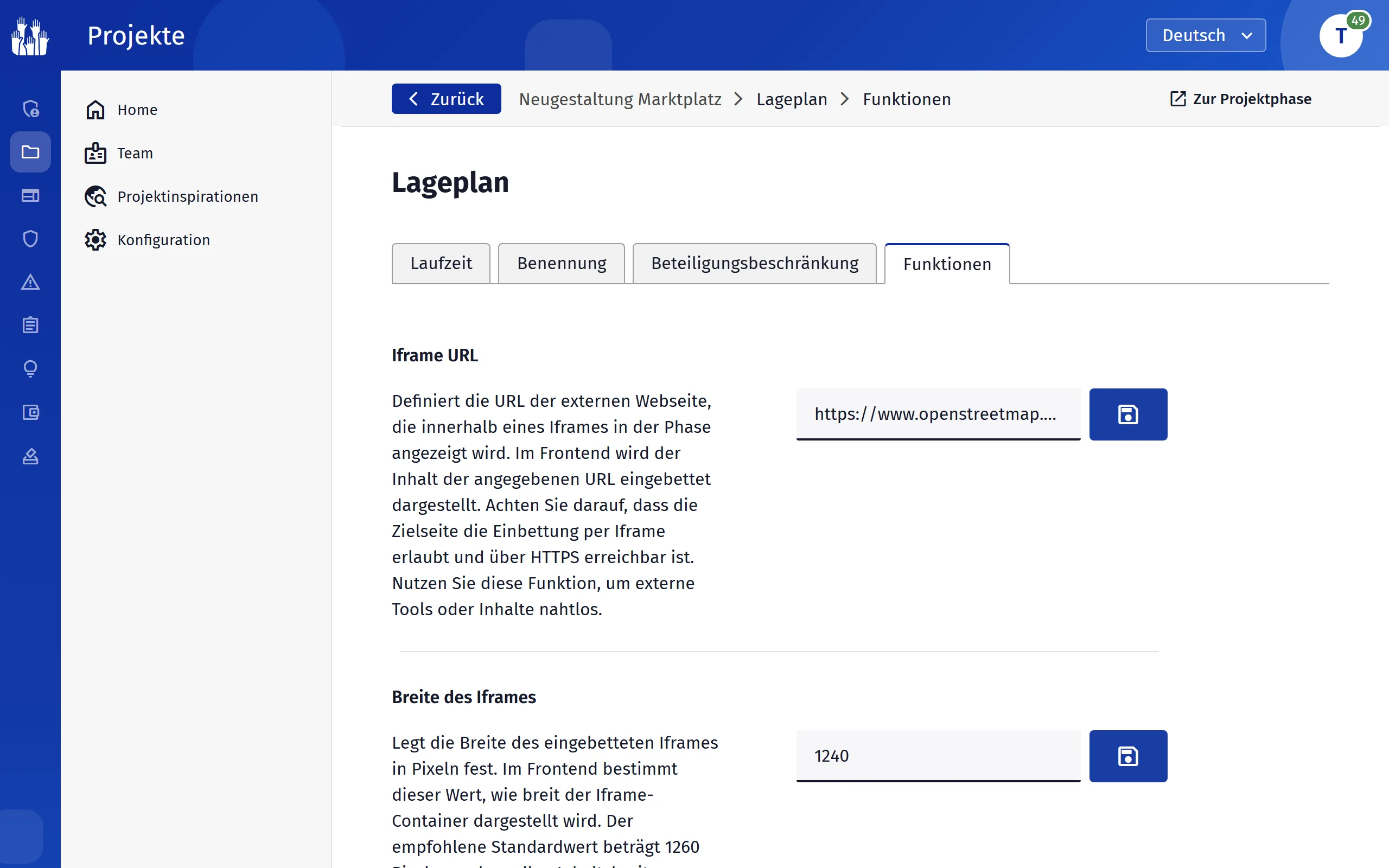
How to: show a news feed
- At rss.app, create a widget for your feed.
- In the project, create a new phase with the participation module “Newsfeed”.
- On the “Features” tab, enter the “Newsfeed ID” of the widget.
- Under “Newsfeed type”, enter the display style: “wall”, “list”, “feed”, “carousel”, “ticker” or “magazine”.
- Check the feed on the project page.
Decisions
- Iframe or newsfeed?
- An iframe shows any web page, with a duration and a participation restriction. The newsfeed shows a widget from rss.app, with no duration and no restriction.
- Data protection?
- For iframes, there is the platform-wide “Two-click solution for iframes” under “GDPR”. The content then loads only after a click. Only administrators can turn it on.
Common pitfalls
The target page must allow embedding by iframe, or its content does not appear. Check the phase on the project page before it starts.
For the newsfeed, spelling matters: A value under “Newsfeed type” that is not in the list shows nothing.