
Guides
Guide
Project manager
Project manager
You want to end participation and mark the project as completed, hide it, or remove it entirely.
Close a project
Your goal
You want to end participation and mark the project as completed, hide it, or remove it entirely.
Open project area
What you need
- You have the “Administer project” right in the project.
How to do it
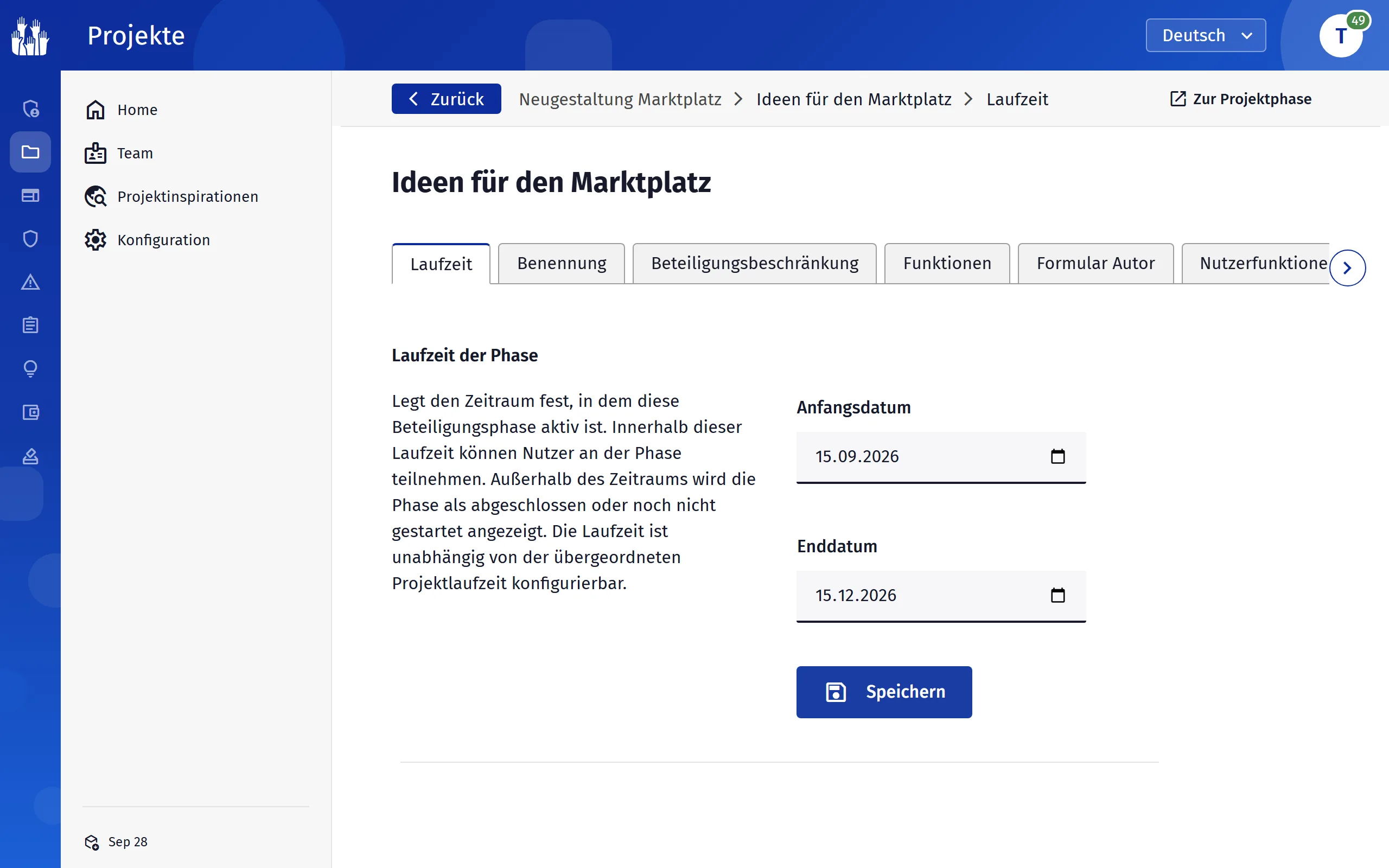
- Under “Participation phases”, check that every phase has an end date on the “Duration” tab. After that day, the phase shows “This project phase has already expired”.
- In the project menu, open “Project details” and enter the end date under “Duration”. With “Show end date in project”, you also show it to visitors.
- Click “Save”.
- Evaluate the participation and back up the data. See Evaluate and export results.
After the end date, the project counts as “Expired” on “Home”. In the project overview, it appears on the “Completed” tab, if it is shown there.
The decisions
- Close, hide or delete?
- With the end date, the project stays visible as completed. If you turn off the “Project activated” switch in the “Project details”, visitors no longer see it, but everything is kept in the administration area. “Delete” removes it entirely.
- How do you delete a project?
- In the project table on “Home”, open the actions for the project and choose “Delete”. The prompt warns you that all phases are deleted too.
Common pitfalls
You cannot undo a deletion. Export contributions and results first.
If the project has subprojects, they are kept when you delete it and then stand on their own.
Polling officers record votes on site until the “Lock date”, even if the poll’s duration has already ended. See Run a poll.
Administrators and project managers with “Administer project” can still take part after the end. So check the end with an ordinary account.