
Configure a project
You configure a project in two places: directly on the project page and in the project menu.
On the project page
At the top of the project page, you see a bar.
- “Admin view”, “User view”
- Switch between the two views.
- Background and project color
- Show or hide the background behind the content and set a custom project color.
- “Notify reviewers”
- Informs colleagues who are supposed to review the project.
The sidebar contains areas such as phases, map or sharing. You show or hide each of these areas for the public.
The project menu
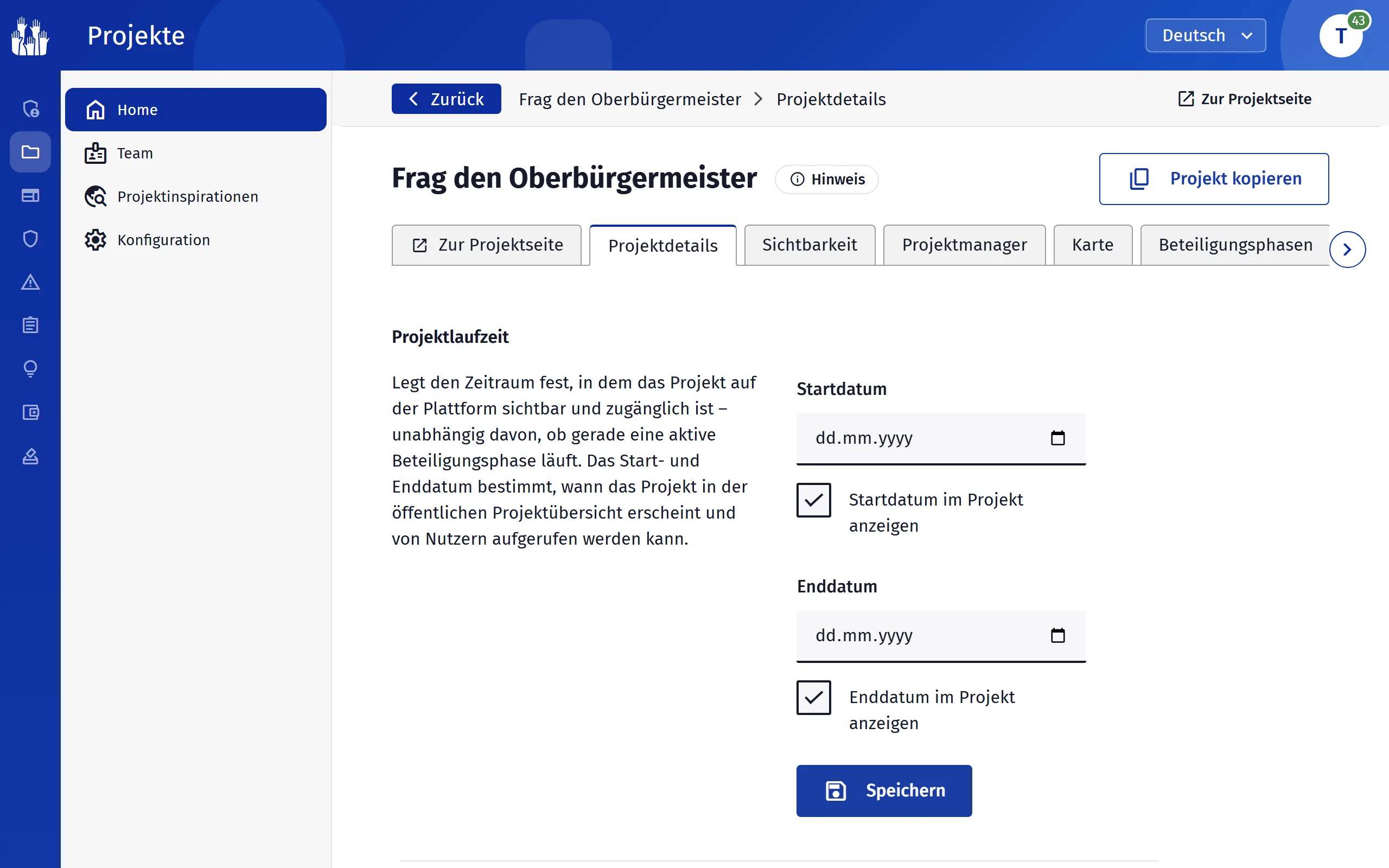
- “Project details” Project duration, assignment to a topic page or a parent project, area assignment and the path in the project’s web address. Here you make the project available to visitors with “Project activated”.
- “Visibility” Where the project appears and whether search engines can find it.
- “Project managers” Who works on the project and with which permissions. Team
- “Map” Map section, markers and custom map layers.
- “Participation phases” The phases of the project. Participation phases
- “Images”, “Documents” The project’s files.
Copy a project
In the project details, you copy the whole project at the top right. The copy is deactivated and includes phases, settings, content and maps.
Participants’ contributions, votes, comments and subscriptions are not copied.
Visibility
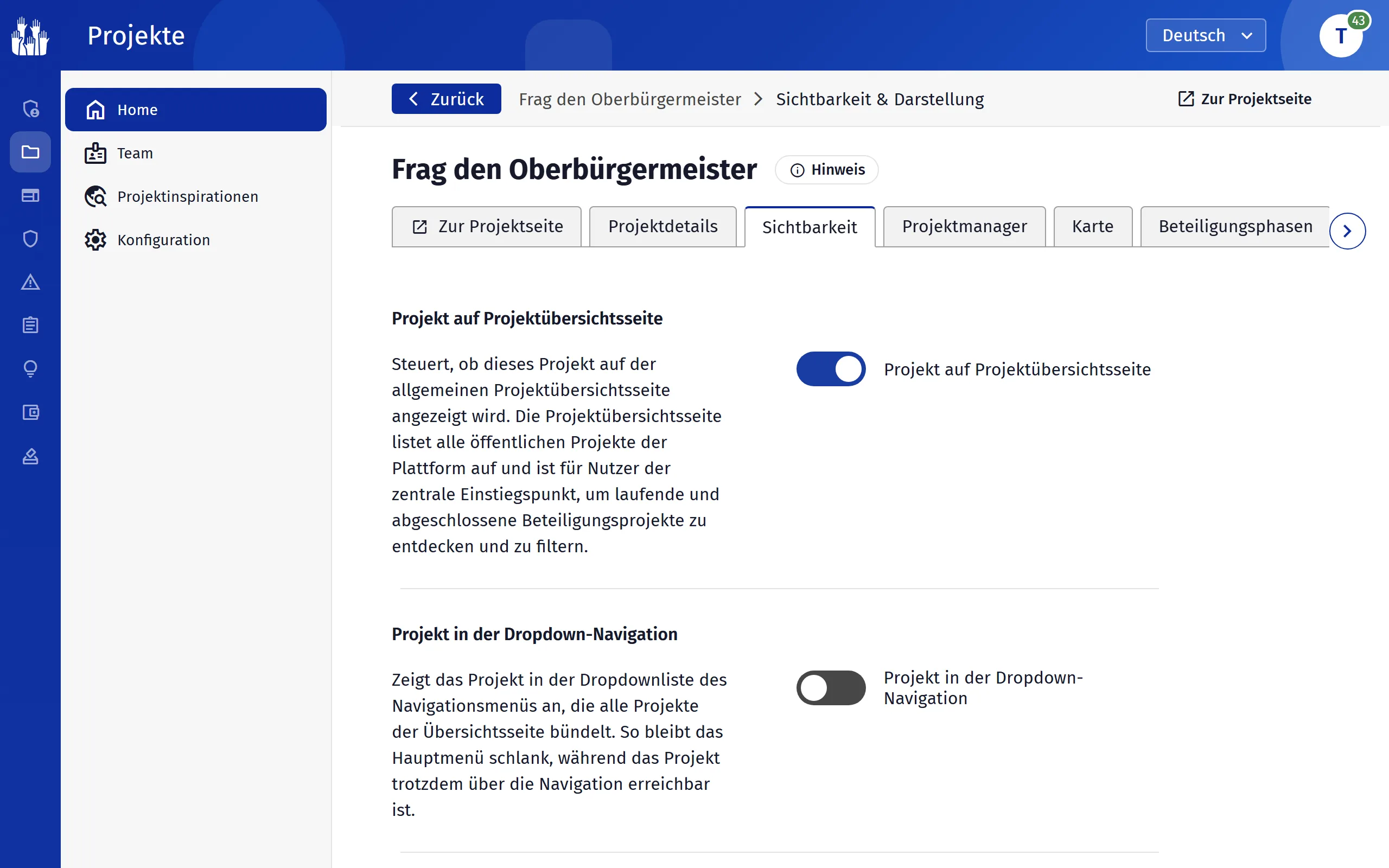
On the “Visibility” tab, you decide where the project appears:
- on the project overview
- on the home page
- in the navigation
- in the sidebar filter
You also set here whether search engines can find the project.
Step by step: Decide where the project appears
Evaluation
The evaluation creates a report on all contributions at the push of a button. If you want, it adds an analysis by AI.
Step by step: Evaluate and export results