
Content blocks and AI
A project page is made up of content blocks. Each block is a section of the page, such as an introduction, a timeline, or an image slider. You assemble blocks from templates, edit them right on the page, and get help from AI as you work.
Working with templates
- Click the plus between two blocks. The template catalog opens.
- Choose a template. The templates are sorted by topic, such as “Basis” (basics), “Hero” (hero banners), “Media” (media), “Layout” (layout), “Daten” (data), and “Interaktionen” (interactions).
- One click inserts the template with sample text at this spot on the page.
Step by step: Designing the project page
Editing content
Text
- Hover over a block and click the pencil, the text editor.
- Write directly on the page.
- Click “Save”.
Images
- In the text editor, hover over the image and click “Replace image”.
- Upload your own image in the media gallery and select it.
- Save the block.
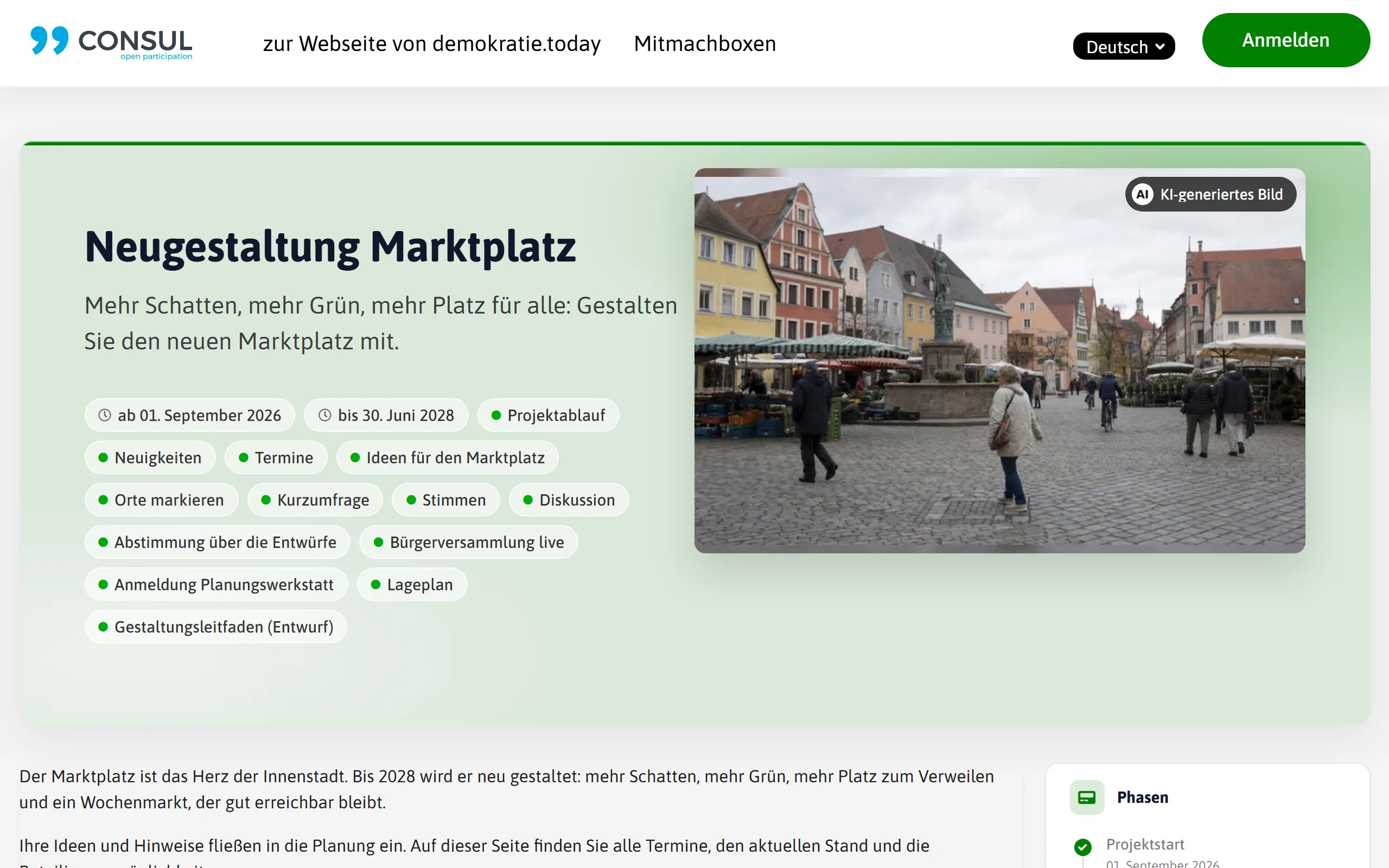
If your image was created or edited with AI, fully or in part, turn on the “AI” switch (“This image was created or edited with AI”). The image then shows the public label “AI-generated image”. This label is required by law.
The toolbar
Every block has its own toolbar.
- Handle
- Moves the block.
- Code editor
- Shows the HTML view.
- Trash can
- Deletes the block.
- Magic wand
- Opens the AI editor.
Working with AI
The AI features are available if they have been set up on your platform.
Revising a block
- Click the magic wand in the toolbar. The AI editor opens.
- Enter an instruction, for example: “Make the text shorter and use plain language.”
- If you want the AI to change the text and not just the design, select “Allow text content modification”.
- After a few seconds, the block shows the suggestion. Nothing is saved yet.
- Click “Save” to accept the change. Click “Cancel” to keep everything as it was.
Drafting a new block
- In the template catalog, click “Create with AI”.
- Describe what the block should show, for example a notice about an information event.
- The AI designs the block to fit the project and inserts it at the position you chose.
The block is saved right away. You can edit it like any other block.
Generating a cover image
- Click the magic wand in the image area. If you like, enter your own prompt.
- Click “Generate”.
- The image appears after a short time.
The image is saved right away. It automatically carries the label “AI-generated image” so that visitors can tell.
Use “User view” to check at any time how the page looks to visitors.