
Reference
Reference
Projects
Projects
A new project needs only a name at first. You then build the project page with AI, from templates, or with no starting point.
Create a project
A new project needs only a name at first. You then build the project page with AI, from templates, or with no starting point.
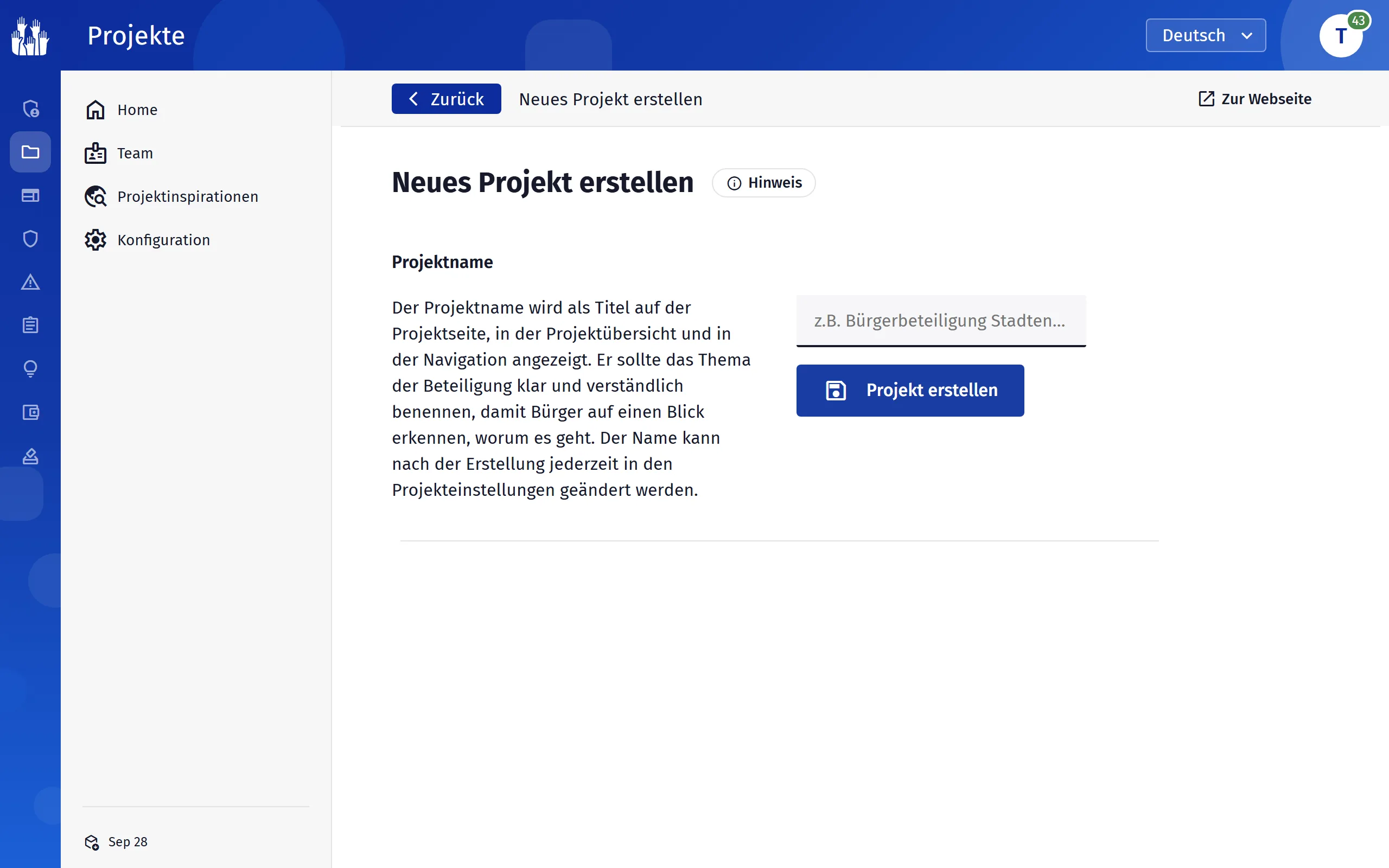
Create a new project
- In the project area, click “New project”.
- Enter a name. Only the name is required. You can add everything else later.
- Click “Create project”.
You go straight to the new project page. At first, the project is a draft and not visible to visitors.
Four ways to start
On the empty project page, you choose how to begin:
- Import a file The AI builds the page from a document. Import a project
- Enter prompt You describe the project in your own words, and the AI creates the page.
- Choose a template You put the page together from the template catalog. Content blocks and AI
- Empty block You start with no starting point.
The AI features are available if they are set up on your platform.
Create the page with a prompt
- Choose “Enter prompt”.
- Describe what the project is about, what is planned, and how citizens can take part.
- Click “Generate content”.
- The AI turns this into content blocks from your platform’s template collection. After about a minute, you have a project page with an introduction, process, schedule and notes on how to take part.
You can then edit all texts and images freely.
Before you publish, check the page in “User view”. It shows the page the way visitors see it.
You can find settings for duration, visibility and map under Project settings.