
Reference
Reference
Projects
Projects
You don’t always have to build a project from scratch. In the project area, open “Import projekt” and choose one of three ways.
Import a project
You don’t always have to build a project from scratch. In the project area, open “Import projekt” and choose one of three ways.
- “From a file” The AI reads a document and prepares a project from it.
- “From a URL” The AI reads a public web page, such as a press release.
- “From a Consul projekt” Takes over a project from another Consul platform, with no AI at all.
The file and URL imports are available if the AI features are set up on your platform.
From a file
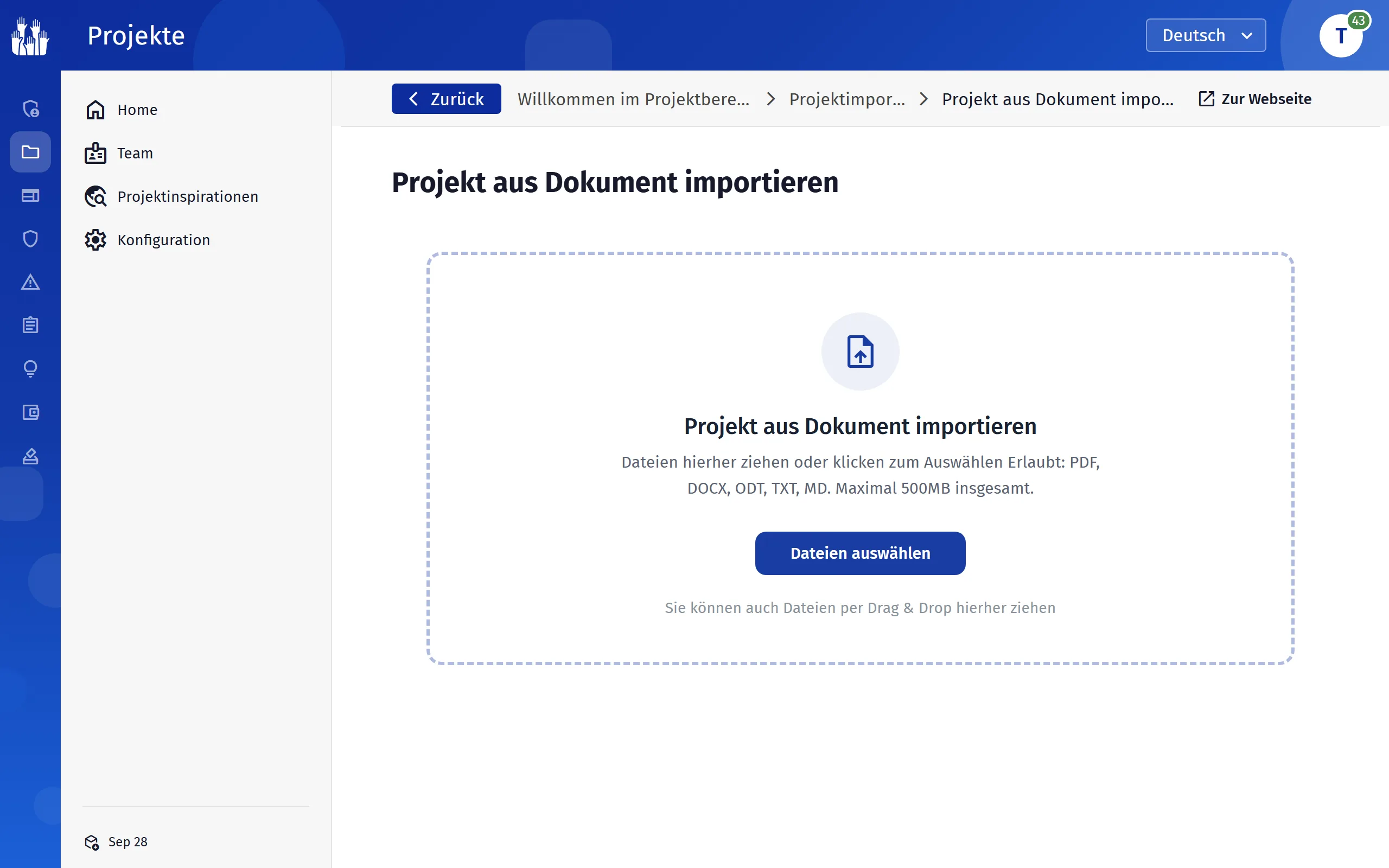
Upload the document
- Choose “From a file”.
- Upload a concept, a report, or a call for tenders as a PDF, Word, ODT, text, or Markdown file.
- In the “Zusätzlicher Kontext” (additional context) field, give the AI hints, for example about the target group or the phases you want.
- Click “Import document”. The AI reads the document. This usually takes one to two minutes.
Check the result and import
- A chat opens. The AI summarizes what it recognized: title, subtitle, period, categories, phases, and content blocks.
- If something is unclear, it asks questions.
- Correct anything in the chat, for example the name of a phase. The AI applies the change and confirms it. If you want to remove a phase or replace the content blocks, the AI only suggests it. The suggestion appears below its message. It is applied only when you click “Apply”. If you click “Discard”, everything stays as it was.
- Click “Import projekt”. The dialog shows the title, categories, and phases once more.
- With “Import now”, the platform creates the project with all phases and content blocks.
From a URL
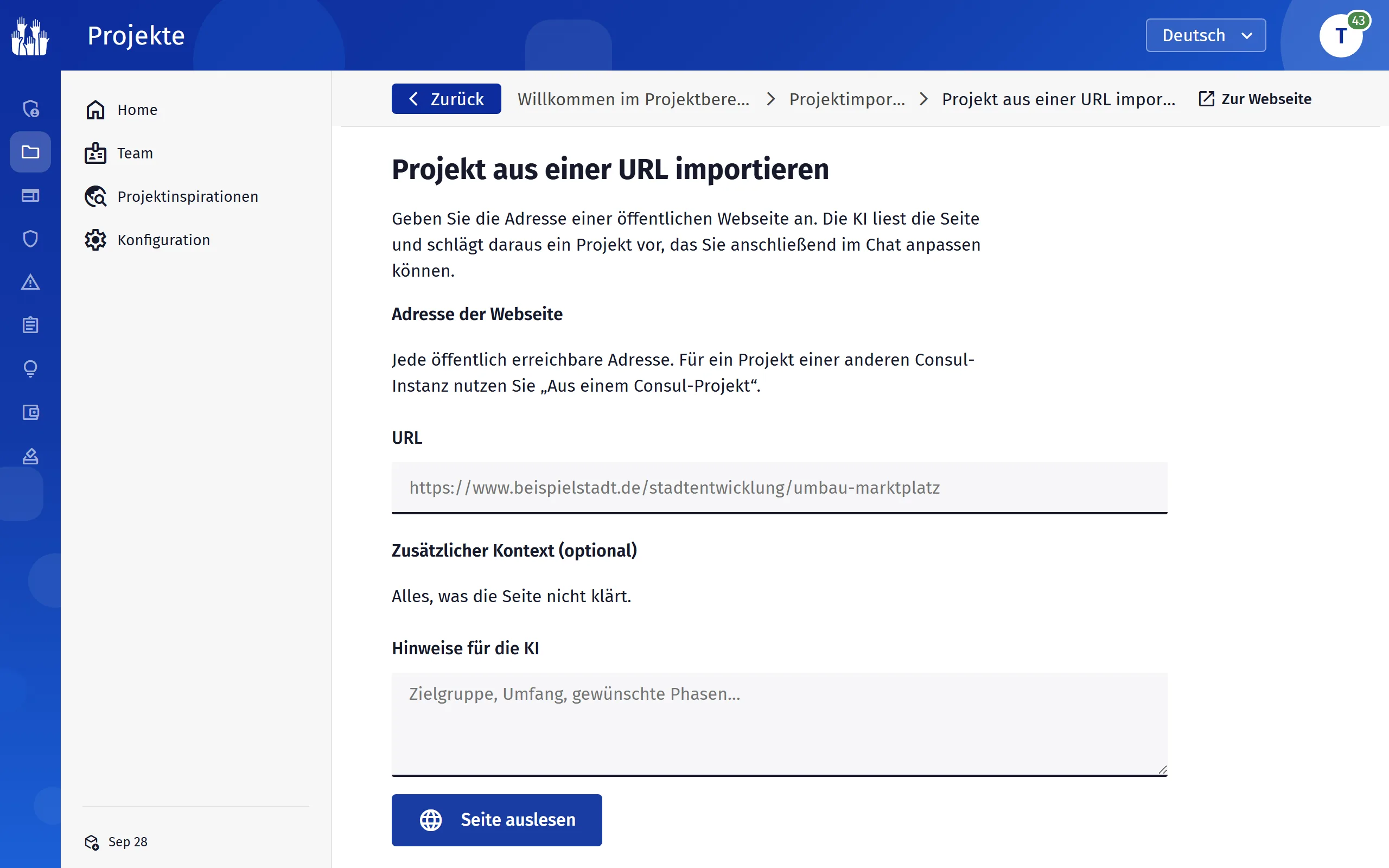
- Choose “From a URL” and enter the address of a public web page.
- If you like, give the AI hints.
- Click “Read the page”. The AI prepares a project from it.
- Check the result in the chat, as with the file import, and apply it with “Import projekt”.
This way does not carry over images. You add them yourself.
From a Consul project
You can find suitable projects, for example, under “Projektinspirationen” (project inspirations).
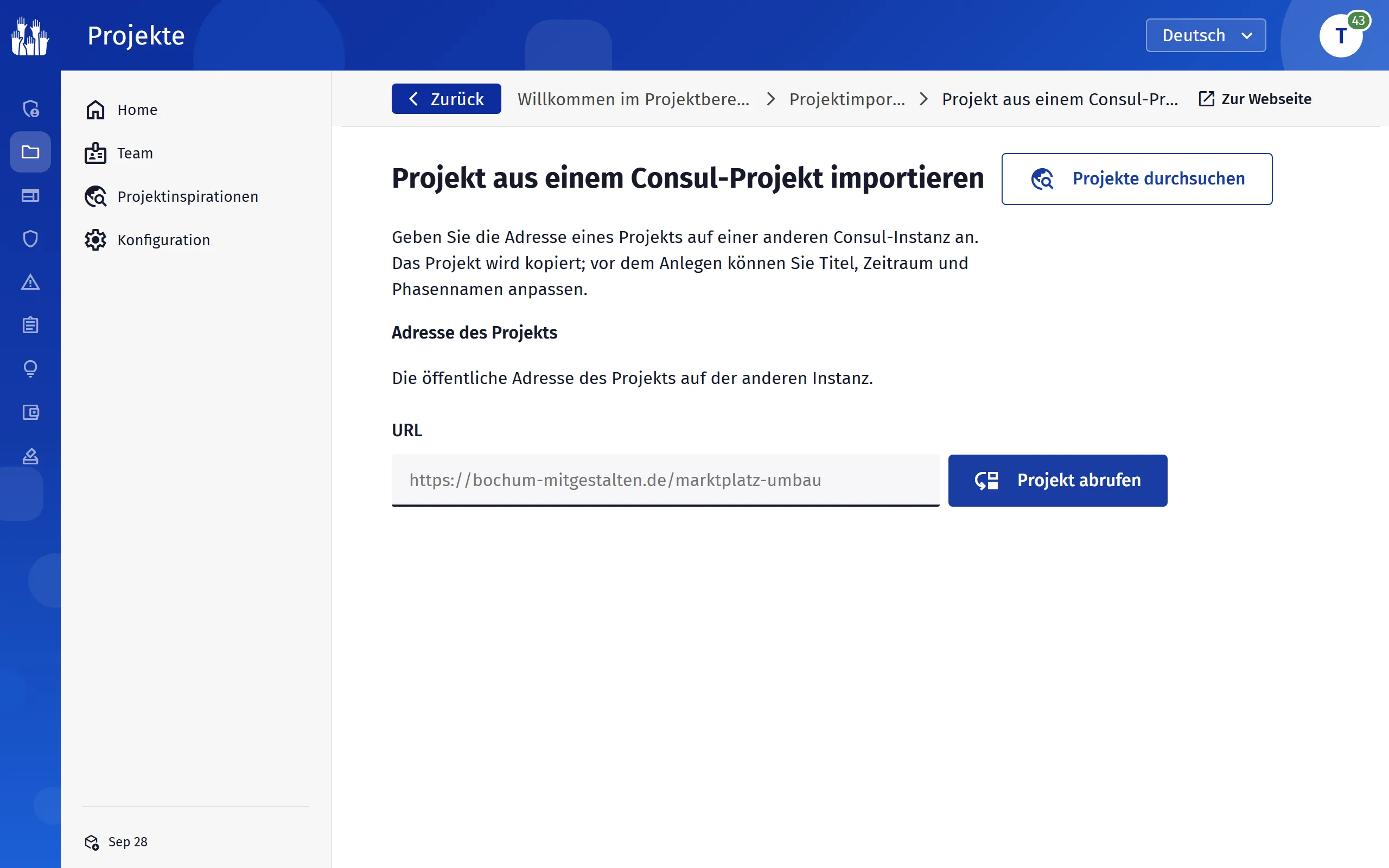
- Choose “From a Consul projekt” and enter the public address of the project.
- Click “Fetch projekt”.
- On the “Review the import” page, adjust the title, the period, and the names of the phases. At this point, the project has not been created yet.
- “Create the projekt now” creates the copy. It then appears in your project list, with all phases, settings, and content blocks.
Files and images are not transferred. They appear as placeholders.
After the import
An imported project always stays deactivated until you activate it. Check the page first with “User view”.
Under “Projekt imports”, you can see which imports have already run.