
Reference
Reference
Projects
Projects
In the project area, you create and manage participation projects. A project can contain several participation phases, for example surveys, proposals, polls or events. For each project, you set the duration, visibility and restrictions.
Projects
In the project area, you create and manage participation projects. A project can contain several participation phases, for example surveys, proposals, polls or events. For each project, you set the duration, visibility and restrictions.
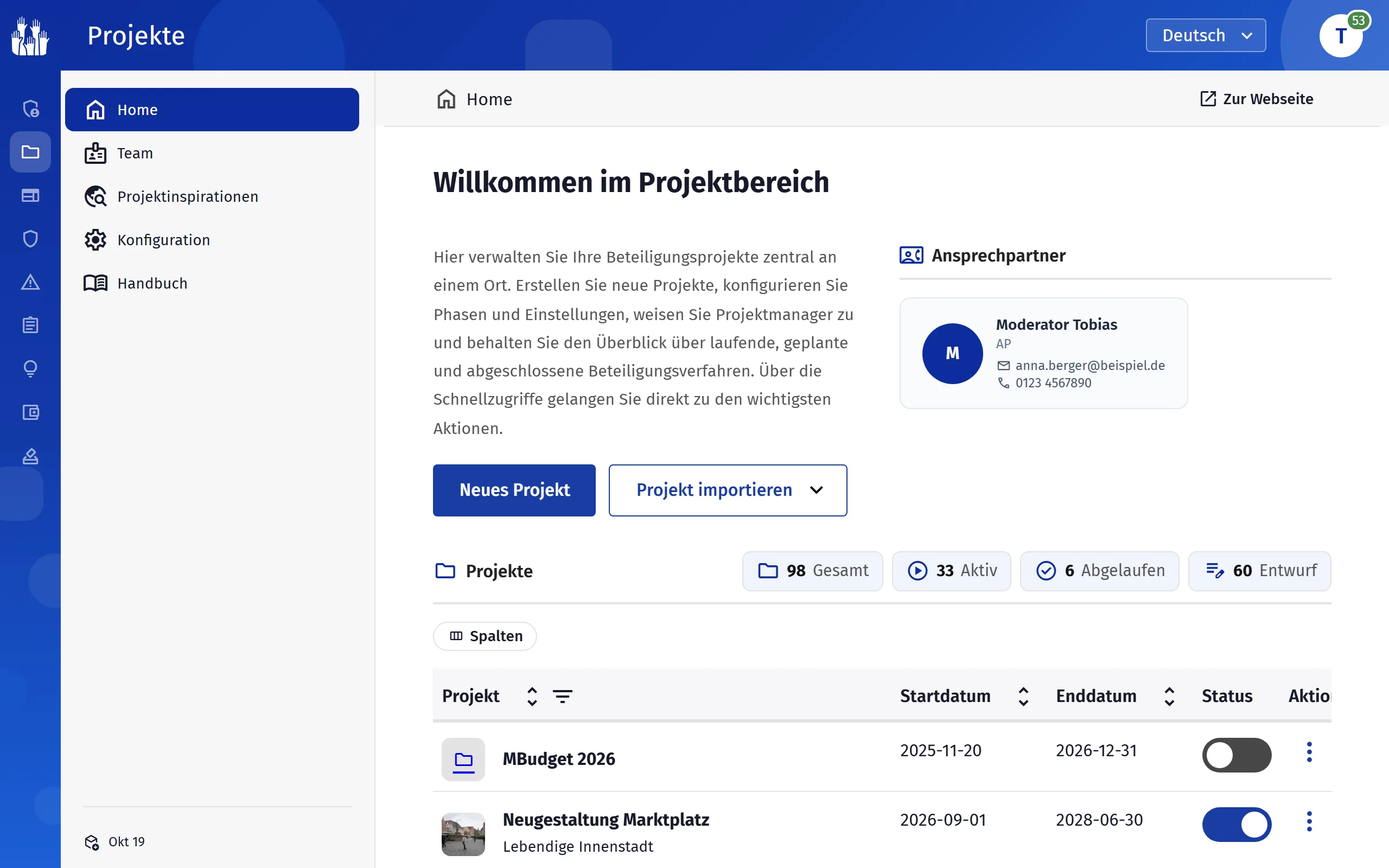
Who has access?
- Administrators See and edit all projects. Only they add new project managers.
- Project managers See the projects they are assigned to.
- Project managers with “Manage all” Have access to all projects on the platform.
You decide which rights a project manager has in an individual project in the project settings.
The menu items
- “Home” Your projects with the figures “Total”, “Active”, “Expired” and “Draft”, plus “New project” and “Import projekt”. Below them are the latest activities and the team.
- “Team” List of project managers. Administrators add project managers here and assign “Manage all”. Administrators and project managers with “Manage all” only
- “Project inspirations” Participation projects from other cities, taken from the project overview on demokratie.today.
- “Configuration” Texts and contact persons for the start page of this area. Administrators and project managers with “Manage all” only
The figures on the start page refer to all projects on the platform, even if you only see some of them yourself.
The configuration
- “Dashboard settings”
- Here you maintain the “Intro text” and the “Notice message” for the start page. With “Notice active”, you show or hide the notice message.
- “Contact persons”
- Who appears as the contact person on the start page.
Next
To learn how to create a project, see Create a project. The import is described in Import a project.