
Guides
Guide
Administrator
Administrator
A colleague should create and manage participation projects.
Invite a project manager
Your goal
A colleague should create and manage participation projects.
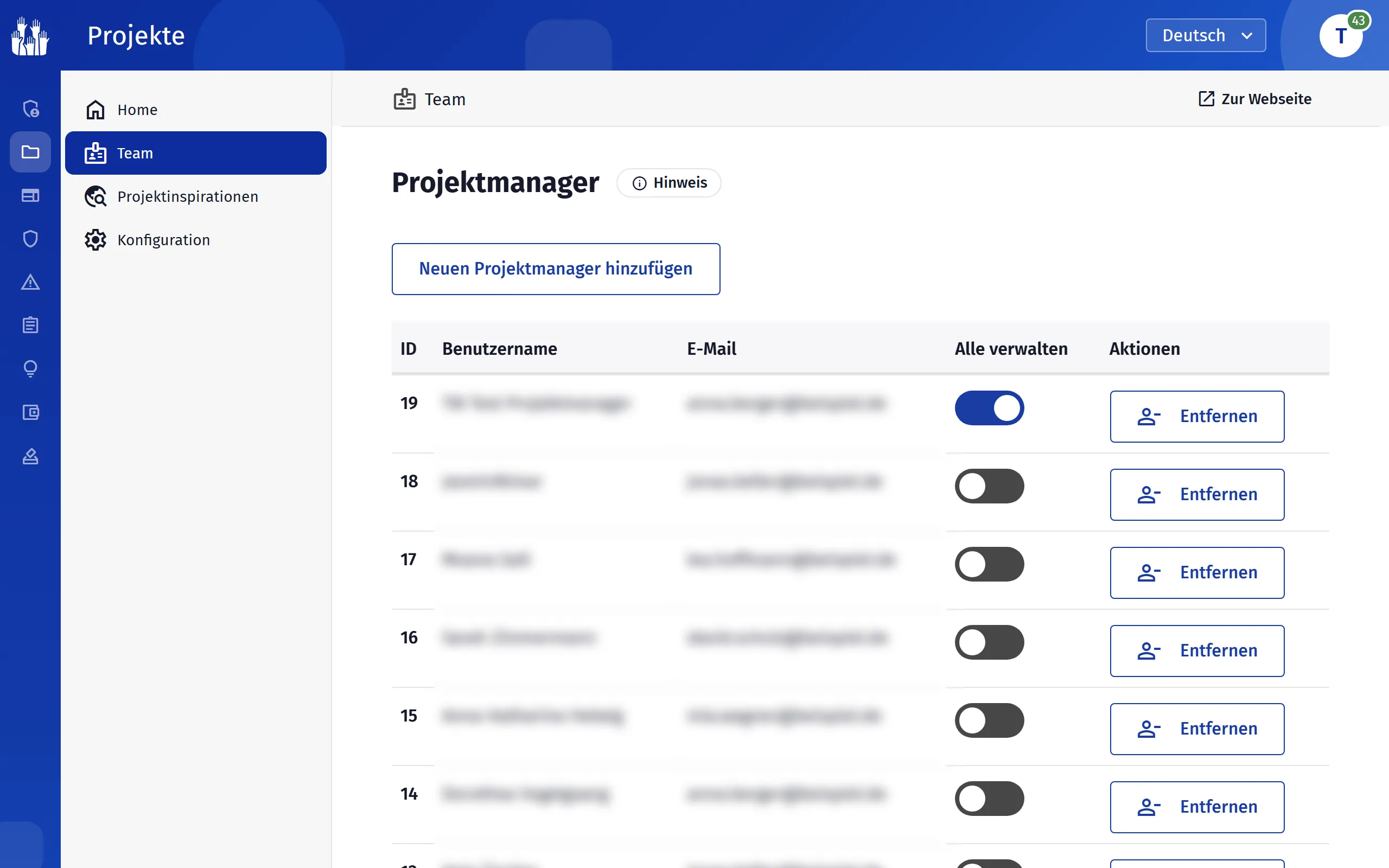
Open “Team” in the project area
What you need
- You are an administrator.
How to do it
- In the project area, open “Team” and click “Add new project manager”.
- Enter the person’s email address in the search field.
- If they already have an account, click “Add”. If there is no account for that email address yet, click “Invite as project manager”.
- The person gets an email with the “Konto erstellen” (create account) button. As soon as they create their account, they have the role and land directly in the project area.
The decision: Which projects?
- Individual projects The person works in the projects they are added to. You set their rights in the project under “Project managers”. Bring the team into the project
- All projects In the “Team” overview, turn on “Manage all”. The person then has access to all projects on the platform, with all rights.
Pitfalls
The role is tied to the email address of the invitation. If the person creates their account with a different address, they do not get the role.
“Invite as project manager” appears only if you enter the full email address and no account exists for it yet.
Open invitations are listed under “Pending role assignments”. There you withdraw an invitation with “Remove”. “Remove” next to a project manager takes away the role. The user account stays.