
Guides
Guide
Administrator
Administrator
You want to correct details in an account, trace changes, export a list, or delete an account.
Manage and export user accounts
Your goal
You want to correct details in an account, trace changes, export a list, or delete an account.
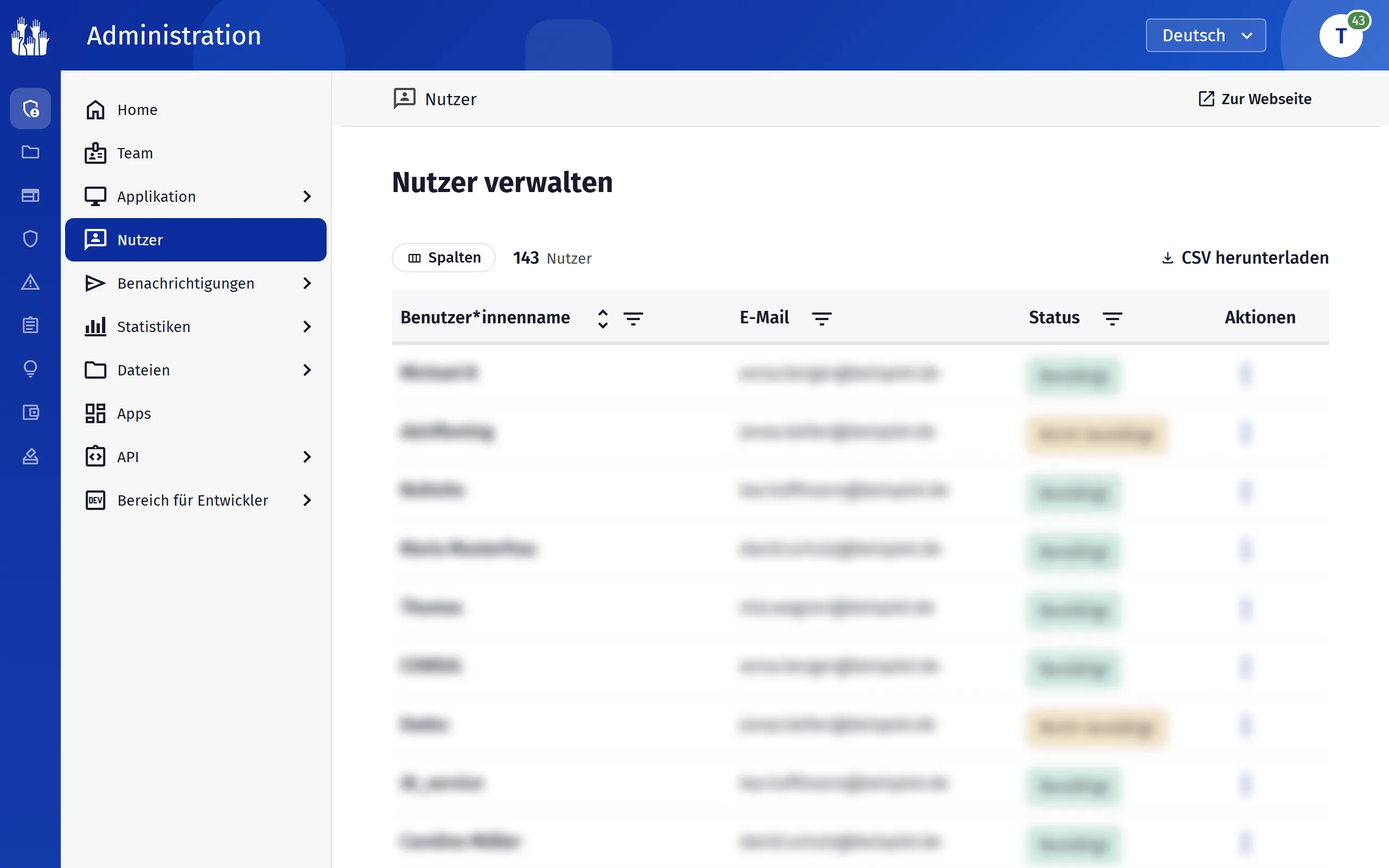
Open “Users”
What you need
- You are an administrator.
How to do it
- Open “Users”. Use “Columns” to show the details you need, such as address, “Roles” or “Created on”.
- Search, filter and sort using the column headers, for example by “Statuses” or gender.
- To correct something, select “Edit” in the row, change the details and click “Save”.
- “Change log” shows what has changed in the account.
- For a list, click “Download CSV”. You get the link to the file by email.
The decisions
- Which accounts go into the export?
- Exactly the current view with all search and filter settings. Set the filters before you click.
- Delete or block?
- “Delete permanently” removes the account and all personal data for good. Anyone who should just stop taking part is blocked.
Pitfalls
A new email address takes effect immediately, without confirmation by the person. Check the spelling. Otherwise the person can no longer log in.
The download link works only for you and only for that day’s file. A second export on the same day replaces the file.
Administrator accounts and your own account cannot be deleted permanently. First remove the person’s role under “Team”.
The list shows only accounts with an email address. Guest accounts do not appear here.