
Reference
Reference
Moderation
Moderation
In moderation, you review posts that users have flagged as inappropriate: proposals, budget proposals and comments. You can also hide or block users here.
Moderation
In moderation, you review posts that users have flagged as inappropriate: proposals, budget proposals and comments. You can also hide or block users here.
Who has access?
- Moderators and administrators open this area, moderate, and maintain the “Configuration”.
- Only administrators manage the moderator team.
The menu items
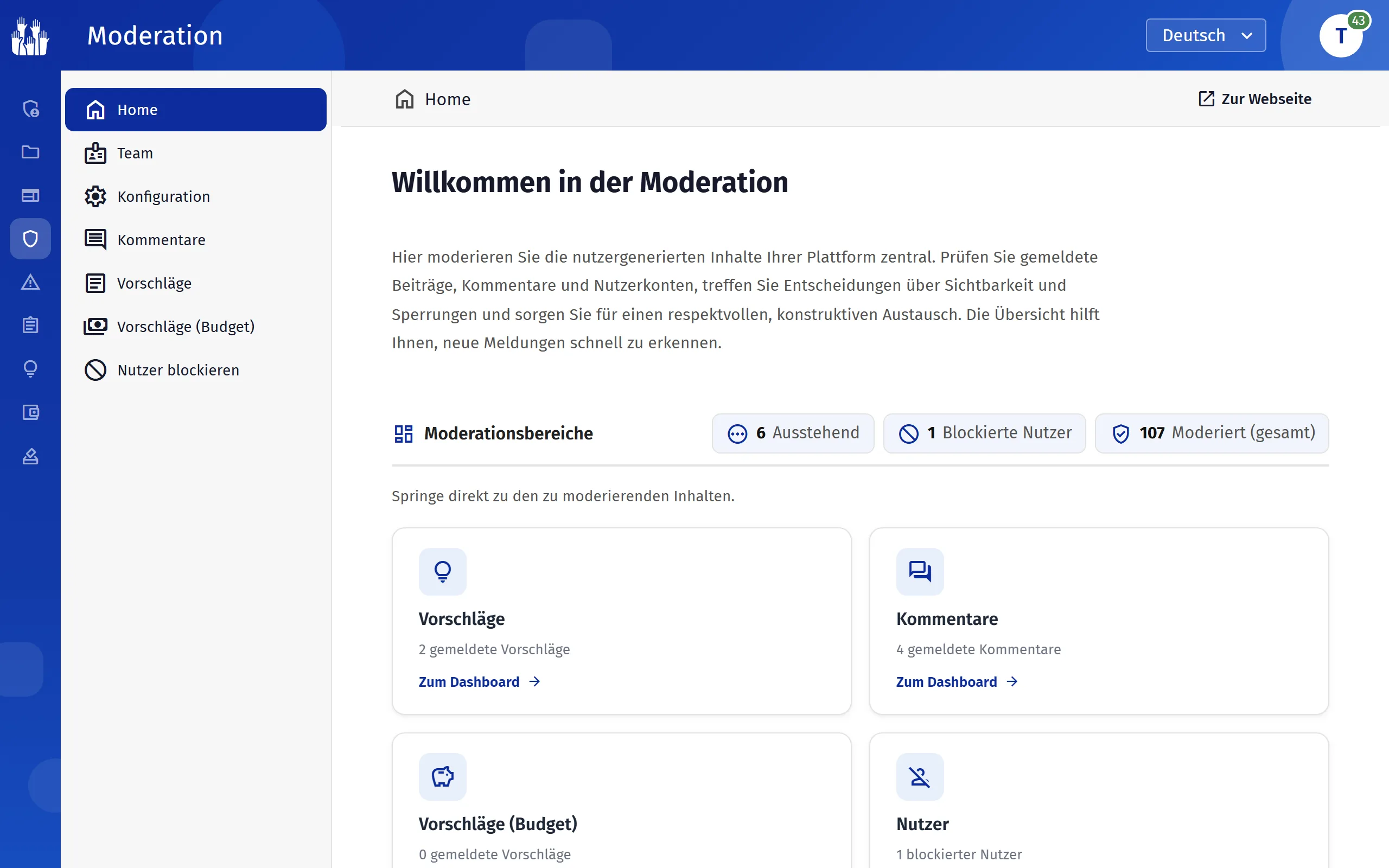
- Home Figures for “Pending”, “Blocked users” and “Moderated (total)”. The tiles lead to the open flags in each area. The “Users” tile leads to the blocked users. Below are recent activity and the team.
- Team The page has the heading “Officer” and lists the moderators. With “Add new moderator” you bring someone onto the team. With “Delete” you remove the role. Administrators only
- Configuration Intro text, notice and contact persons of the home page, see below. Step by step: Set up the moderation home page
- Comments Review flagged comments. You hide the comment or mark the flag as viewed.
- Proposals Review flagged proposals. Hidden proposals are invisible to citizens but stay in the system.
- Proposals (budget) The same for flagged proposals from the participatory budget.
- Nutzer blockieren (block users) You search for users by email address or username and hide or block them.
Everyone who opens the area sees the “Add team member” button in the “Team” box on “Home”. Still, only administrators add new moderators.
The tabs for comments and proposals
“Comments”, “Proposals” and “Proposals (budget)” have the same four tabs.
- “Flagged”
- New flags that nobody has handled yet. This is where the work starts.
- “Ignored flags”
- Flags you have settled with “Mark as viewed”. The post stays visible, and you can still hide it.
- “Hidden”
- Posts that are no longer shown. You bring comments and budget proposals back here with “Restore”. When you hide a post, the author gets an email if an email address is on file.
- “All”
- All posts in the area, including those without a flag.
Step by step: Review flagged posts and Restore a hidden post
The configuration
On the “Dashboard settings” tab:
- “Intro text”
- Appears at the top of “Home” and explains to the team what the area is for. If the field is empty, “Home” shows a default text.
- “Notice message”
- Appears as a yellow info box at the very top of “Home”, for example for deadlines or current agreements.
- “Notice active”
- Shows or hides the notice message without deleting the text.
On the “Contact persons” tab, you add people who appear on “Home” next to the intro text. Each person has a “Role”, an “Email” and a “Phone”.
Hide or block
- Hide
- The user is hidden. Their content stays.
- Block
- The user is hidden, along with their proposals, budget proposals, debates and comments. They also lose their roles.
A person’s ideas and deficiency reports stay visible when you block them.
You can’t hide or block your own account.
Good to know
- “Blocked users” on “Home” counts hidden and blocked users together.
- “Moderated (total)” counts all hidden proposals, budget proposals and comments on the platform.
- With “View proposal” or “View comment” you open the post in a new tab on the website.