
Guides
Guide
Moderation
Moderation
You want to help your team find their way around the moderation home page, using an intro text, a current notice and fixed contact persons.
Set up the moderation home page
Your goal
You want to help your team find their way around the moderation home page, using an intro text, a current notice and fixed contact persons.
Open “Configuration”
What you need
- You are a moderator or administrator.
How to do it
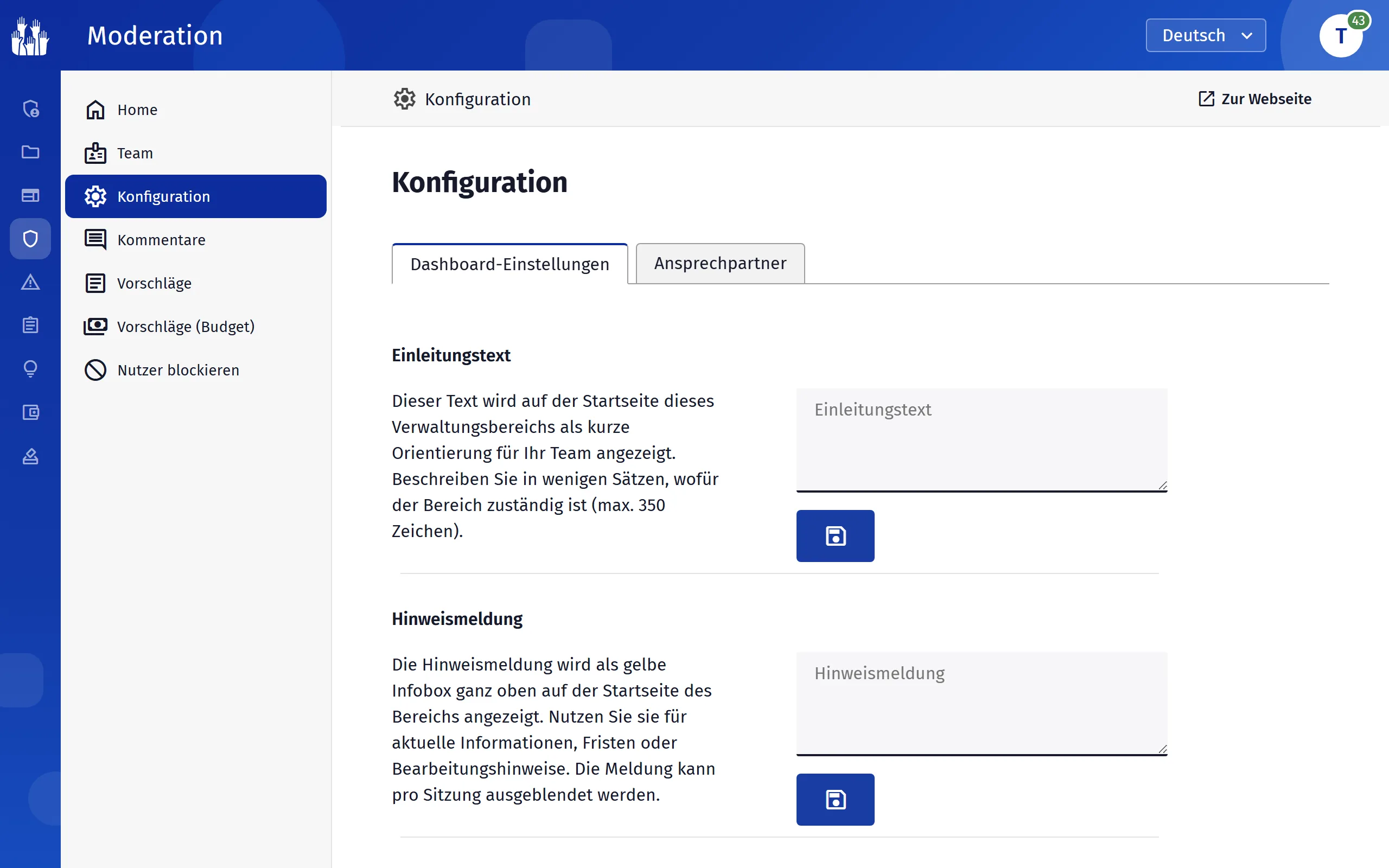
- In moderation, open “Configuration”. The “Dashboard settings” tab is open.
- Under “Intro text”, write a few sentences on what your team is responsible for. Save with the button with the save icon below the field.
- If needed, enter a “Notice message”, such as a deadline, and save it the same way.
- Turn on “Notice active”. The notice now appears as a yellow info box at the top of “Home”.
- Switch to the “Contact persons” tab and click “Create new contact person”.
- Under “Users”, enter at least two characters of a name or email address and click “Select” next to the person.
- Fill in “Role”, “Email” and “Phone” and click “Create”.
The decisions
- Custom intro text or default?
- If “Intro text” stays empty, “Home” shows a default text from the platform. Your own text should be no longer than 350 characters.
- Notice for a limited time only?
- Turn “Notice active” off again. The text stays saved, and you can show it again later.
- In what order are the contact persons listed?
- By the “Position” field. Lower values come first.
Common pitfalls
Each text field has its own save button. “Notice active” saves immediately when you switch it.
The platform does not take a contact person’s email address and phone number from their user account. “Home” shows only what you enter in “Email” and “Phone”.
To change or remove contact persons, use “Edit” and “Delete” in the “Contact persons” tab.