
Guides
Guide
Administrator
Administrator
You want to upload a document or image to the platform and link to it in a text.
Upload and link files
Your goal
You want to upload a document or image to the platform and link to it in a text.
Open “Admin documents”
What you need
- You are an administrator.
How to do it
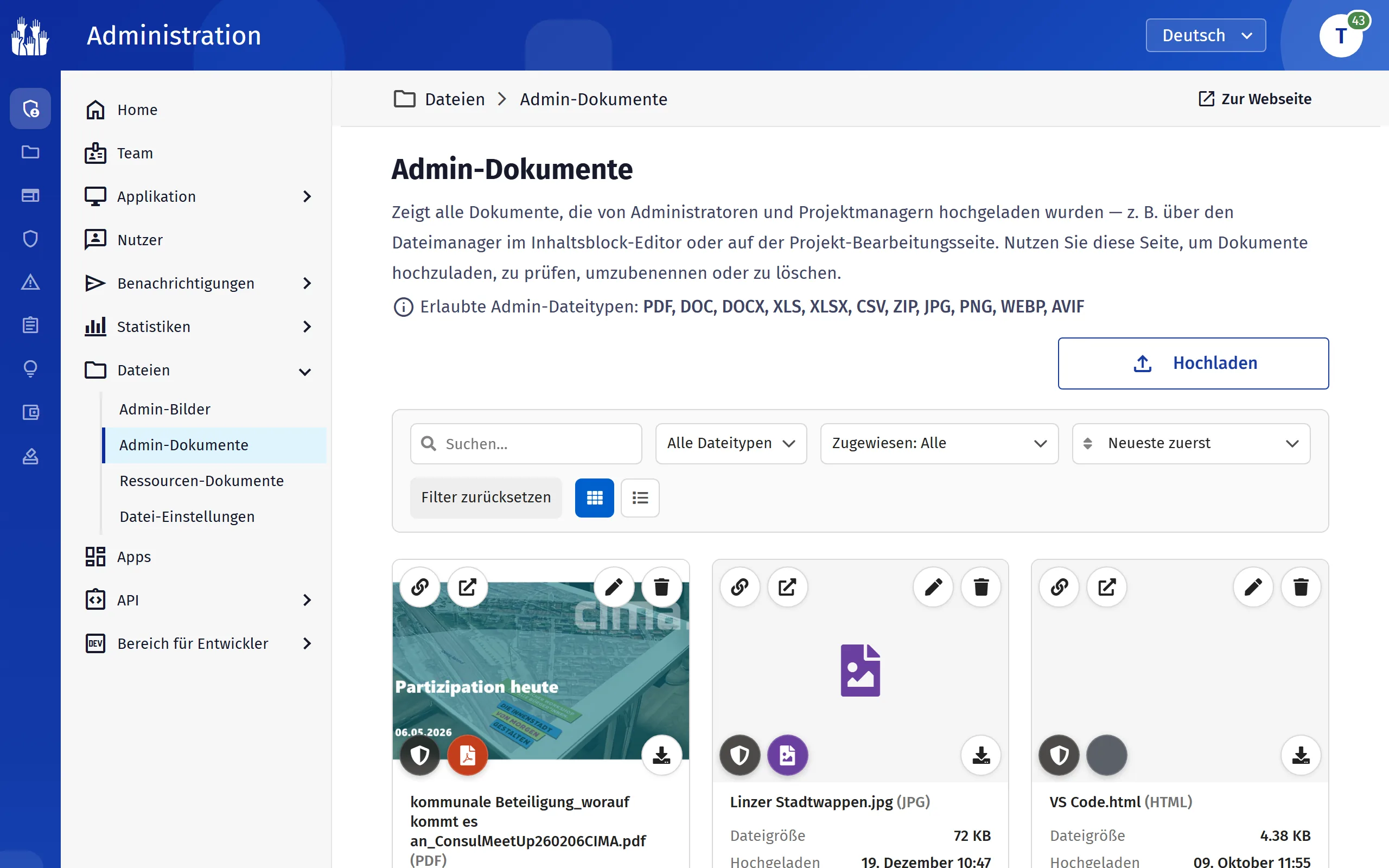
- Under “Files”, open “Admin documents” or “Admin images”.
- Click “Upload” and choose the file. For images, choose “Upload with crop” to set the crop and aspect ratio first.
- The file appears as a tile. Click “Edit” to give it a clear title. For images, also fill in the “Alt text”.
- For a document, click “Copy link” and paste the link into your text.
- For an image, open the tile and copy the address from the browser using “Open file”.
The decisions
- Which file types?
- The top of every page shows which file types administrators may upload. You set what users may upload under “Datei-Einstellungen” (file settings).
- Where do files from other forms end up?
- Images and documents from the file manager of the content block editor also appear here. Attachments to proposals or milestones are under “Resource documents”.
Pitfalls
Do not delete a file that is still linked. The link then leads nowhere.
Alt text describes the image for people who use a screen reader. Images without alt text show a notice on the tile.