
Guides
Guide
Administrator
Administrator
You want the platform's automatic emails to carry your own subject and text.
Customize system emails
Your goal
You want the platform's automatic emails to carry your own subject and text.
Open “System emails”
What you need
- You are an administrator.
How it works
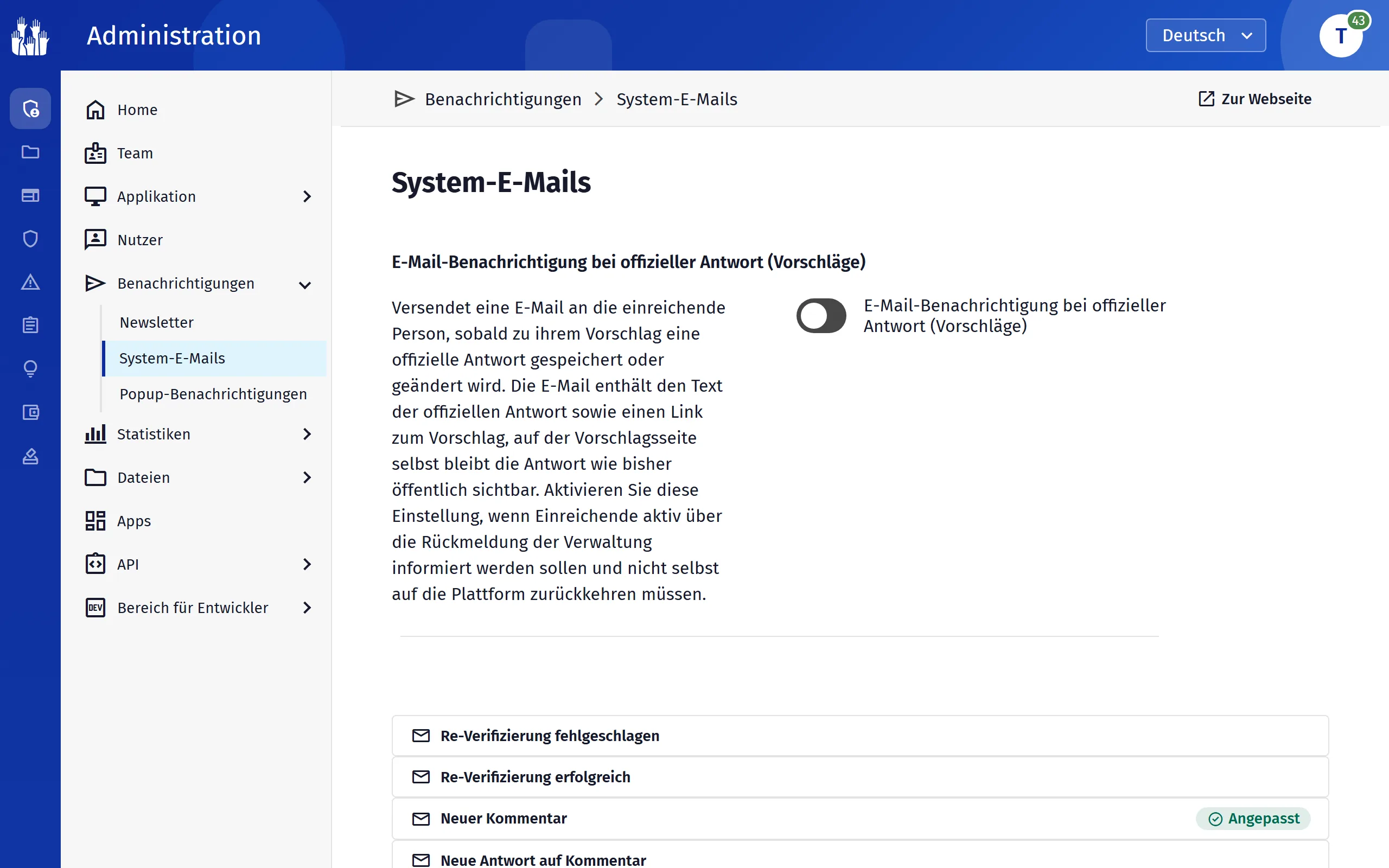
- Under “Notifications”, open the page “System emails”.
- Expand the email you want. “Trigger” tells you when it is sent. “Default template” shows the current text.
- Enter a “Subject” and “Content”. Take placeholders such as
{{ username }}from the “Available variables” list. - Click “Save”. The email now carries the “Customized” label.
- Check the result with “Send test email to me”. In the test email, the placeholders appear in square brackets.
The decisions
- Which email do you customize where?
- This page lists the emails that are not tied to a participation phase, such as “Role invitation”, “New comment” or “Contribution hidden by moderator”. You customize the emails of a phase in the phase on the “System emails” tab. You customize the emails of Deficiency reports in the Deficiency reports module under “System emails”.
- Should an email go out when there is an official answer?
- Turn on “Email notification on official answer (proposals)” at the top of the page. Only then is the email “Official answer to the proposal” sent.
- What do all emails look like?
- “Email logo” appears in the header of every system email. “Email footer (all emails)” appears at the end.
Pitfalls
Your own content completely replaces the default template. Add links only through variables. In the “Role invitation”, for example, use
{{ registration_url }}. Without it, the registration link is missing.
Always enter “Content” as well. If there is only a subject, the email goes out without text.
If “Subject” is empty, the default subject applies.