
Notifications and newsletters
Under “Notifications” you reach users in three ways: with the newsletter to a recipient group, with the automatic system emails, and with a popup on the platform.
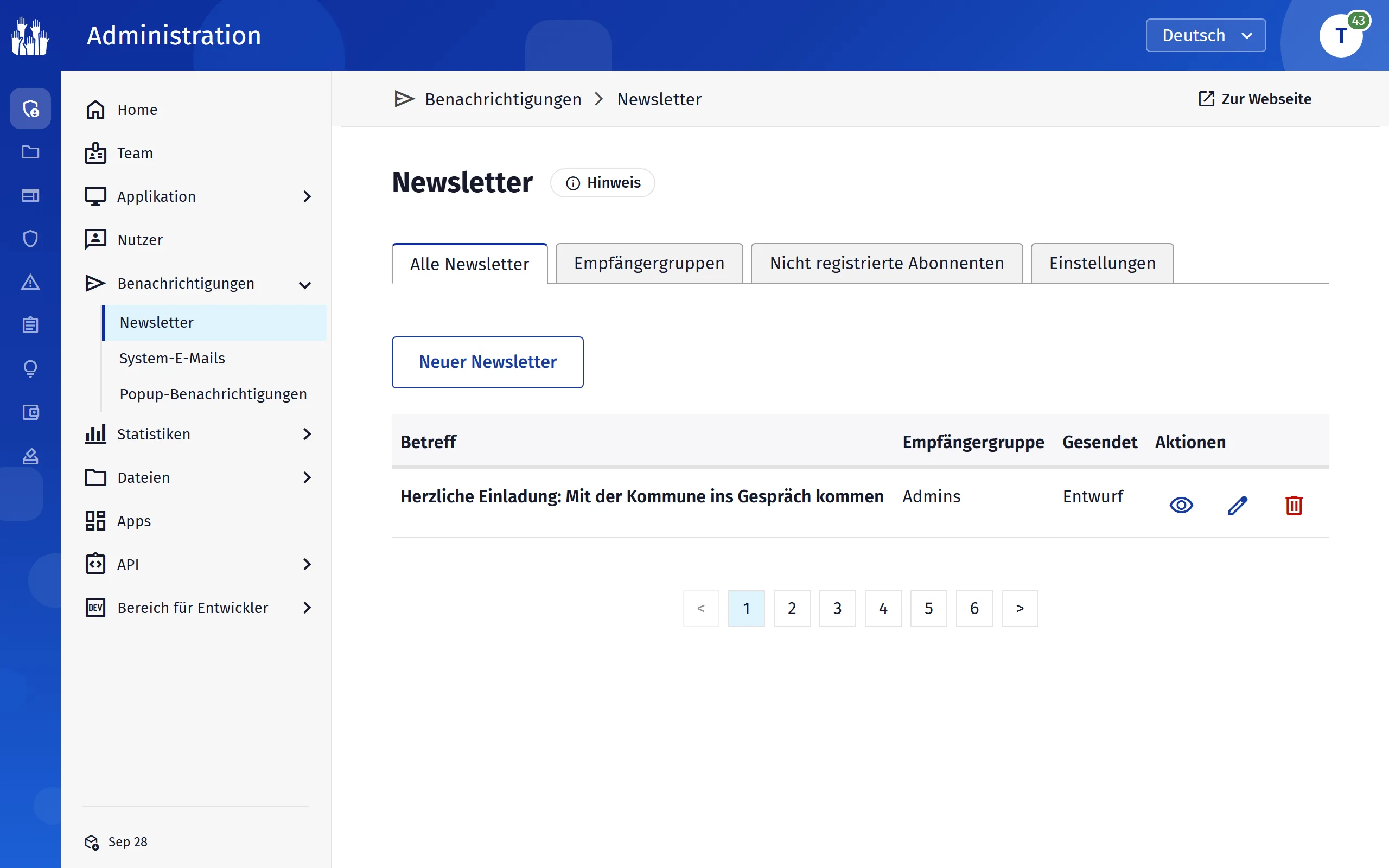
Newsletters
The newsletter area has four tabs. Step by step: Send a newsletter
- “All newsletters”
- A list with “Subject”, “Recipient group” and “Sent”. Newsletters that have not been sent yet show as “Draft”. Use “New newsletter” to create one. Use “Preview” to check and send it.
- “Recipient groups”
- Who gets a newsletter. A group is made up of filters that apply from top to bottom. Step by step: Create a recipient group
- “Unregistered subscribers”
- People who signed up without an account through the form on the home page. A newsletter reaches confirmed subscribers only through the “Newsletter subscribers” filter with “Include unregistered newsletter subscribers”. Use “Download CSV” to export the list.
- “Settings”
- “Advanced newsletter”, “Newsletter logo”, “Newsletter brand color” and “Newsletter footer”. They apply to all newsletters.
Open the recipient groups through the “Recipient groups” tab. The link in the note text of the newsletter form points to an address that does not exist.
A newsletter that has been sent still shows “Send” in the preview. Another click sends it again.
System emails
The automatic emails that are not tied to a participation phase. You can expand each one, give it its own “Subject” and “Content”, and check it with “Send test email to me”. Step by step: Customize system emails
- “Email notification on official answer (proposals)”
- Sends submitters an email as soon as their proposal receives an official answer.
- “Email logo”, “Email footer (all emails)”
- Header and footer of every system email.
If an email has a subject but no content, it goes out without any text.
Popup notifications
A notice that opens as a window when someone visits the platform, for example for maintenance or a new participation. The list shows “Title”, “From” and “To”. Step by step: Show a notice as a popup
- Only one notification appears at a time: the newest one whose period includes today.
- Each browser shows a notification only once.
- The window shows the “Content”. The “Title” is only for the overview.
Always enter “From” and “To”. Without both dates, the notification never appears.