
Home page, navigation and overview pages
Four subitems of “Application” determine what visitors see first: the home page, the main menu, the public overview pages and the tags for project search.
Step by step: Set up the home page and navigation
Home page
- Header area
- “Background image for desktop” and “Background image for mobile”, optionally “Background video for desktop” and “Background video for mobile”. If you upload a video, it takes priority over the image.
- Logos and colors
- “Logo (white background)”, “Logo (transparent background)”, “Color of links in the top navigation” and the “Brand color” of the whole platform. Step by step: Set colors, logos and preview images
- “Name of the city/municipality”
- Appears on the page where users verify their residence. The default is “Consul”.
- “Application title”, “Application subtitle”
- Text above the background image. Without a title, no subtitle appears either.
- “Homepage button text”, “Homepage button link”
- A button in the header of the home page. Without text, no button appears.
- “User overview”, “Newsletter signup”, “Platform statistics”, “Project search”
- Switches for additional areas of the home page.
- “Content cards”
- Cards such as current projects, popular proposals or events. You turn them on, drag them into order and change their titles and number.
Images save right after you select them. Switches save when you click them. Text fields and colors each save with the button next to them.
If both “Homepage button text” and “Project search” are set, the button and the search field appear together.
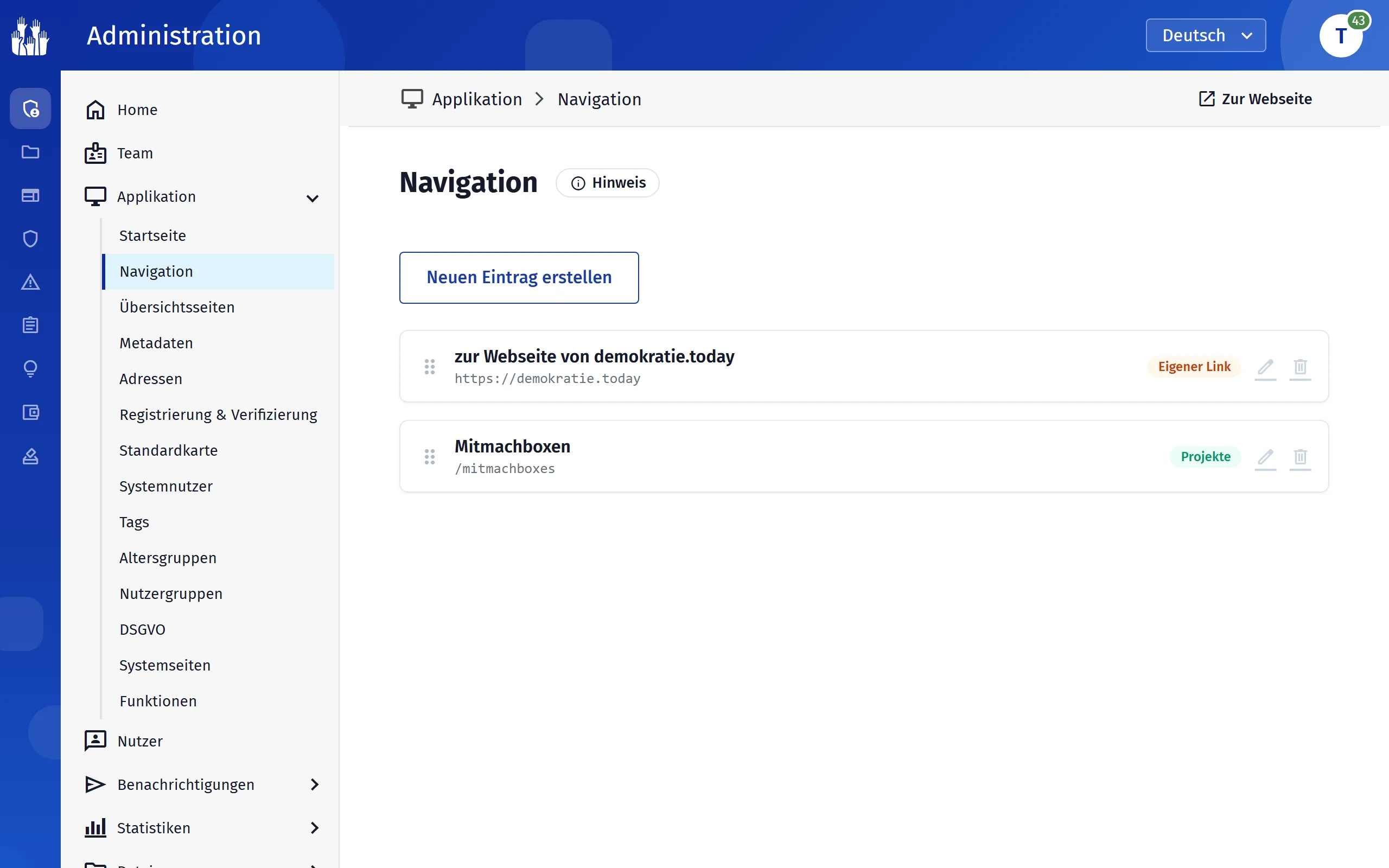
Navigation
This is the main menu of the platform. With “Create new entry” you choose the type: “System pages”, “Projects” or “Custom link”, plus a topic page if there are any.
- “Display name (optional)”
- A different label than the name of the page.
- “Open in new tab”
- The entry opens in a new browser tab.
- Order
- By drag and drop. An entry placed under another one becomes a submenu.
The system pages “Projects overview”, “Events”, “Budget overview”, “Polls overview” and “Proposals overview” are available only after you turn them on under “Overview pages”. “Deficiency reports” and “Ideas platform” appear when the module is turned on.
Changes to the menu are visible to all visitors immediately.
Overview pages
Two tabs turn the public overview pages of the platform on or off. Pages that are turned off cannot be reached. Their content is kept.
- “Projects overview” tab
- “Projects overview” turns on the page with all projects. Under “Display in the navigation bar” you choose its tabs, such as “Active participation” or “Archived projects”. Under “Display in the footer” you turn on a comment area below the project list for each tab.
- “Other overview pages” tab
- “Events”, “Budget overview”, “Polls overview”, “Proposals overview” and “Overview of all users”.
The “Drafts” tab of the projects overview is visible to administrators only.
Tags
Tags connect projects across topics. On the projects overview, visitors use them to filter by topic.
- “Create new tag”
- A tag has only a name. You decide in the project which projects carry it.
Unlike tags, the labels of a participation phase apply only in that phase.