
Basic platform settings
Under “Application” you find the settings that apply to the whole platform: name and sender, registration, default map, system user and login providers. You set most of them once at launch.
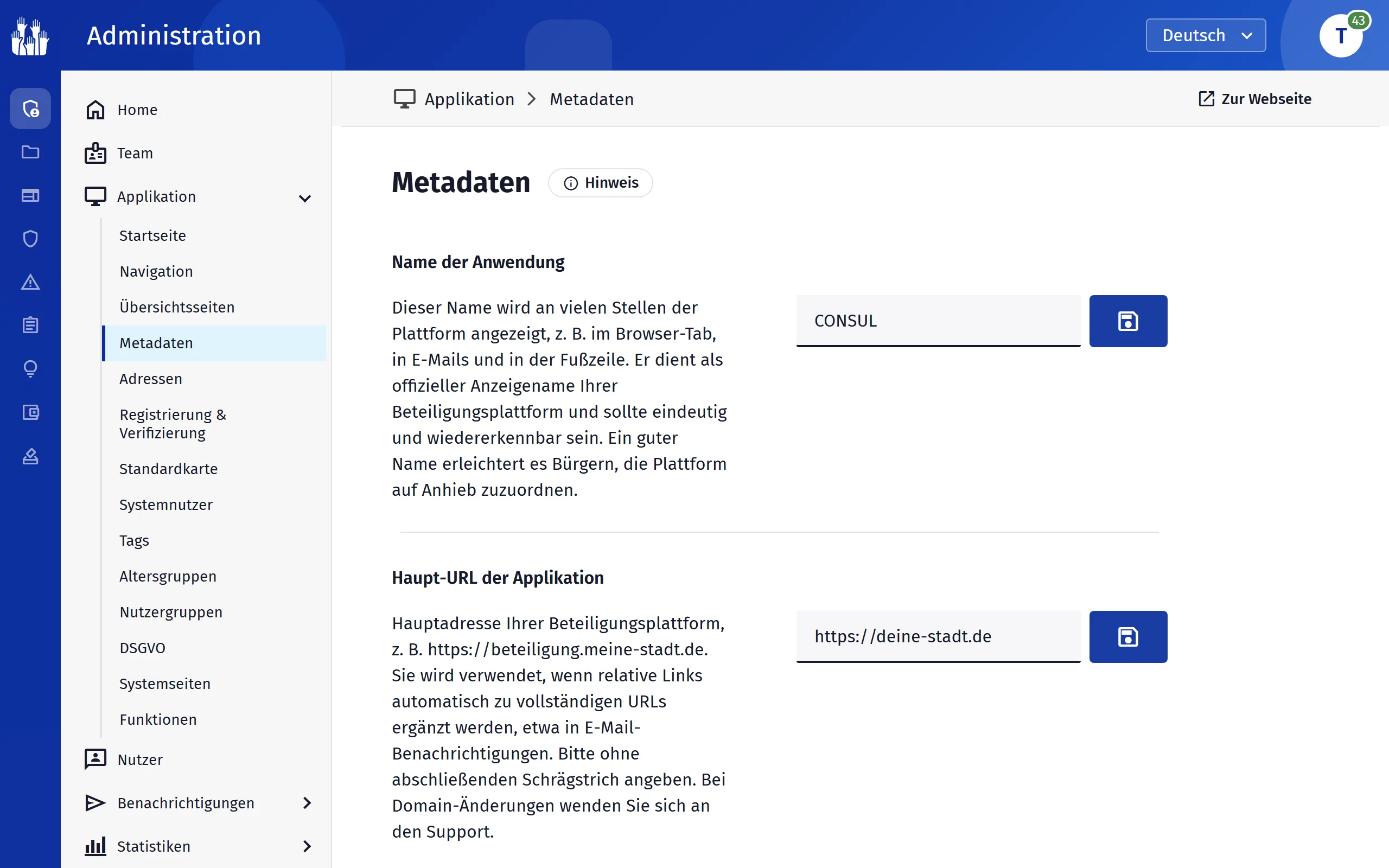
Metadata
- “Application name”
- Appears in the browser tab, in emails and in the footer.
- “Main URL of the application”
- Basis for complete links, for example in emails. For a new domain, contact demokratie.today.
- “User manual address”
- Sets where “Manual” in the dashboards and “Community” in the administration lead. Every administration menu has the matching entry at the bottom, and the administration home page also has a tile. The address is preset. If you leave it empty, the entry and the tile disappear.
- “Sender email address”, “Sender display name”
- Sender of all automatic emails. The address must match the mail server and can only be changed through demokratie.today. You change the display name yourself.
- Search engines
- “Page title (SEO)”, “Page description (SEO)” and “Keywords (SEO)”.
- “App icon”, preview images
- Icon for the browser tab and home screen, plus “Social media preview image” and “Preview image for X (Twitter)” for shared links. Set colors, logos and preview images
- Social media
- Usernames for Facebook, Instagram, X, Telegram and YouTube, plus “X hashtag”. Each field you fill in adds an icon with a link in the footer.
Registration & verification
Sets what registration asks for and what users see about their verification in their account. It also covers the hint texts for the login, registration and password pages. Step by step: Set up registration and verification
- “Extended registration”
- Name, address, gender and date of birth become required. They are the basis for restrictions by area and age.
- “Document check in registration”
- Document type and last four digits become required fields.
- “Document check in verification”
- Compares the ID details with the population register. Requires a connection to the population register.
Default map
The map view that every project map starts with. New participation phases adopt it.
- “Set map view”
- Move the map by holding down the mouse button. Zoom with the mouse wheel. Use the icons at the edge of the map to place pins, lines and areas. The second icon sets the center.
- “Map layers”
- With “Add map layer” you add more layers: a WMS service, a tile map (XYZ) or a GeoJSON file up to 20 MB in WGS 84. How to prepare the file: Add geodata
OpenStreetMap, Mapbox and 3D maps from Virtual City Systems are supported. demokratie.today sets up your own geo server.
System user
All proposals and submissions imported from the Masterportal appear under this account. API clients with “Use system user” also publish under it.
- “Display name”, “Profile picture”, “Background image”
- This is how the system user appears publicly as author, for example with the name of your municipality.
Features
Platform-wide switches that take effect immediately.
- “Language switcher in navigation”
- A language selection in the main menu. It does not appear while Google Translate is active.
- “Enable Google Translate”
- Adds the Google translation widget. Accept the linked terms of use first.
- “Show guest login”
- Login with only a display name, without email and password. Guests take part in phases that allow guests.
- “Maximum direct messages per day”
- Empty or 0 means no limit.
- “External login providers”
- Buttons for BundID, Twitter, Facebook, Google and Wordpress on the login and registration page.
- “KOBIL authentication”
- “Enable KOBIL login” and “KOBIL address verification”. As long as credentials are missing, “KOBIL credentials incomplete” appears above.
Each login provider only works once its credentials are stored in the server configuration. demokratie.today takes care of that.