
Reference
Reference
Administration
Administration
Under “Team” you manage the platform’s administrators, under “Users” all user accounts. Only administrators can access either.
Team and users
Under “Team” you manage the platform’s administrators, under “Users” all user accounts. Only administrators can access either.
Team
The list of administrators with name and email address. Administrators have access to all settings and all other administration areas.
- “Add new administrator”
- Search by email address or username. If no account exists for the full email address, “Invite as administrator” appears.
- “Delete”
- Removes the administrator role. The user account stays. You can’t delete your own role.
- “Pending role assignments”
- Open invitations. Use “Remove” to withdraw one.
The search hint mentions only registered users. For email addresses without an account, the search still offers the invitation.
Step by step: Assign more roles. You invite project managers in the project area: Invite a project manager
Users
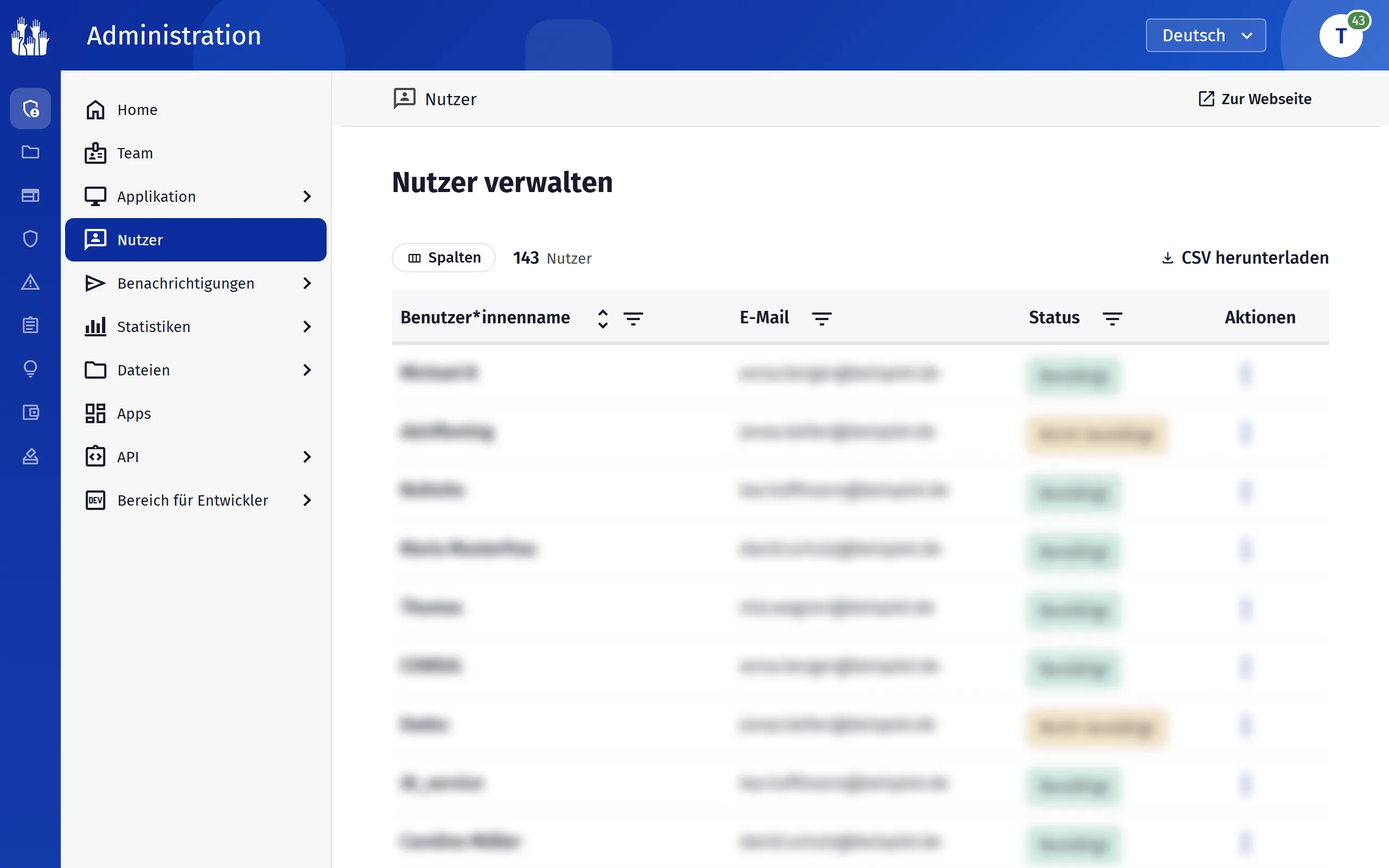
“Manage users” lists all accounts with an email address, including hidden and blocked ones. Guest accounts without an email address are not listed.
- Columns and filters
- The default columns are username, email and “Statuses”. Add more columns, such as address, “Roles” or “Verified at”, through “Columns”. In the column headers you can search, filter and sort.
- “Statuses”
- “Confirmed”, “Unconfirmed” (email address not yet confirmed) or “Hidden” (hidden or blocked).
- “Verify”, “Remove verification”
- Verifies an account by hand. Step by step: Verify users manually
- “Edit”
- Email address, name, address, gender and date of birth.
- “Change log”
- Who changed what on the account, and when.
- “Delete permanently”
- Deletes the account and all personal data irreversibly. Not possible for administrators or for your own account.
- “Download CSV”
- Exports the current view with all filters. You get the link to the file by email.
Step by step: Manage and export user accounts. Blocking: Find and block users