
Guides
Guide
Administrator
Administrator
A person should take part in participation phases for verified users, even though they can't verify themselves.
Verify users manually
Your goal
A person should take part in participation phases for verified users, even though they can't verify themselves.
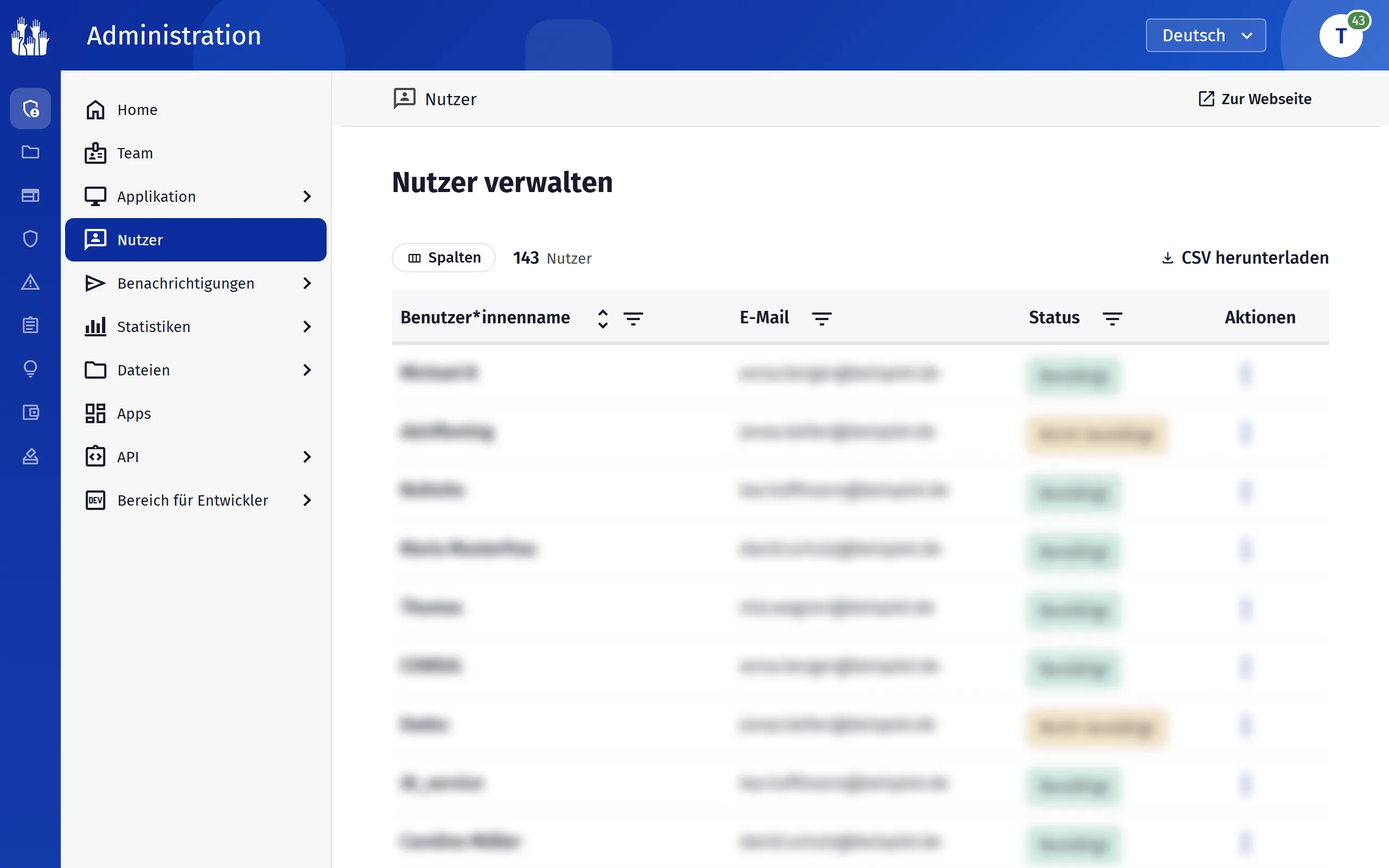
Open “Users”
What you need
- You are an administrator.
- The person has an account, and you have checked their details, for example in person.
How it works
- Open “Users” and find the person by email address or username using the column header.
- Under “Edit”, check that first name, last name, date of birth and postal code are filled in. Add any missing details and click “Save”.
- In the person’s row, select “Verify”.
- The message “User verified” confirms the step. The person gets an email saying their verification is confirmed.
With “Remove verification” you undo the verification. The person does not get an email about this.
The decisions
- Manually or through the residents’ registry?
- If your platform is connected to the residents’ registry, “Edit” also shows “Save & run residents’ registry reverification”. The check then compares the details against the residents’ registry.
- What is verification needed for?
- For participation phases whose participation restriction requires “Verified users”.
Common pitfalls
“User could not be verified” appears when one of the four details is missing. It also appears when another verified account already has the same combination of first name, last name, date of birth and postal code.
If a person has two accounts with the same details, you can verify only one of them.
The “Verified at” column shows whether an account is verified. Show it under “Columns”.