
Guides
Guide
Administrator
Administrator
Visitors should see a notice when they open the platform, for example about maintenance or a new participation project.
Show a notice as a popup
Your goal
Visitors should see a notice when they open the platform, for example about maintenance or a new participation project.
Open “Modal notifications”
What you need
- You are an administrator.
How to do it
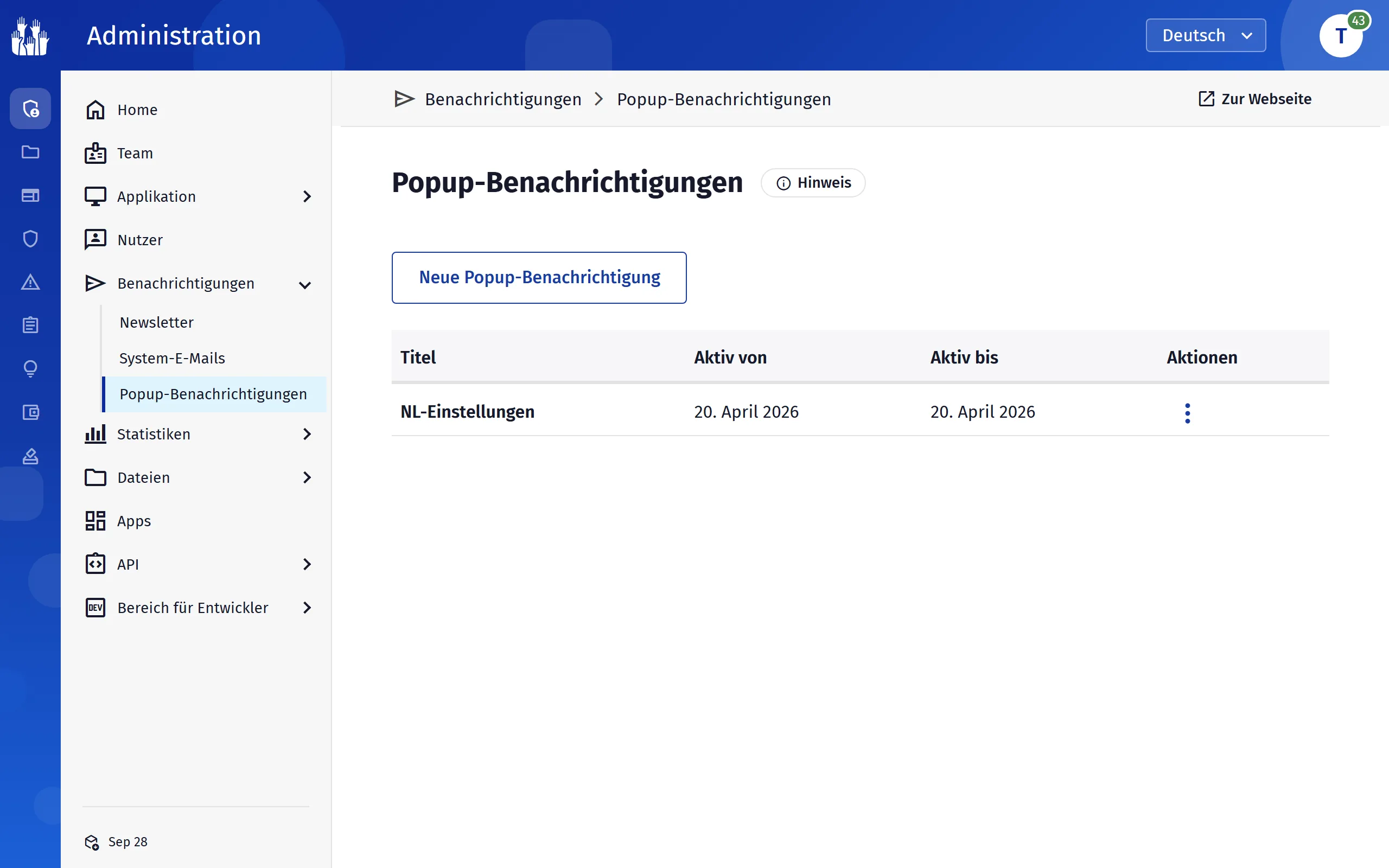
- Under “Notifications”, open “Modal notifications” and click “New modal notification”.
- Enter “From” and “To”. The notice appears on both days and in between.
- Enter a “Title” for the overview.
- Write the notice under “Content”, with a link if needed.
- Click “Create” and check the popup in a private browser window.
The decisions
- What belongs in the content?
- Everything visitors should see. The window shows only the “Content”, not the “Title”. If someone clicks a link in it, the window closes.
- How long should it show?
- As long as needed, but with an end date. After “To”, the notice no longer appears, but it stays in the list.
Common pitfalls
If you leave “From” or “To” empty, the popup never appears. Always enter both dates.
Each browser shows a popup only once. This applies for one year, even if you change it. For a new notice, create a new modal notification.
If several popups are active at the same time, only the most recently created one appears.
The popup appears only after the visitor has answered the platform’s cookie notice.