
Setup and configuration
The order in which to set up Deficiency reports, and what the five tabs of “Configuration” control.
Setup order
- An administrator turns on the “Deficiency reports” switch under “Configuration”, “Features” tab.
- Under “Team”, add the case officers and groups.
- Define the categories and responsibilities.
- Add the statuses and the intake channels.
- Set up the tabs of “Configuration” as described below.
- Adjust response templates and emails.
Step by step: Turn on and set up Deficiency reports
Only administrators change the “Deficiency reports” switch. Administrators and deficiency report administrators change the other switches and texts in “Configuration”. Case officers with “Manage all” change only the “Confirmation popup” here.
“Features” tab
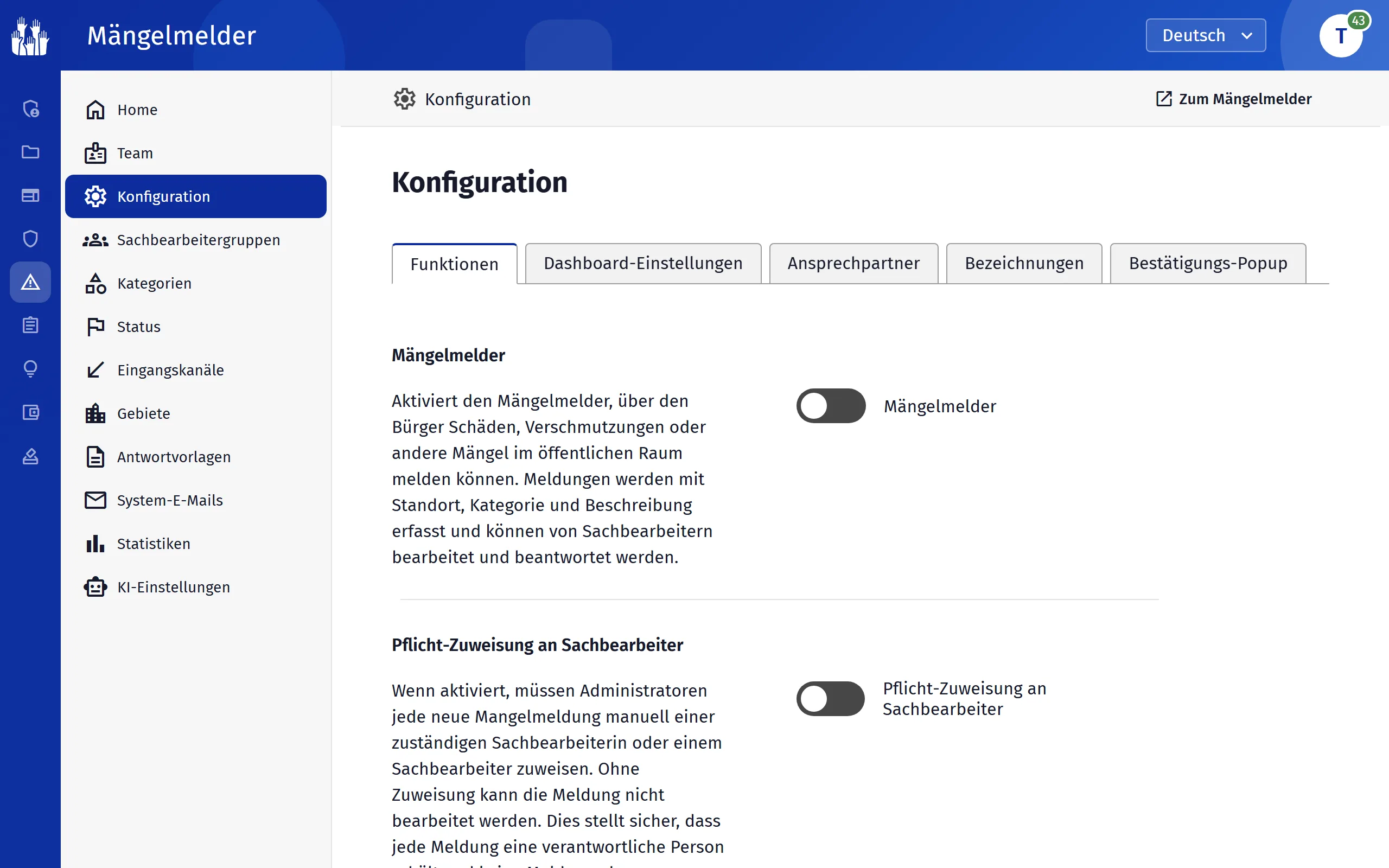
Report form
- “Image upload”, “Additional documents”, “Embed external video”, “Show map”
- What the report form offers. The same switches apply to the “New report” form in the admin area.
- “Require map location”
- Makes the location required.
- “Enable drawing tools on maps”
- Users draw shapes on the map.
- “AI categorization in the report form”, “Voice assistant for deficiency reports”
- The AI features of the form. For more, see AI in Deficiency reports.
Public page
- “User rating per deficiency”, “Comments”
- What citizens may do with existing deficiency reports.
- “Introduction text for the deficiency reporter”
- Shows an introduction text above the public overview.
- “Report button on the homepage”
- A button to the report form appears in the header of the homepage. Its label is set under “Naming”.
- “Submission of new deficiency reports”
- Off: No new deficiency reports come in, not even through a direct link. Existing deficiency reports stay publicly visible.
How the team works
- “Administrator approval”
- New deficiency reports are public only once approved. The person who reported still sees their own report.
- “Required assignment to officer”, “Visibility for case workers and groups”, “Officer groups only for assignment”
- Who sees and changes which deficiency reports. Set who sees which deficiency reports describes the effect.
- “Intake channel required for third-party reports”
- Anyone who records a deficiency report on behalf of another person must specify the intake channel.
- “Send feedback form”
- The person who reported gets a link to a short feedback form 24 hours after the report is closed. For more, see Statuses and reminders.
“Dashboard settings” tab
“Intro text” and “Notice message” appear on the start page of this admin area, not on the public page. You show the notice message with “Notice active”.
“Contact persons” tab
With “Create new contact person”, you add the contacts shown on the right of this area’s start page. Each entry has “Name”, “Role”, “Email” and “Phone”.
“Naming” tab
- “Feature name”
- Replaces “Deficiency reports” on the overview page, in the main menu and in the browser tab, for example “Notice portal”.
- “Primary create-report button label”
- Replaces “Report a deficiency”.
- “New-report form heading”, “New-report title placeholder”
- Texts in the report form.
Empty fields use the default texts.
“Confirmation popup” tab
With “Enable confirmation popup”, the report button first opens a window with your “Question”. Only the answer decides whether the report form appears.
- “Answers”
- With “Add answer”, you create the buttons. Each answer has a “Button label” and a “Behavior”.
- “Proceed to new-report form”
- The person goes to the form.
- “Block and show flash notice on the index”
- The form does not open. The person stays on the page and sees the “Notice message” of this answer, for example “Please check existing deficiency reports first.” With this behavior, the notice message is required.
The window appears only if it is enabled, has a question and has at least one answer.