
Statuses and reminders
Statuses are the processing stages of a deficiency report, for example “In progress” or “Done”. Each status controls the email to the person who reported, the reminder period and archiving.
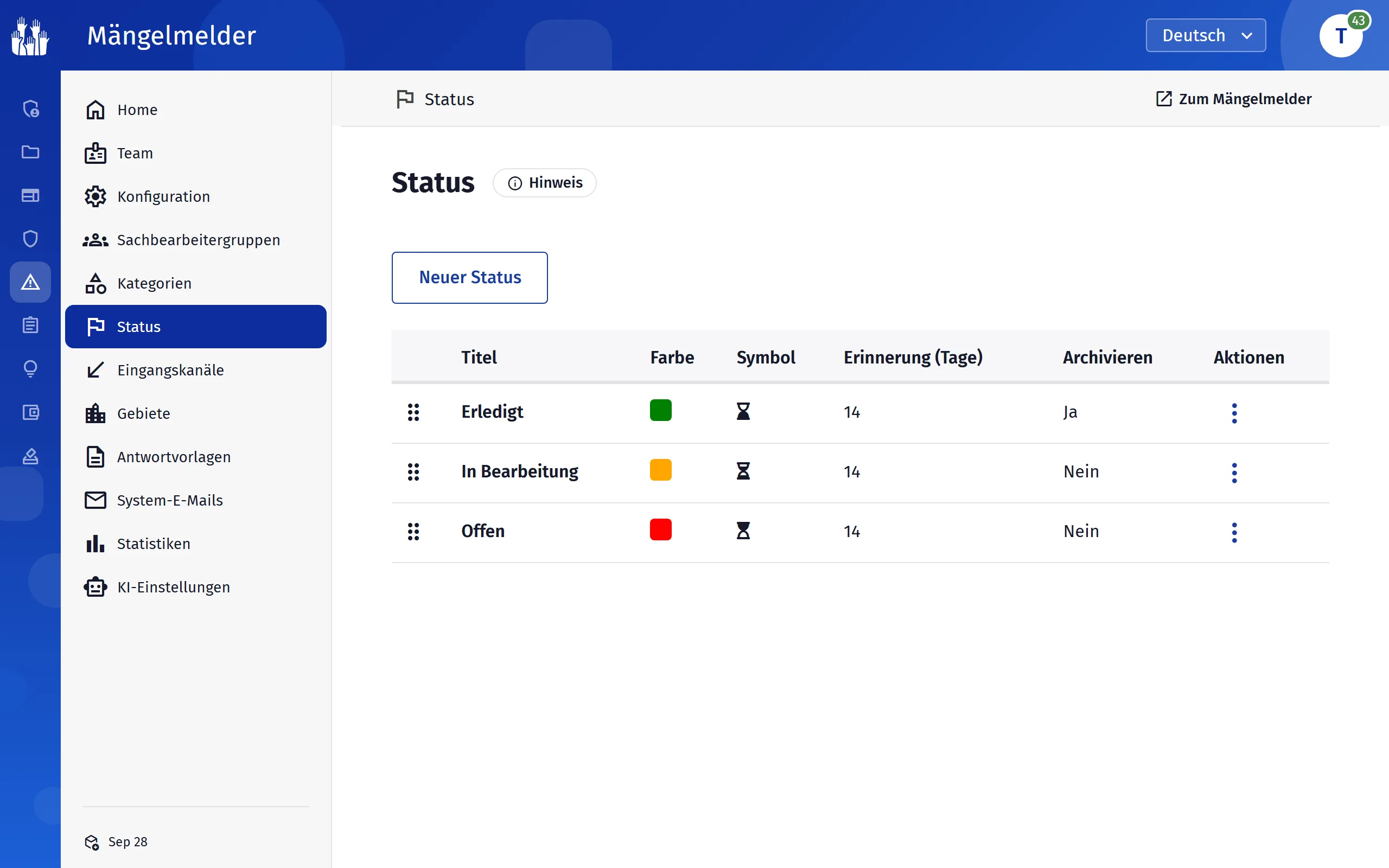
Administrators, deficiency report administrators and case officers with “Manage all” see the “Statuses” menu item. Step by step: Set up statuses and reminders
“Statuses”
The table shows “Title”, “Color”, “Icon”, “Reminder (days)” and “Archive”. Use “New status” to create one.
- Order
- Set by drag and drop. The top status is the status of every new deficiency report.
- “Title”
- Citizens see it on the deficiency report, so write it in plain language.
- “Explanation”, “Color”, “Icon”
- Describe and mark the status.
- “Reminder (days)”
- After how many days in this status the responsible case officers get a reminder. Empty or 0: no reminder.
- “Archive”
- Makes the status a final status, such as “Done” or “Rejected”. More on this below.
- “Email notification text”
- This text appears in the email to the person who reported when their deficiency report moves to this status.
Every status change sends an email to the person who reported, even if no “Email notification text” is entered. The default email then only says that the status has changed and links to the deficiency report.
Final status with “Archive”
- The deficiency report counts as closed. The “Closed” figure on “Home” includes it. “Open” counts all the others.
- Seven days after the status change, the platform archives it automatically overnight. It then disappears from the default table view and from the public overview.
- If “Send feedback form” is turned on, the person who reported gets an email with the link to the feedback form 24 hours after the status change.
- Deficiency reports in this status no longer trigger reminders.
Reminders
Every morning, the platform checks all assigned deficiency reports. It sends a reminder only if the status has a “Reminder (days)” value, is not a final status and the deficiency report has no official answer yet.
- When counting starts
- From the last assignment or the last status change, whichever was later. A new status or a new assignment therefore restarts the period.
- Personal reminder
- On the day the period is reached, the responsible case officers get the email “Deficiency report without an answer” once. For a group, every member gets it.
- Overview for “Manage all”
- Case officers with “Manage all” get the “Overview of overdue reports” every morning instead. It lists all overdue deficiency reports. Those added today are marked “NEW”. You get it as long as there are overdue deficiency reports.
An official answer ends the reminders, even if the status stays the same.
Reminder for missing assignment
The email “Unassigned deficiency reports” covers deficiency reports without a responsible person. It goes out 14 days after the assignment was removed. For deficiency reports that were never assigned to anyone, it goes out 14 days after the deficiency report was received.
The “Unassigned” figure under “Statistics” shows their number. In the table on “Home”, the “Officer” column is empty for them.
Good to know
- You can’t delete statuses that still have deficiency reports assigned to them.
- You customize the texts of all emails under System emails.