
Day-to-day operations
Daily work with deficiency reports: find, approve, assign, respond to, close and export them.
New deficiency reports
Each deficiency report from the public form triggers these emails:
- to all deficiency administrators and to administrators with the account setting “Email notification on each new Deficiency Report”,
- to the person or group assigned automatically, as described in Team and groups,
- to the person who submitted the report, as a confirmation of receipt.
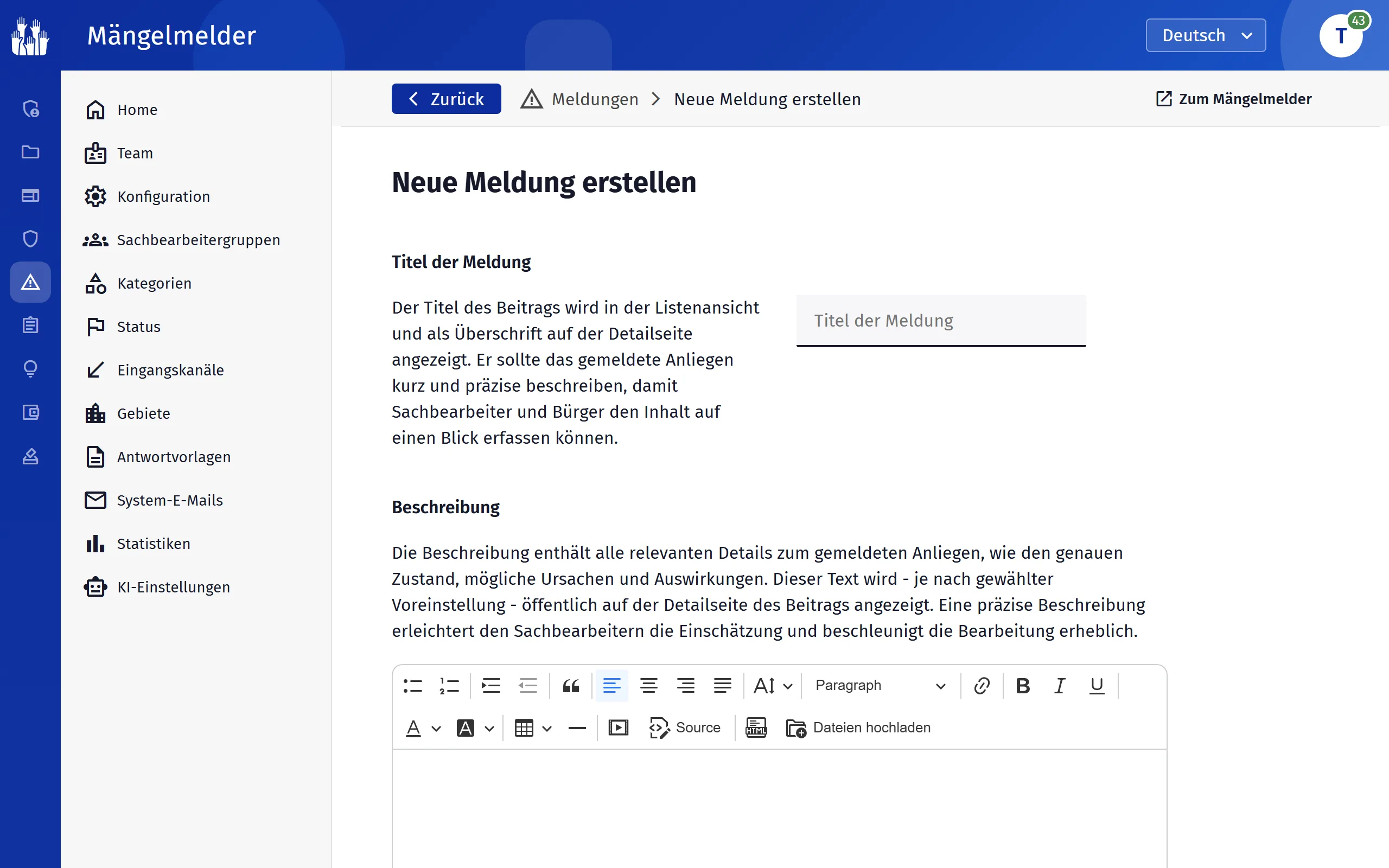
Deficiency reports that someone creates in the administration area with “New report” trigger the same emails. The person who submitted the report gets the confirmation only if the report is linked to their account and the account has an email address.
Find deficiency reports
The table on “Home” first shows the active deficiency reports that are not hidden. Use “Columns” to show more columns, such as “Author”, “Address”, “District” or “Category”.
- Search
- In the column headers “Sort by ID”, “Title”, “Author”, “On behalf of” and “Address”. The search in “Title” also searches the description.
- Filter
- By “Statuses”, “Category”, “Subcategory”, “District”, “Officer”, “Intake channel”, “Archive” and “Hidden”. Filter the date columns by time period.
- Sort
- Use “Sort by ID”, “Creation date”, “Updated on” or “Status changed on”.
- “Watching”
- The bell in each row turns watching on and off. If “Visibility for case workers and groups” is on, case officers get a filter here with “Assigned to me”, “Watching” and “All reports”. The default is “Assigned to me”.
Step by step: Find, filter and export deficiency reports
The detail page of a deficiency report
It has the tabs “Manage”, “Change log” and, once feedback has been received, “Feedback”. At the top are “Website”, “Watch”, “Share”, “Edit” and “PDF”.
Four sections follow below:
- “Internal notes” Questions and agreements, visible only in the administration area. Use internal notes
- “Report” Title, description, image, map and details such as “Author”, “Address”, “Intake channel” and “Category”.
- “Administration” “Statuses”, “Officer” and, with “Administrator approval”, the “Approval”. Edit a deficiency report
- “Official response” The public response with “Documents for the response”. If you save a new or changed response, the person who submitted the report gets an email with the response text. Respond to a deficiency report
- Approve
- If “Administrator approval” is on, turn on “Approval” in the “Administration” section. Only then is the deficiency report public. The “Visibility” column in the table shows the state and also toggles it.
- Assign
- Under “Officer”, select a person or group and save. The newly responsible people get an email.
- Change the status
- Under “Statuses”, select the new status and save. The person who submitted the report gets an email with every change.
- “Edit”
- Changes the content of the deficiency report, such as title, description, image, category and location. Responsibility stays the same, even if you change the category.
- “Watch”
- You get emails when anything changes on the deficiency report: assignment, status, official response or a new internal note.
- “Share”
- You select case officers or case officer groups. They get an email, watch the deficiency report from then on and can read it. Share and watch a deficiency report
- “Change log”
- Shows who changed the title, description, status, category, subcategory, responsibility, approval or official response, and when.
Enter deficiency reports for others
You can enter requests yourself that come in by phone, email or in person. Administrators, deficiency administrators and case officers with “Manage all” can do this.
Close and archive
A status with “Archive” closes the deficiency report. Seven days later, it is archived. 24 hours after that, the link to the feedback form is sent, if you want it. You find details and the reminders under Status and reminders.
Step by step: Close a deficiency report
Delete, export, pause
- “Delete”
- In the table row, you take a deficiency report off the website. You can find it again with the “Hidden” filter set to “Hidden”. Only administrators, deficiency administrators and case officers with “Manage all” can delete.
- Export
- “Download CSV” and “Download GeoJSON” export the deficiency reports in the current filter selection. To download a single deficiency report, use “PDF” on its detail page.
- Pause
- If no deficiency reports should come in for a while, turn off “Submission of new deficiency reports” in “Configuration”. Existing deficiency reports stay publicly visible.