
Categories and responsibility
Categories sort deficiency reports by topic, areas sort them by location. Both determine who a new deficiency report is automatically assigned to.
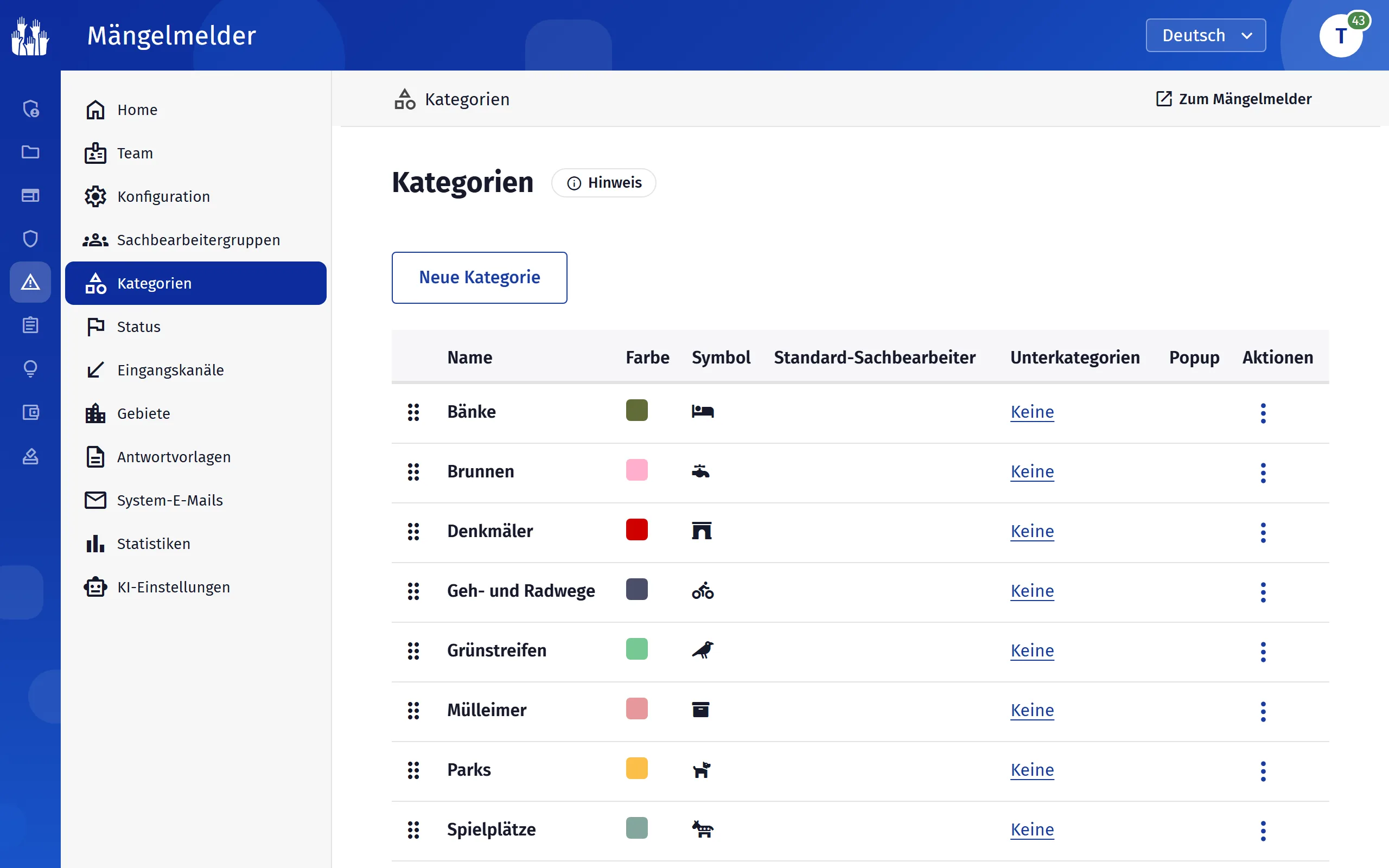
Administrators, Deficiency reports administrators and case officers with “Manage all” see the menu items “Categories” and “Areas”. Step by step: Create categories and subcategories and Set responsibilities by topic and location
Who is assigned automatically?
When a new deficiency report is saved, the platform looks for a responsible person or group in this order:
- The area that contains the location on the map.
- The subcategory.
- The category.
The first level with an entry wins. If there is no entry anywhere, the deficiency report stays without a case officer.
Automatic assignment only applies when the deficiency report is created. If you change the category or location later, the assignment stays as it is.
“Categories”
The table shows “Name”, “Color”, “Icon”, “Default officer”, the number of “subcategories” and the “Popup” (pop-up) text. You change the order by drag and drop. It applies to the selection in the report form.
- “Name”
- The choice in the report form, for example “Road damage” or “Lighting”.
- “Color”, “Icon”
- Mark the category in lists and on the map.
- “Default officer”
- A case officer group or a person that new deficiency reports in this category are assigned to.
- “Popup”
- A note that citizens see as soon as they choose the category. It works well for other ways to report or for special responsibilities.
- “AI categorization hint”, “AI categorization fallback”
- Only take effect when AI categorization is turned on. More in AI in Deficiency reports.
Subcategories
Use “Manage subcategories” in a category’s row to break it down further, for example “Potholes” under “Road damage”. Use “New subcategory” to add one.
- “Name”
- The name in the report form.
- “Default responsibility”
- Takes precedence over the category’s responsibility. Without an entry, the category’s responsibility applies.
- “AI categorization hint”
- Separates the subcategory from the others in the same category.
You also sort subcategories by drag and drop.
“Areas”
The areas come from the registered addresses on the platform. You don’t create them here. Instead, use “Edit” to give each area a “Default officer”, either a person or a group.
An area only applies if the deficiency report has a location and that location lies within the area’s map boundary. The area’s responsibility takes precedence over all others.
Good to know
- If “Officer groups only for assignment” is turned on, all responsibility fields offer only groups. A person who is already entered stays in the list, so they aren’t lost the next time you save.
- Assigning a deficiency report to a group or person triggers emails. You can see who receives them under Team and groups.
Categories and subcategories that still have deficiency reports assigned to them can’t be deleted. If you delete a category, its subcategories disappear with it.