
Guides
Guide
Case officers in Deficiency reports
Case officers in Deficiency reports
You want to find the deficiency reports you are responsible for and pass on a selection as a list.
Find, filter and export deficiency reports
Your goal
You want to find the deficiency reports you are responsible for and pass on a selection as a list.
Open Deficiency reports
What you need
- You are registered as a case officer in Deficiency reports.
How to do it
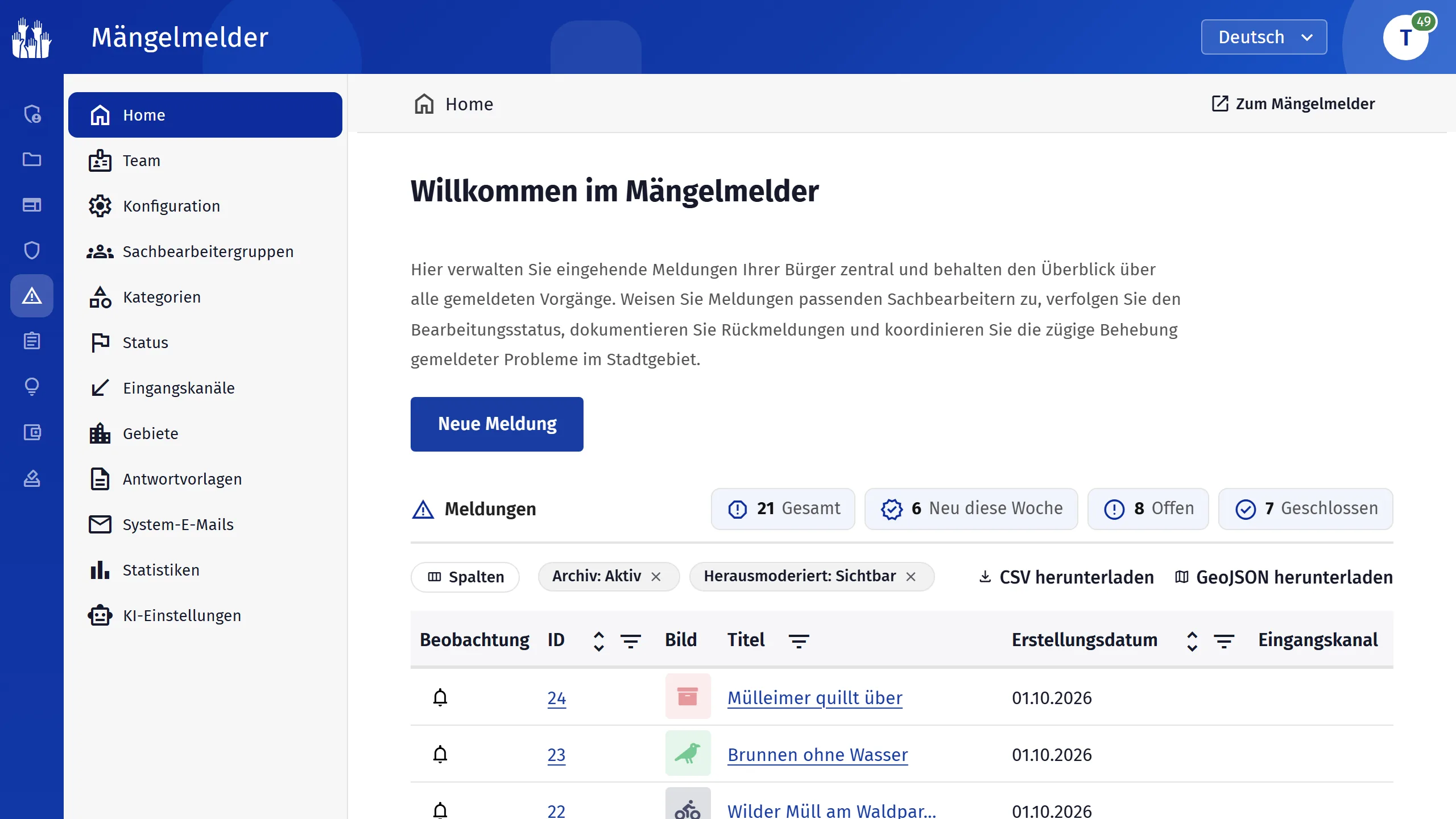
- In Deficiency reports, open “Home”. At first, the table shows the active deficiency reports that are not hidden.
- Use “Columns” to show the columns you need, such as “Category”, “Address” or “District”.
- Filter in the column headers, for example “Statuses”, “Officer” or “Category”. Filter date columns by time period.
- Search for a term in the column headers “Sort by ID”, “Title”, “Author”, “On behalf of” or “Address”.
- Open a deficiency report through its title. The ID leads to the public view.
- Click “Download CSV” or “Download GeoJSON”. Both export the current filter selection.
The decisions
- Which deficiency reports do you see?
- That depends on the “Configuration”. With “Required assignment to officer”, you see only your own deficiency reports and the ones you watch. With “Visibility for case workers and groups”, you see all of them. In the “Watching” column, you then choose between “Assigned to me”, “Watching” and “All reports”.
- Include completed deficiency reports?
- Set the “Archive” filter to “Archived”. You can find deleted deficiency reports under “Hidden”.
- CSV or GeoJSON?
- CSV for spreadsheet programs, GeoJSON for map applications. To download a single deficiency report, use “PDF” on its detail page.
Common pitfalls
Searching in “Title” also finds terms from the description. In “Sort by ID”, search with digits only.
If “Visibility for case workers and groups” is turned on, the filter starts on “Assigned to me”. You only see other people’s deficiency reports with “All reports”.