
Team
In the “Team” overview, you invite project managers and manage their role. You set which permissions a person has in a project in the project itself.
The “Team” overview
The overview shows all project managers on the platform with username and email address.
The overview is open to administrators and to project managers who manage all projects.
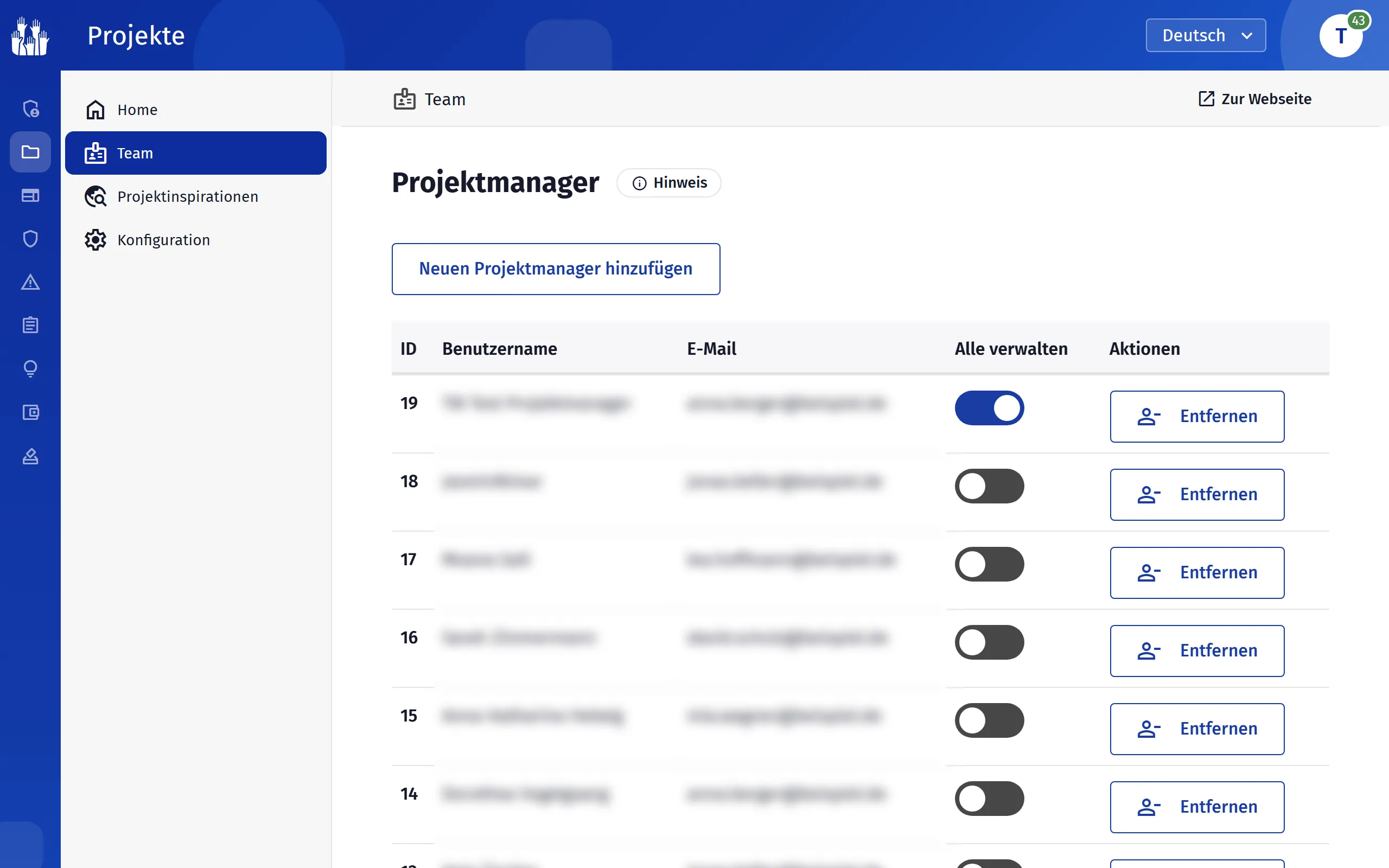
- “Manage all”
- Gives a person access to all projects on the platform, with all permissions.
- “Remove”
- Takes the role away from a person. Their user account stays.
Invite project managers
- Click “Add new project manager”.
- Enter the email address in the search field.
- If the person already has an account, add them directly. If there is no account for the email address yet, the “Invite as project manager” button appears.
- The person gets an email with the “Konto erstellen” (create account) button. Their address is already filled in on the form.
Open invitations are listed under “Pending role assignments”. As soon as the person creates their account, they get the role automatically and land directly in the project area.
If you no longer need an invitation, withdraw it under “Pending role assignments” with “Remove”.
What the invited person does themselves is described in First steps as a project manager.
Permissions in a single project
- In the project menu, open “Project managers”.
- Check the right boxes for each person.
- Click “Save”.
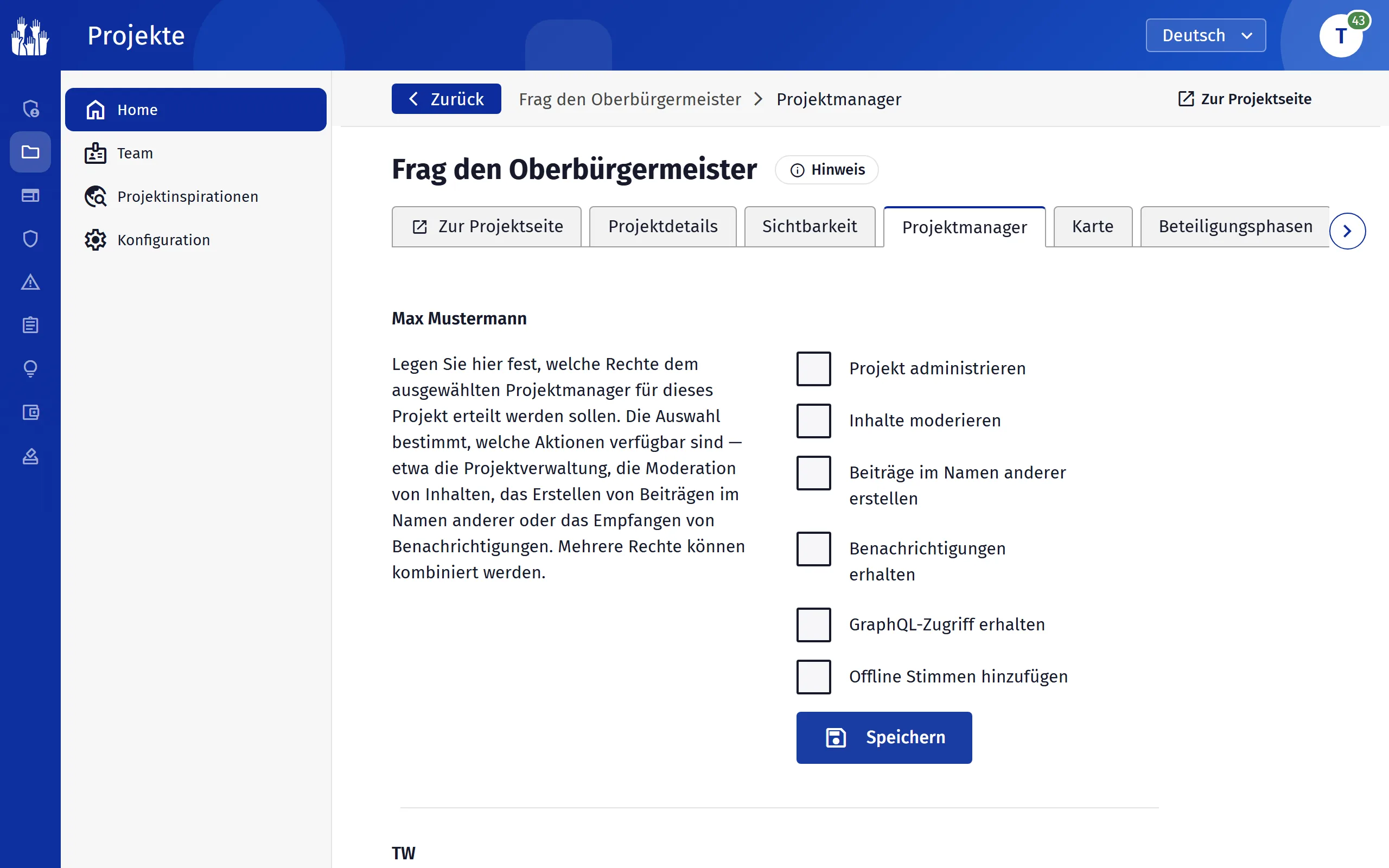
- “Administer project”
- All settings and editing the page.
- “Moderate content”
- Review and hide contributions and comments.
- “Create contributions on behalf of others”
- Helpful when proposals arrive by postal mail, for example.
- “Receive notifications”
- An email when there are new contributions.
- “Get GraphQL access”
- Retrieve the project’s proposals through the GraphQL interface.
The list also includes the permission “Add offline votes”.
Collaboration
- You can also see who is on the team on the start page of the project area.
- With “Notify reviewers” on the project page, you let people know that a project is ready for review. The message goes to everyone entered for this in the project.
Other roles
Besides project managers, the administration assigns other roles:
- Administrators
- Case officers for moderation
- Managers for topic pages
- Polling officers for votes on site
- Assessors for the participatory budget
Each role has its own overview. Invitations work the same way everywhere, by email.