
Proposals
Citizens submit ideas, and others support and comment on them. You decide what the form asks for and which features appear: from a simple idea collection to a full proposal process with image, map and quorum.
Create a phase
- In the dashboard, open your project under “Projects”, then open its “Participation phases”.
- Click “Create new phase”, choose “Proposals” under “Participation module”, and click “Create phase”.
- The phase is active right away and takes over the project’s map settings. Open it and go through the tabs.
All tabs in the overview. Step by step: Collect ideas from citizens
Duration, participation, texts
- “Duration”
- Period of the phase.
- “Participation restriction”
- Who can take part: “Participation by user status” (guests, registered or verified users), plus restriction by area or age.
- “Naming”
- “Tab label”, “Button label on the project page”, “Hint text at the start of contribution creation”, “Heading above the input area”, placeholders for title and description, “Label term for labels”, “Label term for sentiments”, “Support button text”.
“Features” tab
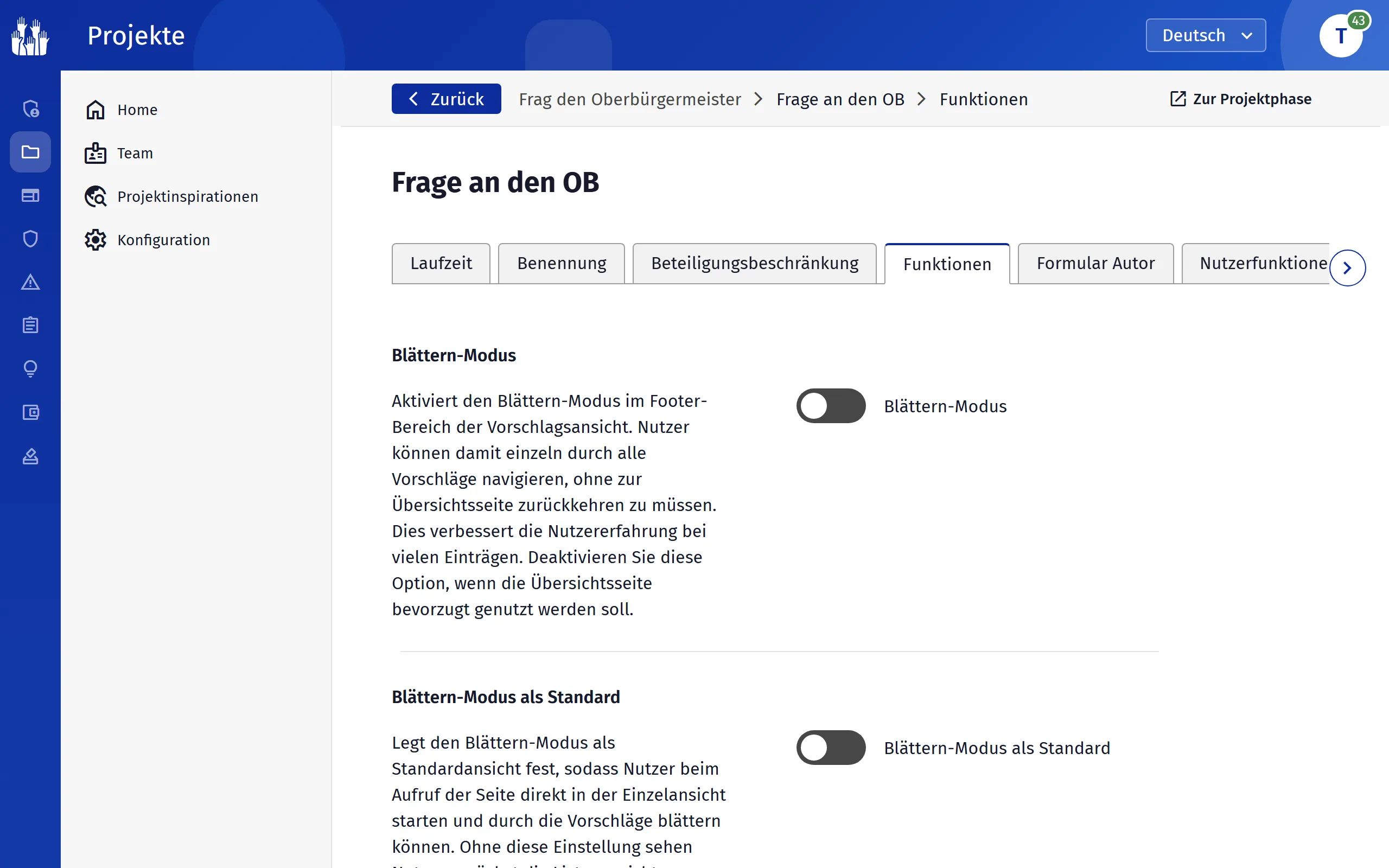
- “Admin approval”
- New proposals appear only after you approve them. Otherwise they appear immediately.
- “Default sort”
- “Most active”, “Newest first”, “Alphabetical”, “Highest voted” or “Random” (the default).
- “Browse mode”, “Browse mode as default”
- Page through proposals one by one.
“Form author” tab
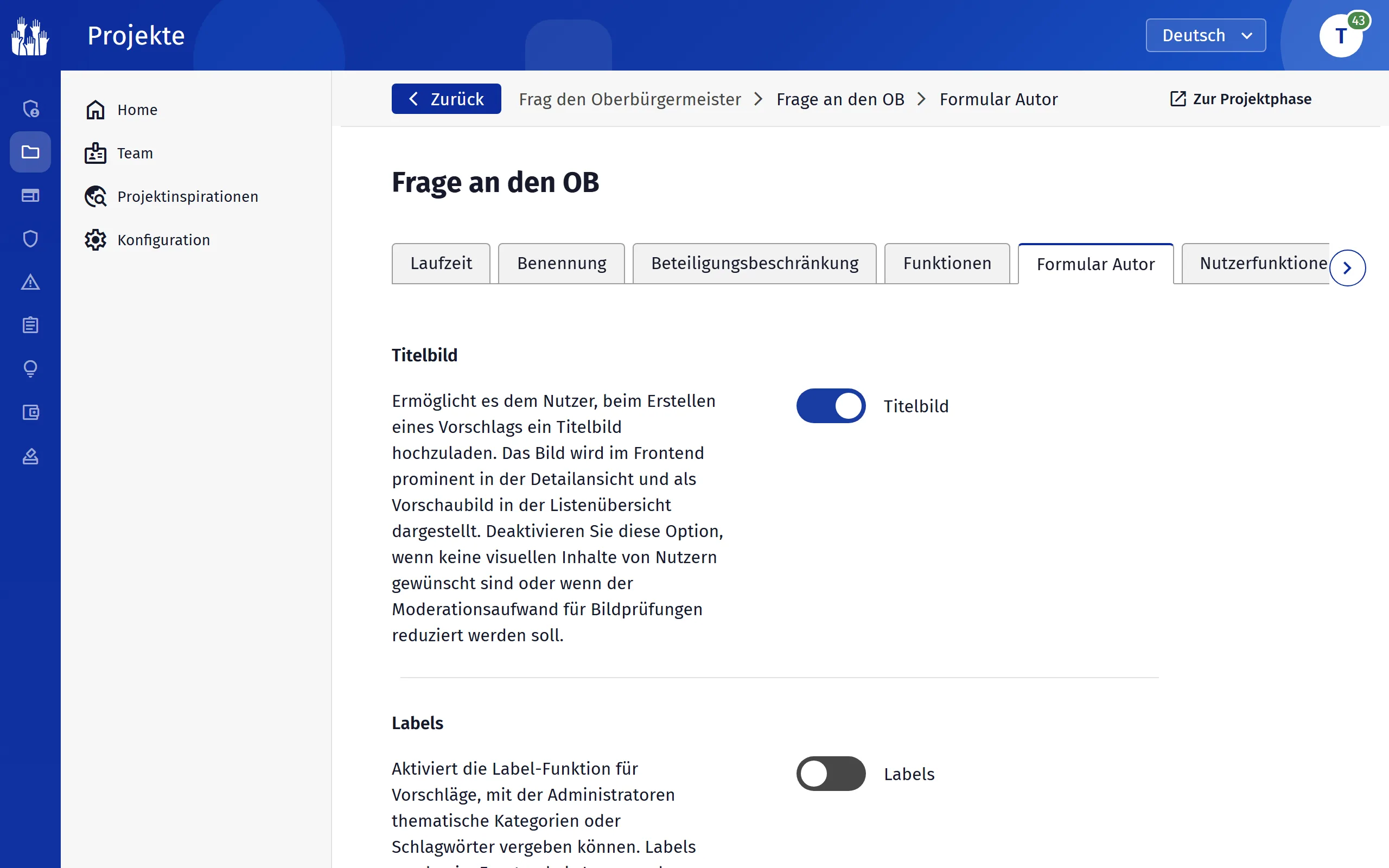
- “Cover image”, “Labels”, “Sentiments”, “Map”, “Map drawing”, “Documents”, “Video”
- Fields of the submission form.
- “Anonymous contributions”
- Hides the authors’ names.
- “Maximum map markers”, “Maximum description length”, “Maximum submissions per user”
- Limits. The description limit is set to 6,000 characters by default.
- “Check for similar contributions”
- Before submitting, the person sees up to three similar proposals from the phase. They can support one of them instead.
- “Include earlier projekts in the similarity check”
- Other projects. Only you see matches from them, in the edit view.
- “Check existing contributions now”
- Checks submitted proposals against these projects after the fact. Triggers one AI request per contribution.
The similarity check needs AI to be enabled.
“User functions” tab
- “Submit proposals”
- Off: Only people with administration rights for the project create proposals.
- “Support”
- Support button.
- “Thumbs up and down”
- Agree or disagree instead of supporting. “Maximum supports per user” then has no effect.
- “Simplified support voting”
- Support given before verification counts only after verification.
- “Quorum”
- Progress bar up to “Votes for quorum” (default 100).
- “Maximum supports per user”
- How many proposals one person may support in the phase.
- Other switches
- “Comments”, “Working groups”, “Notifications”, “Milestones”, “Report”, “Follow”, “Share”, “Related content”, “Videos as link”.
Other tabs
- “Labels”
- With “Create new label” you set up the choices.
- “Sentiments”
- With “Create new sentiment” you create moods with a name and a color. If sentiments are switched on and created, the person must pick one when submitting.
- “Map”
- Map section of the phase.
- “System emails”
- “Submission confirmation” goes to the authors, “Notification of new proposal” to the project’s subscribers. Check them with “Send test email to me”.
- “Polling officers”
- Who records support on site. After the “Lock date”, this is no longer possible.
Citizens cannot create their own labels or sentiments.
AI assistants
The AI features need AI to be enabled. Otherwise the setting shows “This feature is only available when AI is enabled.” and only administrators and project managers see the “Create AI draft” button, disabled.
“AI flow assistant” tab
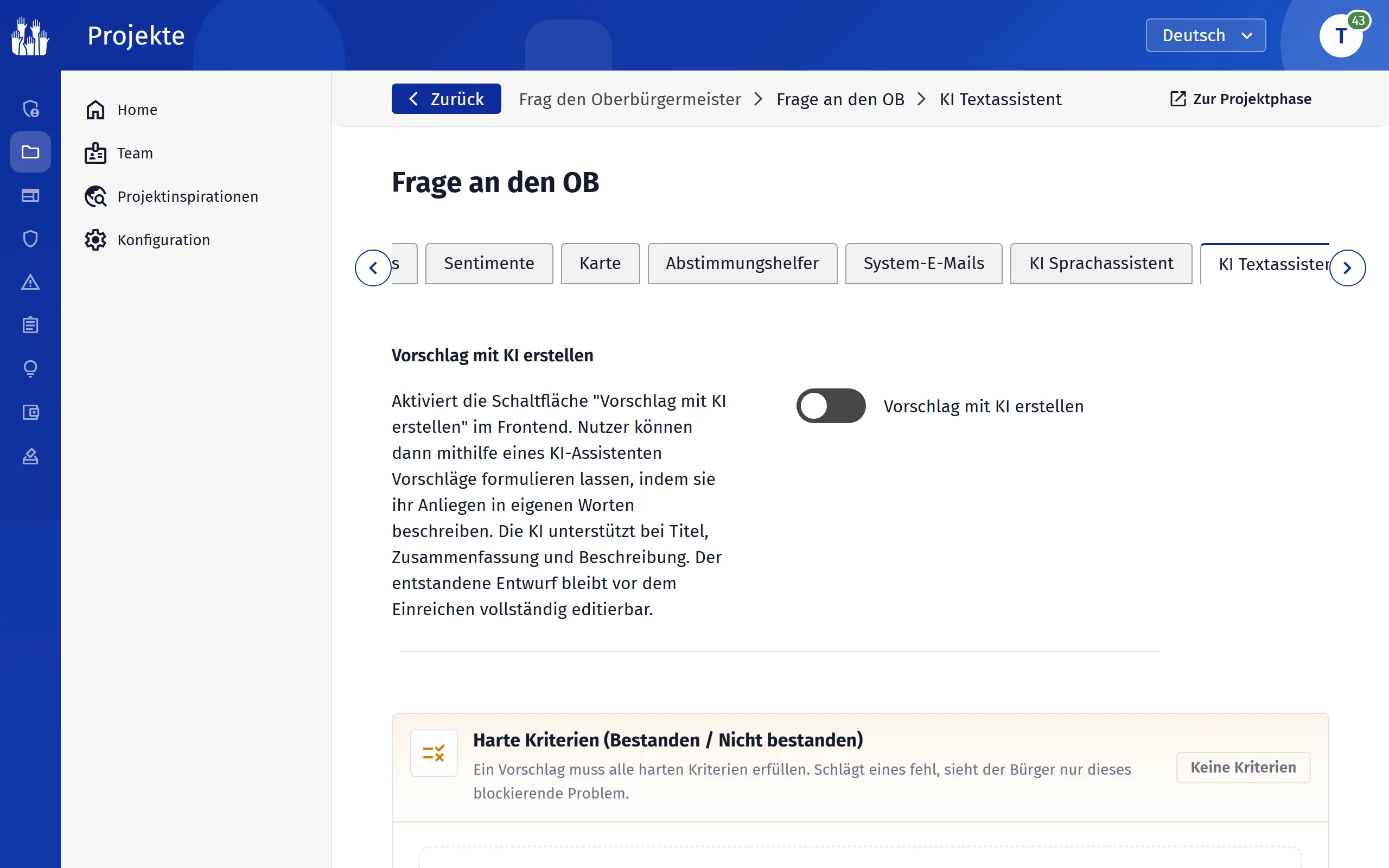
- “Create proposal with AI”
- The “Create AI draft” button appears on the project page. The AI turns a short idea into a draft with title and description. The person edits the draft before submitting.
- “Hard criteria (pass / fail)”
- Every proposal must meet them.
- “Soft criteria (0–25 points)”
- They feed into a point score.
Each criterion has “Name”, “Description (shown to citizens)” and “AI instruction (prompt for the model)”. Without criteria, there is no scoring.
AI drafts also go through “Admin approval” if it is on.
“AI voice assistant” tab
Turns on the “Voice assistant” for the form. If the AI app is connected, you set its questions, criteria and closing words here.
The “WhatsApp” tab exists only if WhatsApp is set up on your platform.
“WhatsApp bot: allow submissions” allows submissions through WhatsApp. The “Phase QR code” for posters on site is there too.
Moderate proposals
The “Proposals” tab lists all proposals with “Sort by ID”, “Image”, “Title”, “Moderation” and “Author”. With “Admin approval” on, the “Approved” column with a switch is added. Step by step: Moderate contributions
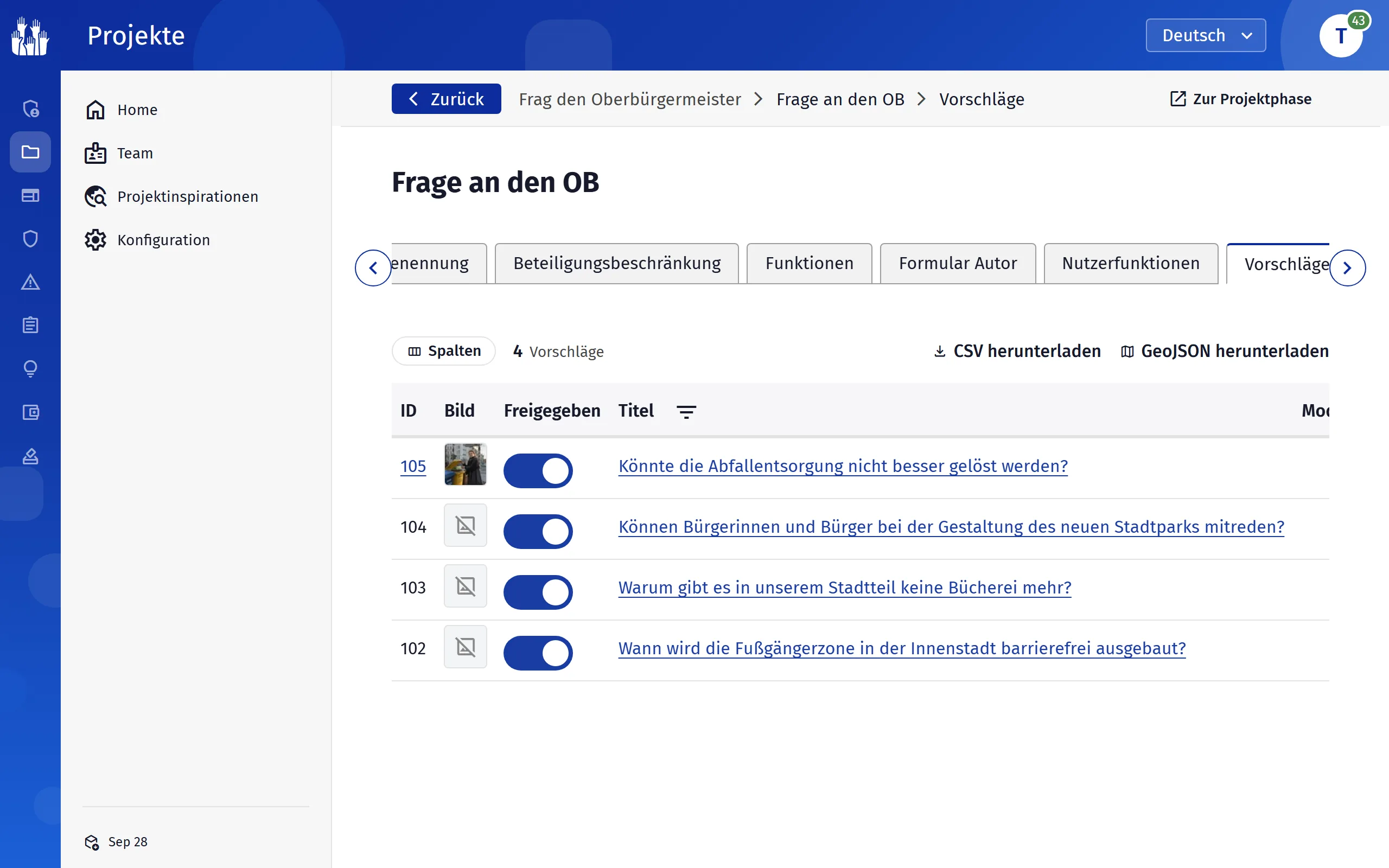
- “Columns”
- Show and hide columns. Search by title, filter by moderation status.
- “View”, “Hide”, “Restore”
- Actions for each row. For reported proposals, there is also “Ignore flag”.
- “Download CSV”, “Download GeoJSON”
- Export of the current view, including filters.
- Notice such as “2 similar contributions”
- Appears on affected proposals when “Check for similar contributions” is on.
Detail view
It shows title, description, image, “Location”, “Submitted by”, “On behalf of” if the proposal was submitted for another person, “Created on”, “Votes in favour”, “Votes against” if there are any, and “Comments”.
- “View on the website”, “Download as PDF”
- Open the proposal on the website or save it as a PDF.
- “Administration”
- “Approval status”. With “Admin approval” on, you approve proposals here.
- “Official response”
- Response from the administration. On the website, it appears at the top, above the proposal.
- “Internal notes”
- Only for administrators and project managers. “Send notification” informs colleagues by email.
- “Similar contributions”
- The matches. “Copy this answer” copies a published answer to the clipboard. “Not a duplicate” removes a match from the group.
An email about the official response goes out only if “Email notification on official answer (proposals)” is switched on in the platform-wide “System emails”.
Submit for another person
Administrators, moderators and authorized project managers see the “On behalf of” card in the form, with name, “Company” and “Email address”. This helps, for example, after a conversation on site.
With an email address, the proposal is assigned to the matching account. If there is no account, one is created and the person is informed by email.
More places
- “Polling officers” section Record support on site, one at a time with “Vote” or in bulk with “Sammelabstimmung” (bulk poll entry).
- “Comments” tab Moderate comments and download them as CSV.
- “Moderation” dashboard Under “Proposals”, the reported proposals from all projects.
Authors can open their proposal after signing in, even before approval. Project managers without edit rights for the project see only the “Proposals” and “Comments” tabs in the phase.