
Reference
Reference
Participation phases
Participation phases
The participation module “Comments” opens a comment area for your project. Citizens write posts, reply to each other and rate comments. It is an easy way to start collecting opinions on a topic.
Comments
The participation module “Comments” opens a comment area for your project. Citizens write posts, reply to each other and rate comments. It is an easy way to start collecting opinions on a topic.
Create a phase
- In the dashboard, open “Projects”, then your project, then its “Participation phases”.
- Click “Create new phase”, select “Comments” under “Participation module”, and click “Create phase”.
- The phase is active right away. Open it and go through the tabs.
All tabs in the overview. Step by step: Open a discussion on a topic
The tabs
- “Duration”
- The period in which people can comment.
- “Naming”
- “Tab label” and “Button label on the project page”. Also “Title of comment form” and “Comment form button text”, set by default to “Publish comment”.
- “Participation restriction”
- Who may comment: “Participation by user status” (guests, registered or verified users), plus a restriction by area or age.
- “Comments”
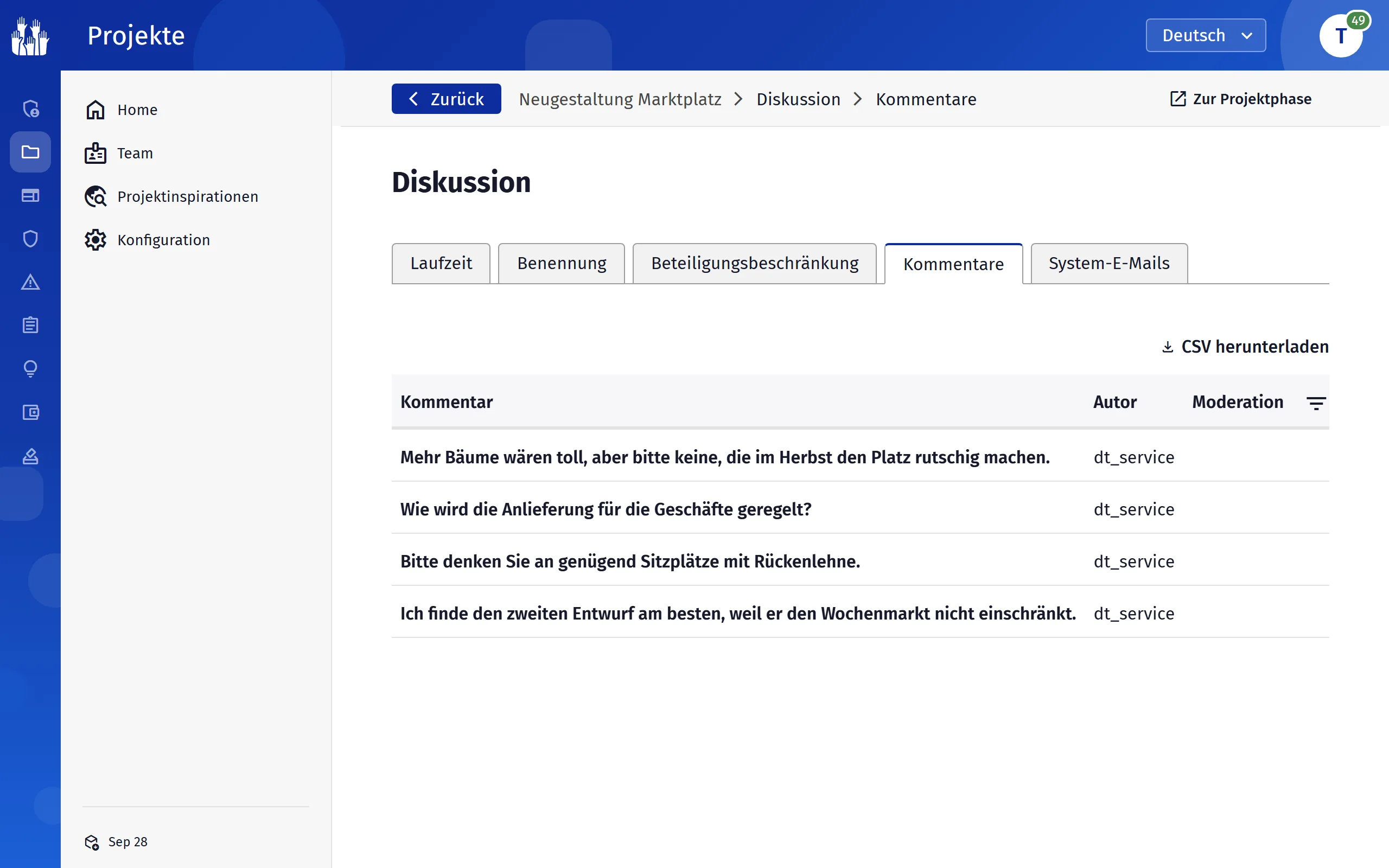
- All comments in the phase with “Comment”, “Author” and “Moderation” (moderation). Filter by moderation status and “Download CSV”.
- “System emails”
- “Notification of new comment”. Check it with “Send test email to me”.
Moderate comments
- “Hide”
- The comment is no longer visible on the website but stays in the system. The author gets an email about it if an email address is on file.
- “Restore”
- Brings back a hidden comment.
- “Ignore flag”
- Appears for flagged comments when the comment is fine.
Step by step: Moderate posts
Who gets notified
For every new comment, the subscribers of the phase get an email. Administrators and project managers with the “Receive notifications” permission also get one if they turned on emails about new comments in their account.
Project managers without the “Administer project” permission see only the “Comments” tab in the phase.