
Polls
A poll asks structured questions in a project. Participants choose one or more answers, distribute weighted votes, rate on a scale, or place pins on a map. People vote online. Polling officers also record votes on site.
Create a poll
- In the project, go to the “Participation phases” tab and click “Create new phase”.
- Choose “Poll” as the “Participation module” and click “Create phase”. The platform creates the poll in test mode.
- Set up the tabs of the phase.
- On the “Questions” tab, create questions and answers.
- Test the poll and publish it.
Step by step: Run a poll
Duration, participation, texts
- “Duration”
- The period during which people can vote.
- “Naming”
- “Name”, “Poll image”, “Tab label”, “Button label on the project page”, “Description of the voting phase”, “Text of the closing page”. The closing text appears after “Complete”. Without your own text, a default text appears.
- “Participation restriction”
- “Participation by user status”: “Guests (no registration required)”, “Registered users” or “Verified users”. Narrow it down with “Area restriction for participation”, “Extended area restriction” and “Age restriction for participation”.
- “Restriction to strong groups”
- Appears as soon as strong groups are set up on your platform.
“Features” tab
- “Sequential voting”
- Questions appear one after another. Otherwise, all appear on one page. On for new phases.
- “Homepage visibility”, “Overview page visibility”
- Shows the poll on the home page and on the overview of all polls, respectively.
- “Intermediate results (admins / project managers)”
- Moderators also see “Stats” and “Results”. Administrators and responsible project managers always see both.
- “Comments”
- A comment section below the poll. If comments exist, it stays visible even after you turn it off.
- “Publish name”
- Shows the username with open answers in the results.
Other tabs
- “Polling officers”
- Under “Assign polling officers”, you choose who records offline votes. An administrator sets up polling officers beforehand.
- “Lock date”
- Until then, you can record offline votes, even after the duration has ended.
- “Age ranges for stats”
- Age groups by which the stats break down participation. The groups themselves are managed centrally in the settings.
- “System emails”
- Text of the “Notification of new vote”.
Create questions
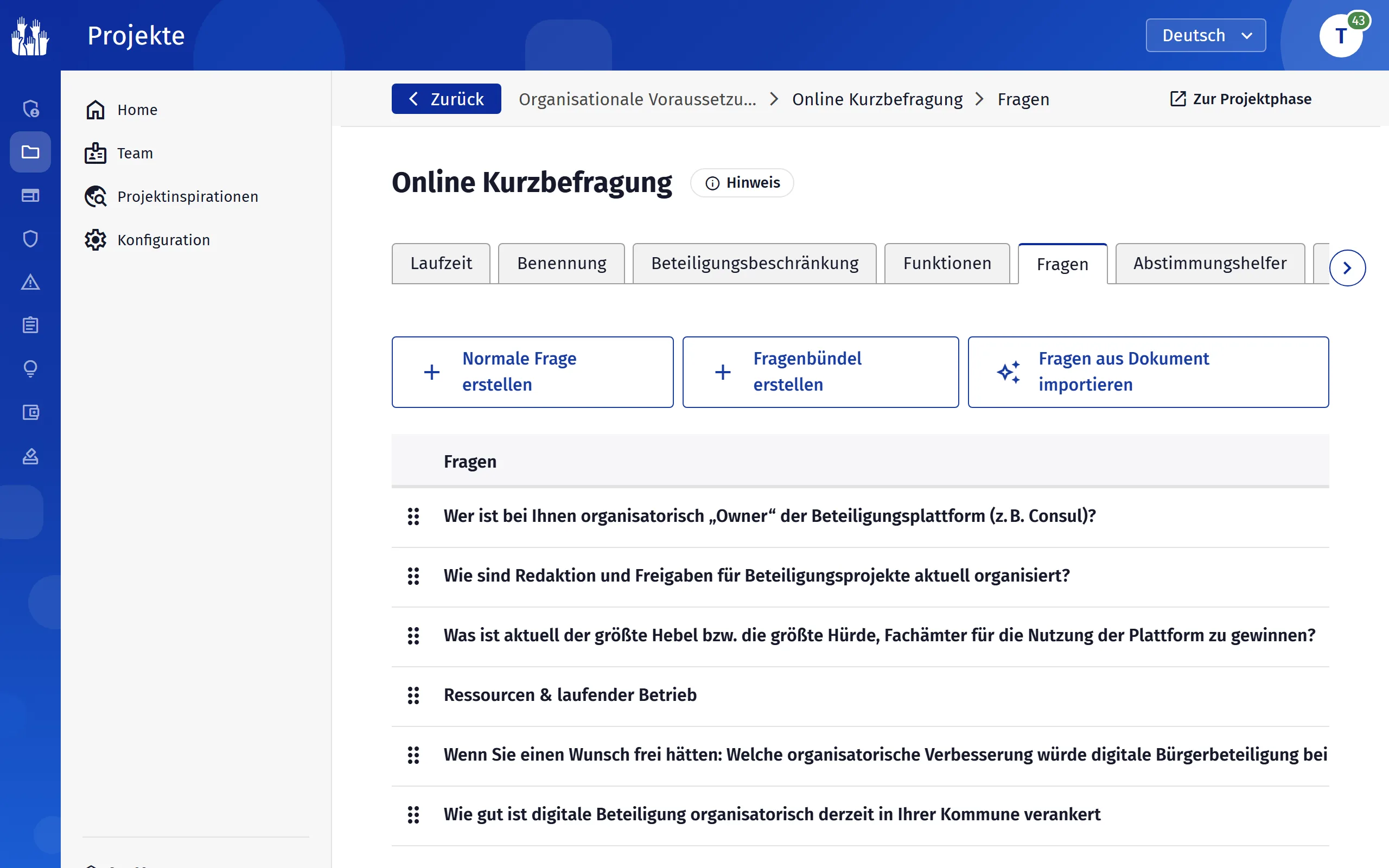
- “Create regular question” A single question.
- “Create questions bundle” Several sub-questions under one heading. Add sub-questions with “Create sub-question” in the bundle’s detail view.
- “Import questions from document” The AI reads questions from a file, see below. Only with AI enabled
You change the order with the drag handles. The questions appear in the same order on the poll page.
Voting mode
Every question has a “Voting mode”. Depending on the mode, more fields appear.
- “Single vote” Allows open answers and branching.
- “Multiple votes” “Maximum votes” (at least 2). Allows open answers.
- “Multiple weighted votes” “Maximum votes” (at least 2), “Maximum votes per answer”.
- “Rating scale” “Left label (minimum)”, “Right label (maximum)”. The steps are the answer options.
- “Map question (place pins)” “Map question: maximum number of pins”, “Map question: area boundary”. No answer list.
You draw the area of a map question or import it as a GeoJSON file. Pins outside the area are rejected.
Question properties
- “Intro text”, “Description”
- Additional texts for the question.
- “Required question”
- Marked with an asterisk on the poll page. In sequential voting, participants can only continue after they answer.
- “Show images on answer options”
- Shows images with the answers.
- “Randomize answer order”
- Not available for the rating scale. An open answer always comes last.
- “Randomize question position”
- Locked if the question is in a question bundle, is contextualized, or is part of a branch.
- “Show hint box on the frontend”
- Explains the voting mode, for example how many votes a person may cast.
With a randomized order, each person sees their own order. It stays the same every time they open the poll.
Answers
“Answer list” opens the answers of a question. “Add answer” creates one. Each answer can have images, documents and videos.
- “Description”, “More information (link)”, “More information (iframe)”
- In all modes except the rating scale.
- “Open answer”
- With “Single vote” and “Multiple votes”. The answer gets a free-text field.
Branching and contextualization
- “Next question”, “Ends the vote”
- You can choose one for each answer with “Sequential voting” and questions set to “Single vote”. Anyone who picks that answer jumps to the chosen question or to the closing page. Only jumps forward count.
- “Contextualization”
- The question repeats for each answer that was chosen earlier in a “Multiple votes” question, for example to rate each chosen proposal individually. The question list then shows “Contextualized by:”.
Import questions from a document
The button only appears if the AI feature is enabled on your platform.
- On the “Questions” tab, click “Import questions from document”.
- Upload a PDF, DOCX, ODT, TXT or MD file. The AI extracts questions, answer options and question types.
- Review and edit the “Questions draft”.
- Turn off any questions you don’t want under “Apply”.
- Click “Import questions”. Only now do the questions go into the poll.
Test and publish
- As long as the “Questions” tab shows “Test mode”, administrators, responsible project managers and polling officers cast test votes.
- On the “Questions” tab, click “Publish poll”. The poll becomes public.
“Publish poll” permanently deletes all test votes. You can’t undo it.
If votes exist after publishing, you can no longer change answer texts or delete answers. Contextualized questions are then no longer adjusted automatically.
Results and evaluation
- “Stats”, “Results”
- Administrators and responsible project managers can see both on the poll page at any time. “Publicly visible” makes them available to visitors, even before the duration ends.
- “Export” on the “Results” page
- “Download individual answers”, “Download poll results”. If you have created a project evaluation, you also get “Create PDF report”.
- “Export” in the project’s “Evaluation”
- For each question, “Download details about streets” and “Download details about crossectional voting”. The street evaluation is created in the background. You get an email when it is ready.
- “Download pins as GeoJSON”
- The pins of a map question, in its detail view.
- AI analysis
- In the project evaluation, with an AI summary and key findings, plus your own questions under “Ask AI about this phase”. On the poll page, in the “AI analysis” section, which you release with “Publicly visible”.
AI analysis is only available if the AI feature is enabled.
Record offline votes
Polling officers work in their “Polling officers” area:
- Choose the poll with “Vote”.
- Use “Add offline vote” to create the person: first name, last name, gender, date of birth, address.
- Click “Mark as verified” or “Continue without verification”.
- Record the answers.
- Use “Next person” to move on to the next ballot paper.
Step by step: Record a vote on site
The “Change log” tab shows which polling officer did what and when.
Anyone who voted on site can’t also take part online.
Good to know
- Participants can change or withdraw their votes until the duration ends.
- Organization accounts can’t vote.
- You can’t set a minimum quorum for polls.