
Text editing
With the “Text editing” participation module, you put a draft text up for public comments, such as a bylaw or a guideline. Citizens select a passage and comment on exactly that passage. Several versions of the draft can sit side by side.
Create a phase
- In the “Projects” dashboard, open your project, then open its “Participation phases”.
- Click “Create new phase”, choose “Text editing” under “Participation module”, and click “Create phase”.
- The phase is active right away. Create the first draft in the “Drafts” tab.
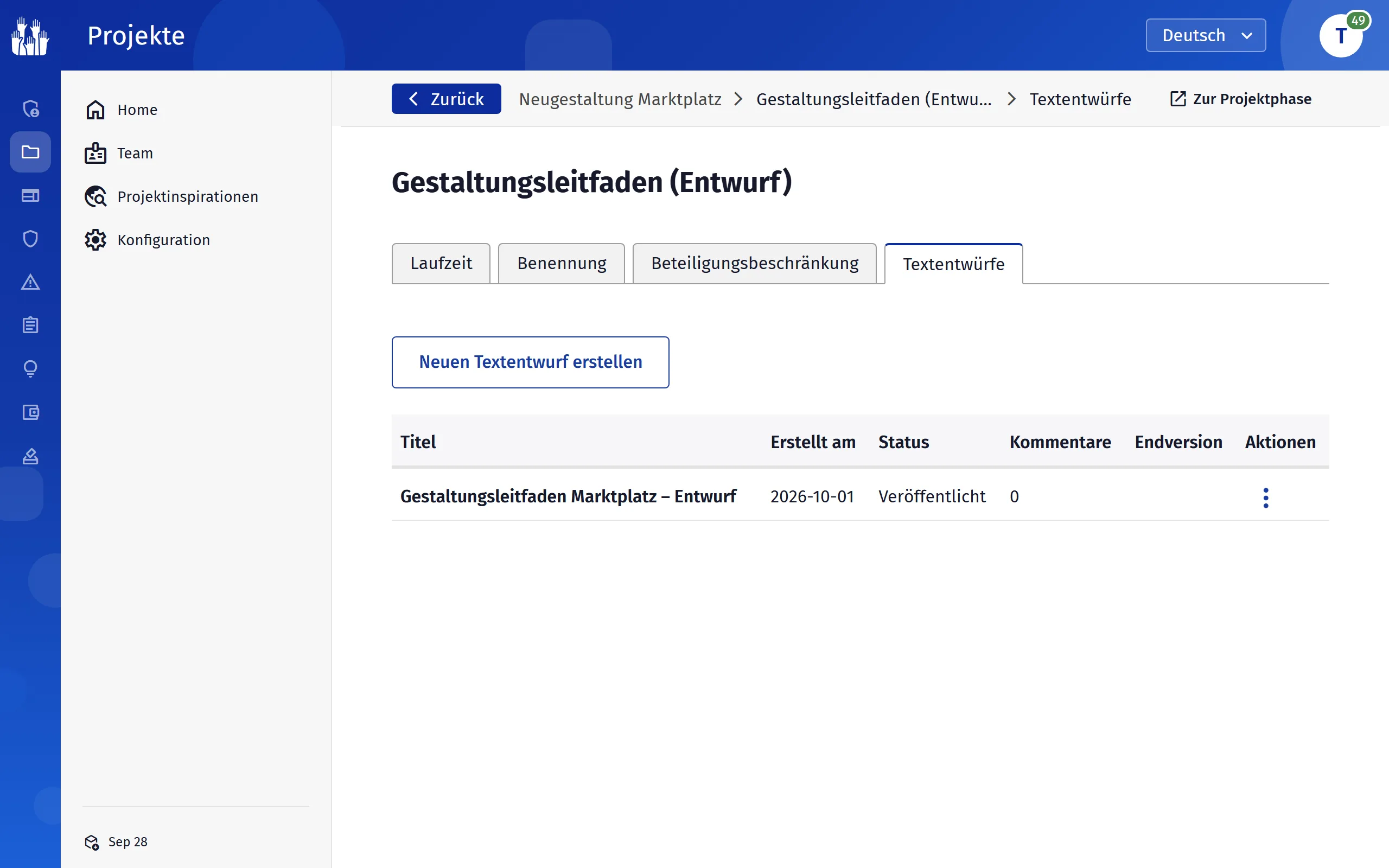
All tabs in the overview. Step by step: Put a text up for comments
The tabs
- “Duration”
- Period of the phase.
- “Naming”
- “Tab label” and “Button label on the project page”, default “Participate now”.
- “Participation restriction”
- Who may comment: “Participation by user status”, plus a restriction by area or age. Only signed-in users can comment.
- “Drafts”
- All versions with “Title”, “Created on”, “Statuses”, number of “Comments” and “Final version”.
Create a draft
“Create new draft” opens the form. You write the actual text afterward in the draft’s “Draft text” tab.
- “Version title”
- Appears on the website in the version selector.
- “Changelog”
- What changed compared with the previous version. If you fill it in, the website shows “see changes summary”.
- “Publication status”
- Only staff see “Draft”. “Published” shows the version on the website for comments.
- “Lock commenting”
- Makes the version the final version. The text stays readable, but nobody can comment anymore.
“Draft text” tab
On the left, you write the text in Markdown format. On the right, you see the preview. The note at the top shows the formatting options, such as # Heading 1 or - List item. Use “Fullscreen” to enlarge the editor and “Save” to save the text.
Structure the text with headings. On the website, they become the table of contents “Content”.
On the website
- Choose a version Under “You’re seeing draft version”, visitors choose a published version. The most recently created one is the default.
- Comment Select a passage, click the pencil, write a comment, and click “Publish comment”.
- Show all comments Lists the commented passages. Use “See in context” to go back to the text.
This phase has no separate tab for moderating comments. If no version is published, the tab on the project page shows no text.
Organizations cannot comment on texts.