
Iframe
An iframe phase embeds another website in the project page, such as an external survey, a 3D map, or a planning tool. You only enter the address. The content itself stays with the other provider.
Create a phase
- In the project, open the “Participation phases” and click “Create new phase”.
- As the “Participation module”, select “Iframe” and click “Create phase”.
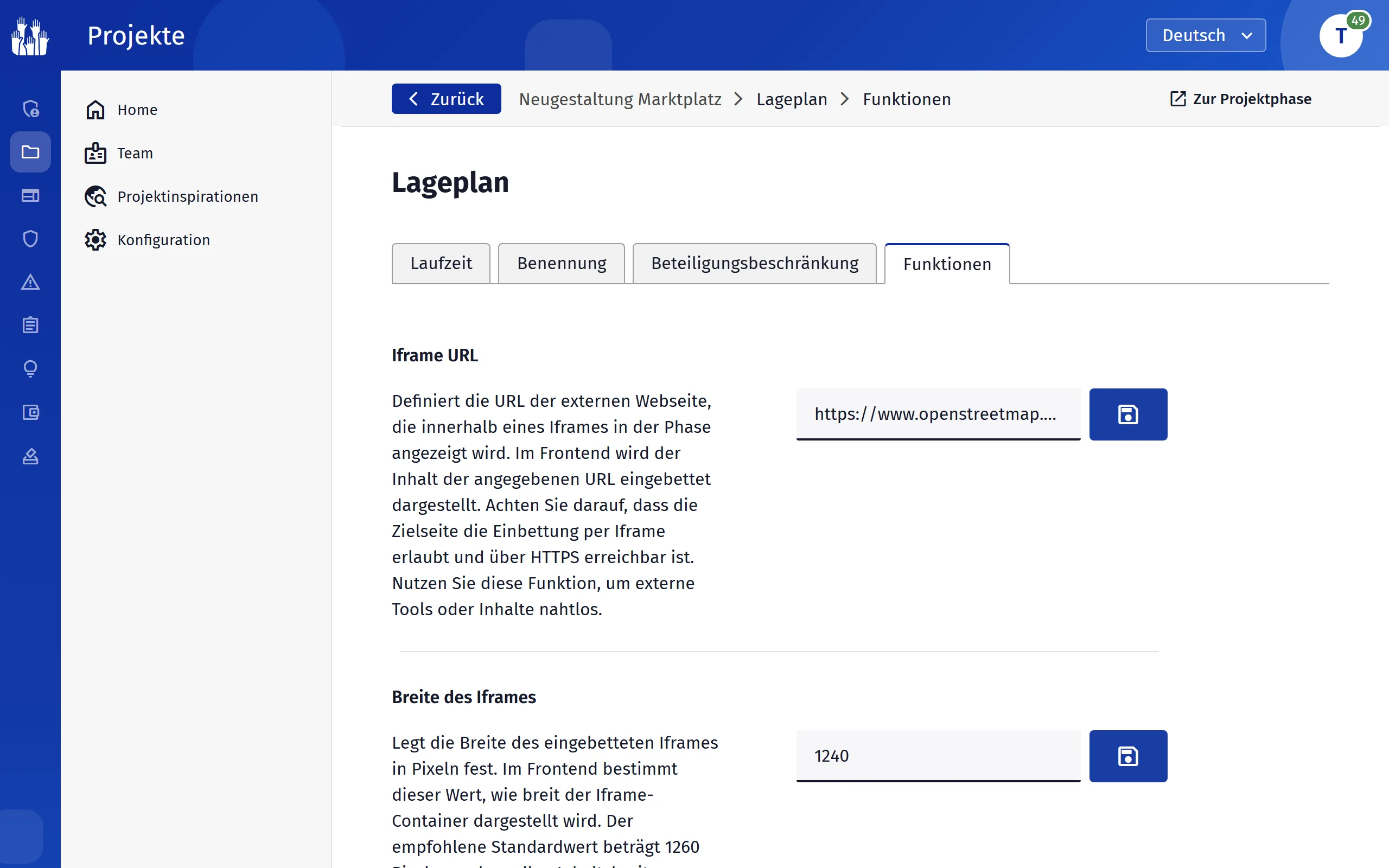
- In the “Features” tab, enter the “Iframe URL”.
Step by step: Embed external content
The tabs of the phase
- “Duration”
- The period in which the embedded content is shown.
- “Naming”
- The “Tab label” on the project page.
- “Participation restriction”
- Who sees the embedded content: “Participation by user status”, plus area or age restriction.
- “Features”
- “Iframe URL”, “Iframe width” and “Iframe height”.
“Features” tab
- “Iframe URL”
- The address of the page to embed.
- “Iframe width”, “Iframe height”
- In pixels. The defaults are 1240 and 800.
Not every website can be embedded. The other provider decides whether it works. So check the phase on the project page before it starts.
Duration and restriction
Outside the duration, and for people who do not meet the participation restriction, the phase shows a notice instead of the content. If the phase is restricted to registered users, visitors who are not logged in also see only the notice.
Administrators and project managers with management rights for the project always see the content.
Data protection
If “Two-click solution for iframes” is turned on in the administration under “GDPR”, the embedded content loads only after the visitor clicks. The setting applies to the whole platform. Only administrators can change it.
Open “GDPR”