
Participatory budgeting
With the “Participatory budgeting” participation module, you run a participatory budget (Bürgerhaushalt). Citizens submit proposals and support them, the administration reviews them, and at the end participants vote on the budget. The process follows nine budget phases that run one after another.
Create a phase
- In the dashboard under “Projects”, open your project, then its “Participation phases”.
- Click “Create new phase”, select “Participatory budgeting” under “Participation module”, and click “Create phase”.
- The phase is active right away and takes over the project’s map settings. It comes with its own budget and nine budget phases, each one month long, the first starting on the day you create it.
All tabs in the overview. Step by step: Set up a participatory budget and Guide the participatory budget through the phases
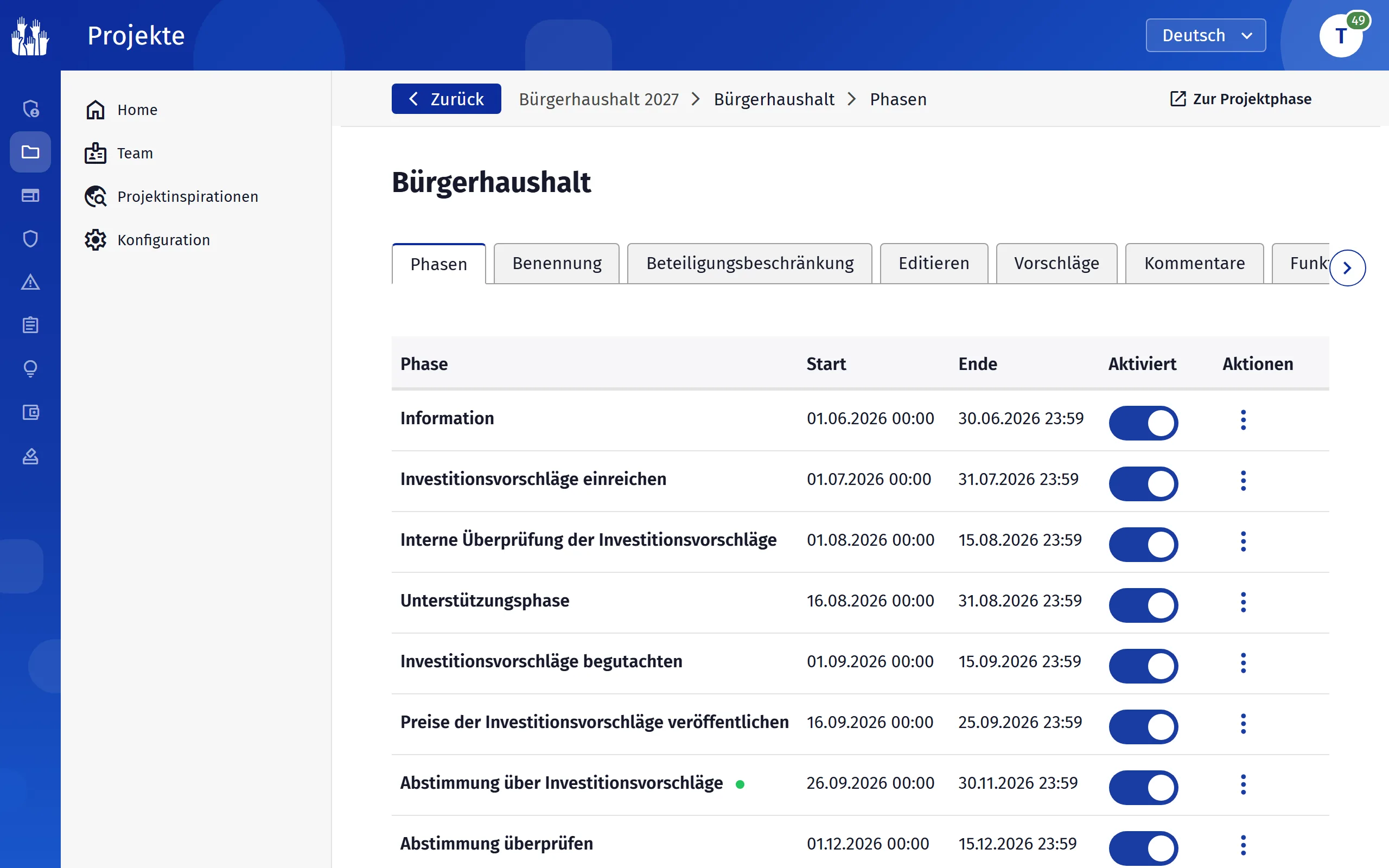
“Phases” tab
Instead of a “Duration”, the budget has nine phases. The table shows “Active phase”, “Start”, “End” and the “Enabled” switch. A dot marks the current phase.
| No. | Default name | What happens on the project page |
|---|---|---|
| 1 | “Information” | Notice “No proposals yet” along with the start of submissions |
| 2 | “Accepting projects” | “Create proposal” button |
| 3 | “Reviewing projects” | Only the administration can still submit proposals |
| 4 | “Supporting phase” | Support proposals |
| 5 | “Valuating projects” | The list shows the preselection if “Preselected” is set |
| 6 | “Publishing projects prices” | Prices become visible, the list shows the selected proposals |
| 7 | “Voting projects” | Cast votes under “My ballot” |
| 8 | “Reviewing voting” | The list shows the selected proposals |
| 9 | “Finished budget” | The list shows the winners |
- “Phase label”, “Start date”, “End”
- Use “Edit” in each row. The phases join without gaps. If you change a date, the neighboring enabled phase moves with it.
- “Enabled”
- A disabled phase is skipped. The next enabled phase takes over its start.
The current phase is the enabled phase whose period includes today. If none does, the last enabled phase counts as current.
“Edit” tab
- “Final voting style”
- “Knapsack”, “Approval” or “Multiple votes”. Sets how voting works in phase 7.
- “Participatory budgeting”
- The total amount. The winners together must not exceed it.
- “Votes allowed”
- How many proposals a person may vote for. Applies only with the “Approval” style.
- “Preselected”
- How many proposals with the most support after phase 4 go into review. With a value above 0, all submitters automatically get an acceptance or rejection by email.
- “Hide money amount for this budget”
- Hides all amounts. In a proposal’s valuation, pricing then drops out too.
- “Maximum number of winners”
- Upper limit for the winners list.
- “Results”, “Percentage values only”
- “Results” makes the winners list public after phase 9. “Percentage values only” shows percentages instead of vote counts there.
- “Ergebnisse nach erster Stimme anzeigen” (show results after first vote)
- Takes effect in phase 6. The list then shows only the selected proposals, without filters.
- “Statistics”, “Advanced statistics”
- Statistics page for the public, from phase 2.
- “Administrators”, “Valuator”
- Who manages this participatory budget and who assesses the proposals. Valuators must be created beforehand.
Also “Currency” for the symbol next to all amounts.
Duration, participation, texts
- “Naming”
- “Tab label”, “Button label on the project page”, “Hint text at the start of contribution creation”, “Heading above the input area”, placeholders for title and description, “Introduction text above submitted proposals”, “Label term for labels”, “Label term for sentiments”.
- “Participation restriction”
- “Participation by user status” (guests, registered or verified users), plus restriction by area or age.
“Features” tab
- “Browse mode”, “Browse mode as default”
- Page through proposals one by one.
- “Default sort”
- “Random” (preset), “Current ranking”, “Most supported”, “Newest first” or “Most commented”. The rankings are only available in phases that have support or votes.
“Form author” tab
- “Cover image”, “Labels”, “Sentiments”, “Map”, “Map drawing”, “Documents”, “Video”
- Fields of the submission form. Cover image, map and map drawing are preset.
- “Implementation”
- A choice of whether the city administration implements the proposal or the person helps, with free text about their own contribution.
- “Cost estimate”
- Field for the submitter’s own cost estimate.
- “Check for similar contributions”
- Before submitting, up to three similar proposals appear. Needs AI to be enabled.
- “Maximum map markers”, “Maximum description length”, “Maximum submissions per user”
- Limits. Description preset: 6,000 characters.
“User functions” tab
- “Submit proposals”
- Off: Only people with management rights for the project create proposals.
- “Simplified support voting”, “Simplified voting”
- Support or vote before verification. It only counts afterward.
- “Hide vote count during proposal voting”
- Hides the counters and the “Most supported” sort in phase 7.
- “Maximum supports per user”
- How many proposals a person may support in phase 4.
- Other switches
- “Comments”, “Report”, “Follow”, “Working groups”, “Share”, “Related content”, “Videos as link”, “Sortierung „Meist kommentiert“ ausblenden” (hide “Most commented” sort).
“Proposals” tab
The table lists all proposals, including “Criteria”, “Valuation finished”, “Support”, “Selected”, “Vote count” and “Winner”. Use “Columns” to show more.
- “Manage”
- Opens the proposal with the “Valuation” section, see below.
- “Valuators & administrators”
- Who is responsible for this proposal and assesses it.
- “Milestones”, “Progress bars”, “Change log”
- Document the implementation status and track changes.
- “Hide”, “Restore”, “Mark as viewed”
- Moderation. “Mark as viewed” appears for reported proposals. When you hide a proposal, the submitter receives an email if an address is on file.
- “Determine winners”, “Recalculate winners”
- From phase 7. Calculates the winners list.
- “Download CSV”, “Download GeoJSON”
- Export of the current view including filters.
Valuation of a proposal
The sections unlock with the budget phases. Locked ones show “Not yet available”.
- “Feasibility”
- “Not evaluated”, “Feasible” or “Unfeasible”, plus “Explanation” and “Valuation finished”. Once a result is saved, the submitter can no longer edit their proposal. Proposals that do not meet the criteria cannot be supported in the support phase.
- “Phase 5: Pricing”
- “Total cost” becomes public from phase 6. “Annual follow-up costs (internal)” and “Time scope” do not. Possible earlier if the proposal meets the criteria.
- “Phase 6: Admission to voting”
- Only admitted proposals are available to vote on in phase 7. The section unlocks from phase 5. If phase 6 is disabled, this works from phase 3 already.
- “Phase 8: Winners list”
- “Mark as incompatible”. After voting ends.
With “Valuation finished”, the result and explanation become public, the submitter receives a one-time email, and valuators can no longer change their valuation. With “Unfeasible”, the explanation is required and comments on the proposal are closed.
Other tabs
- “Comments”
- Moderate comments on all proposals and download them as CSV.
- “Labels”, “Sentiments”
- Create options for the form.
- “Map”
- Map section of the phase.
- “Age ranges for stats”
- Which age groups the statistics evaluate.
- “Polling officers”
- Who records votes on site. From the “Lock date” on, this is no longer possible.
- “System emails”
- Grouped by step: “Submission (Phase 2)”, “Feasibility review (Phase 2 + 3)”, “Preselection (Phase 4 → 5 transition)” and “Final selection for voting (Phase 5)”.
- “AI voice assistant”, “AI flow assistant”
- Submit by voice or with the “Create investment proposal with AI” button, with criteria as for proposals. Need AI to be enabled.
- “WhatsApp”
- Only if WhatsApp is set up on your platform.
Project managers without the “Administer project” right see only the “Proposals” and “Comments” tabs in the phase.