
Events
With an events phase, you announce dates such as workshops, citizens’ meetings, or site walks. If you want, citizens can register directly on the project page, with a capacity limit and a waitlist.
Create a phase
- In the project, open the “Participation phases” and click “Create new phase”.
- As the “Participation module”, choose “Events” and click “Create phase”.
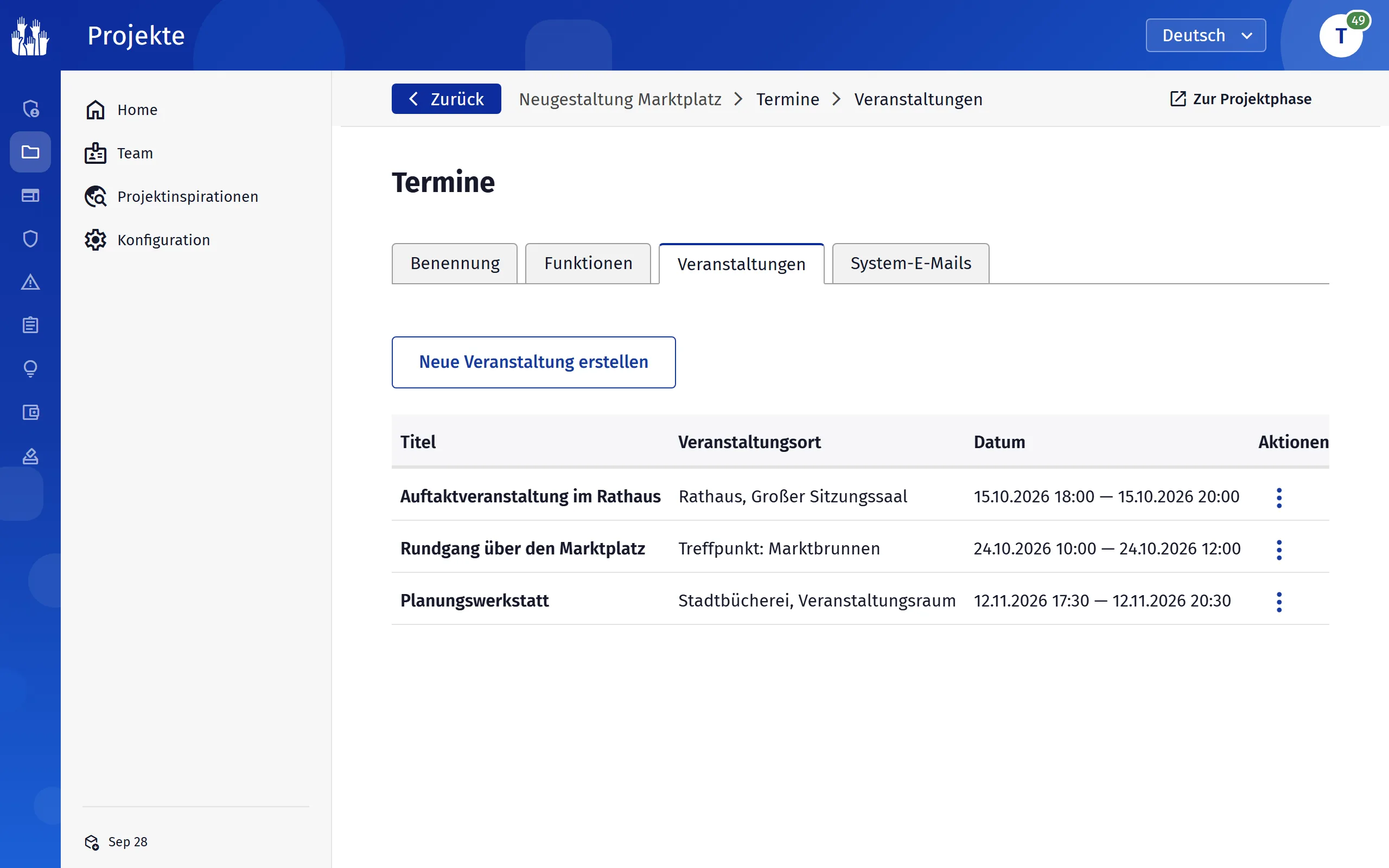
- In the “Events” tab, use “Create new event” to add the dates.
Step by step: Announce an event and manage registrations
The tabs of the phase
- “Naming”
- The “Tab label” on the project page.
- “Features”
- “Reversed order for upcoming events” shows the latest date first. “Show event on homepage” is on by default. More on this below.
- “Events”
- All dates in the phase with “Title”, “Event location” and “Date”. Each row has “Overview”, “Registrations (…)”, “Send notifications” and “Delete”.
- “System emails”
- The text of the “Notification of new event”. Check it with “Send test email to me”.
An events phase has no duration and no participation limit. Only “Active” and “Visible” in the overview of phases control whether it appears.
Create an event
The form has four sections. After you create the event, you edit each section separately in the “Overview” with “Edit”.
- “General”
- “Title” (required), “Description”, “Cover image” and “Language”, for example “German / Turkish”.
- “Schedule & location”
- “Event location”, “Start” (required), “End”, “Open end” and a “Link”, for example to a video conference.
- “registration”
- “Registration required”, “Maximum attendees”, “Bulk-registration email addresses”, “Confirmation email text” and “Waitlist email text”.
- “Accessibility”
- Checkboxes for “Wheelchair accessible”, “Accessible toilet available”, “Induction loop available”, “Assistance dogs welcome” and other features. On the project page, the features you set appear with the event.
Registration and waitlist
Registration is only available if “Registration required” is checked. “Maximum attendees” is then optional. If you leave it empty, the number of attendees is not limited.
- Register Citizens register with their first name, last name and email address, even without an account. If the number of attendees is limited, the project page shows how many spots are still available.
- Confirm Anyone who does not register with the email address of their own account gets an email with the link “Confirm registration”. The registration only counts after that.
- Waitlist If the event is full, every further registration goes on the waitlist. When a confirmed spot opens up, the oldest registration on the waitlist moves up.
- Bulk registration Addresses under “Bulk-registration email addresses” may register several people and do not need to confirm. Separate multiple addresses with commas.
- “Confirmation email text”, “Waitlist email text”
- Sent as soon as a registration is confirmed or on the waitlist. Without text, the respective email is not sent. People who move up from the waitlist get the confirmation email text.
From the start of the event, the project page no longer shows a button to register.
Manage registrations
In the event, open the “Registrations” tab. The table shows “Name”, “Email”, “Statuses”, “Registered at” and “Confirmed at”.
- “Statuses”
- “Confirmed”, “Waitlisted” or “Pending confirmation”. Use the column header to filter by status.
- “Resend confirmation”
- Only for “Pending confirmation”. Sends the confirmation link again.
- “Delete”
- Removes the registration. If it is confirmed, the first person on the waitlist moves up.
- “Download CSV”
- Exports the current view, including filters.
In the “registration” section of the “Overview”, you also see the numbers “Confirmed registrations” and “Waitlisted”.
On the homepage and in the event calendar
- Homepage With “Show event on homepage”, the upcoming dates of the phase appear in the event tile on the homepage, if the homepage has one.
- Event calendar A page with the events of all active projects. Administrators turn it on under “Application”, “Overview pages” with “Events”. Administrators only
Notify subscribers
A new event does not send a message on its own. With “Send notifications” in the list or in the “Overview”, you inform the subscribers of the phase by email and in their account. You can find out who they are under Notifications.
Every click on “Send notifications” sends the message again to all subscribers.
This is what it looks like for citizens: Events in the citizens’ manual