
Livestream
With a livestream phase, you show a video from YouTube or Vimeo right on the project page, such as the broadcast of a town hall meeting. If you want, you add questions to each livestream that the audience answers during the broadcast.
Create a phase
- In the project, open “Participation phases” and click “Create new phase”.
- For “Participation module”, select “Projekt livestream” and click “Create phase”.
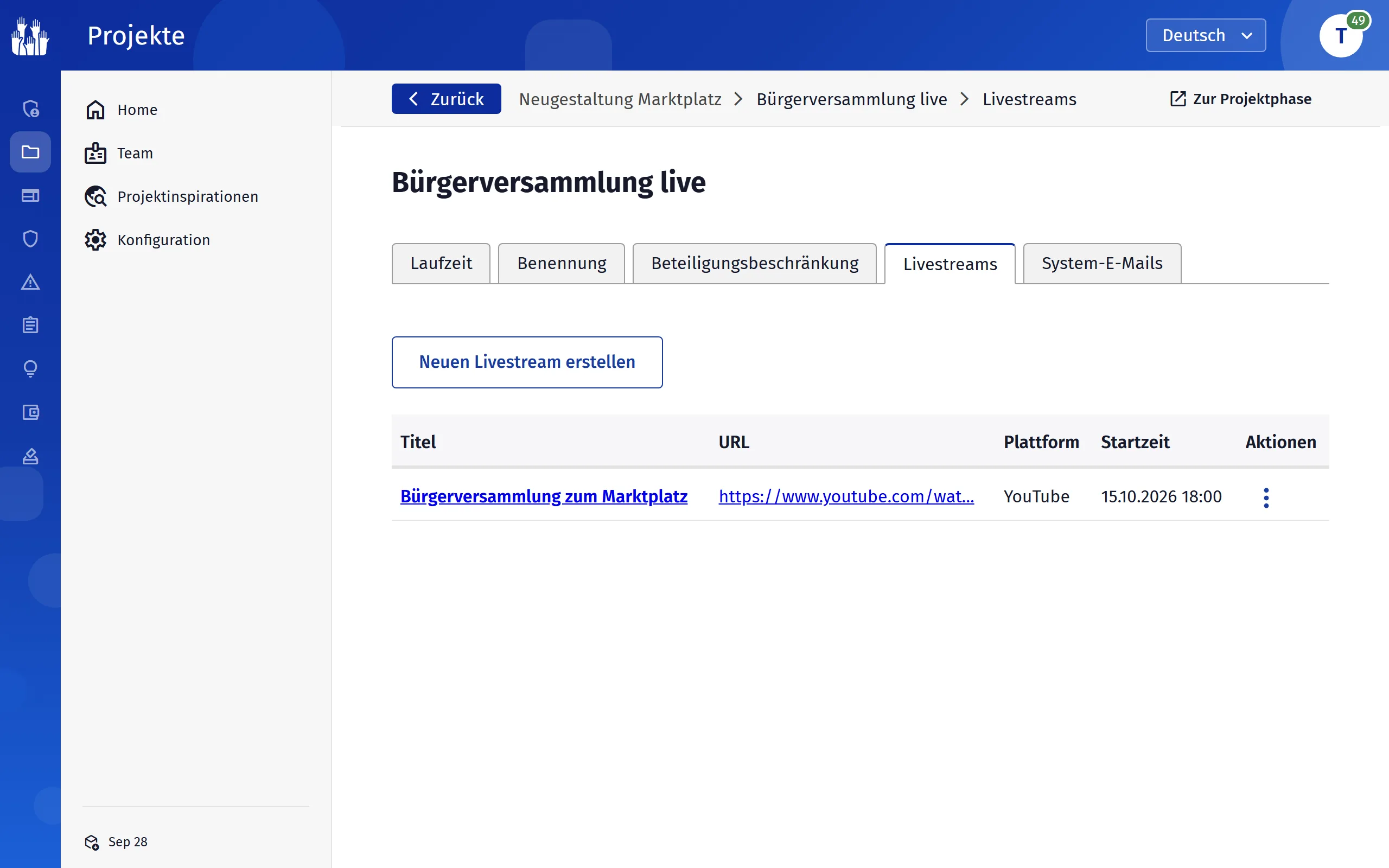
- In the “Livestreams” tab, use “Create new livestream” to add the broadcast.
Step by step: Embed a livestream
The phase tabs
- “Duration”
- The period in which people can answer the questions about the livestream.
- “Naming”
- “Tab label” and “Button label on the project page”. Without your own label, the button reads “Participate now”.
- “Participation restriction”
- Who may answer the questions, set under “Participation by user status” and, if you want, by area or age. Every visitor can see the video itself.
- “Livestreams”
- All broadcasts with “Title”, “Slug”, “Platform” and “Start time”. Each row has “View”, “Edit”, “Send notifications” and “Delete”.
- “System emails”
- The text of the “Notification of new livestream”. Check it with “Send test email to me”.
Create a livestream
- “Video URL”
- The address of the video on YouTube or Vimeo. Required field.
- “Title”, “Start”, “Description”
- If you leave a field empty, the platform takes the value from YouTube or Vimeo when you save, as long as it is available there.
Questions about the livestream
Use “View” to open a livestream. There you see the video and add questions with “Add question”.
- “Question”
- The question as the audience sees it.
- “Answer options”
- The answers to choose from, added with “Add option”.
- “Show answer count”
- Shows, after someone has voted, how many people chose each answer.
- “Open answer”
- An additional free-text field below the answers.
The table in the view shows how often each answer was chosen. If a new question is added during the broadcast, the project page shows “Neue Frage: …” (new question: …) with the link “Go to question”.
On the project page
- At the top is the livestream with the latest start, below it the title, start time and description.
- If the phase has several livestreams, the “Livestreams” list leads to the others.
- Below the video is the first question about the livestream.
Notify subscribers
A new livestream does not send any message on its own. Use “Send notifications” to inform the phase’s subscribers by email and in their account. For who that is, see notifications.
Every click on “Send notifications” sends the message again.