
Copy a project as a template
Your goal
You want to use a proven project as the starting point for a new one, with all phases and settings but without the contributions.
Open project area
What you need
- The project you want to use as a template is on your platform.
- You have the “Administer project” permission in this project.
How to do it
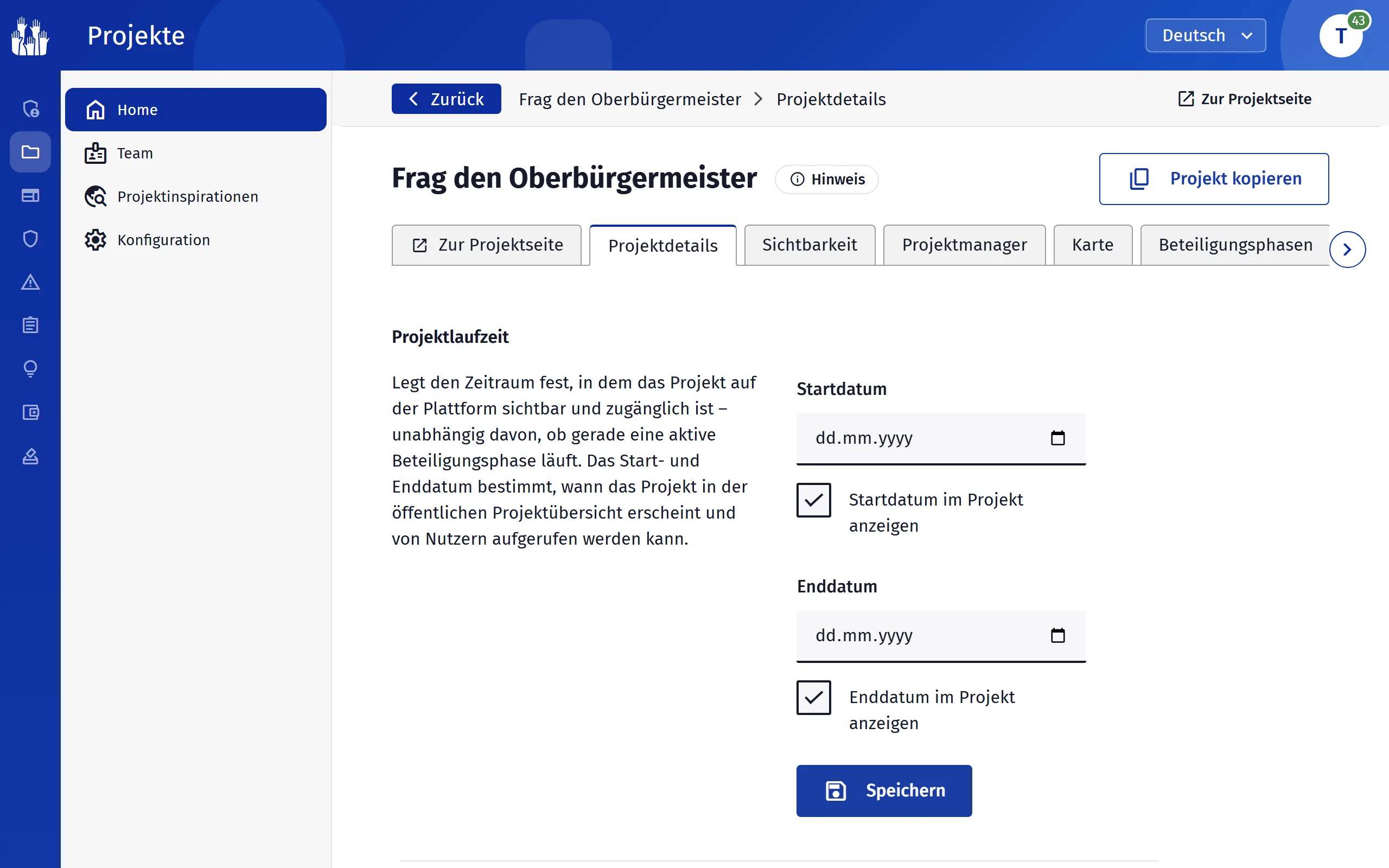
- Open the project you want to copy, then open “Project details” in the project’s menu.
- Click “Copy project” at the top right and confirm the prompt.
- You land on the start page of the project area. The copy is created in the background. This can take a moment.
- Open the copy. Its name is “Kopie von” (copy of) followed by the name of the original.
- Give it its own name. Then adjust the texts, the project “Duration”, and the “Duration” of each phase.
- Check the page with “User view”.
What gets copied
- Phases, settings, content and maps, plus everything the administration created.
- Form fields and follow-up emails. In the copy, the emails are drafts without recipients.
- Not copied are contributions, votes, comments, participants’ subscriptions and form submissions.
Decision: copy or import?
- Is the original on your platform?
- Then copy it with “Copy project”.
- Is it on a different Consul platform?
- Then take it over with “From a Consul projekt”. See Import a project.
- Do you only have a document or a web page?
- Then the AI builds the project from it, also described under Import a project.
Common pitfalls
The copy is deactivated and not visible to visitors. You can activate it in the “Project details” with the “Project activated” switch. To find out how to make it visible, see Set where the project appears.
In the copy, “Project on projects overview page”, “Project on the homepage”, “Project in the navigation menu” and “Search-engine indexing” are switched off, even if they were on in the original. Switch them back on under “Visibility”.
The copy takes over all other settings from the original, including the project “Duration”. So go through the phases one by one before you activate the copy.