
Guides
Guide
Project manager
Project manager
You want to set up a new participation project and have a first project page.
Create a project
Your goal
You want to set up a new participation project and have a first project page.
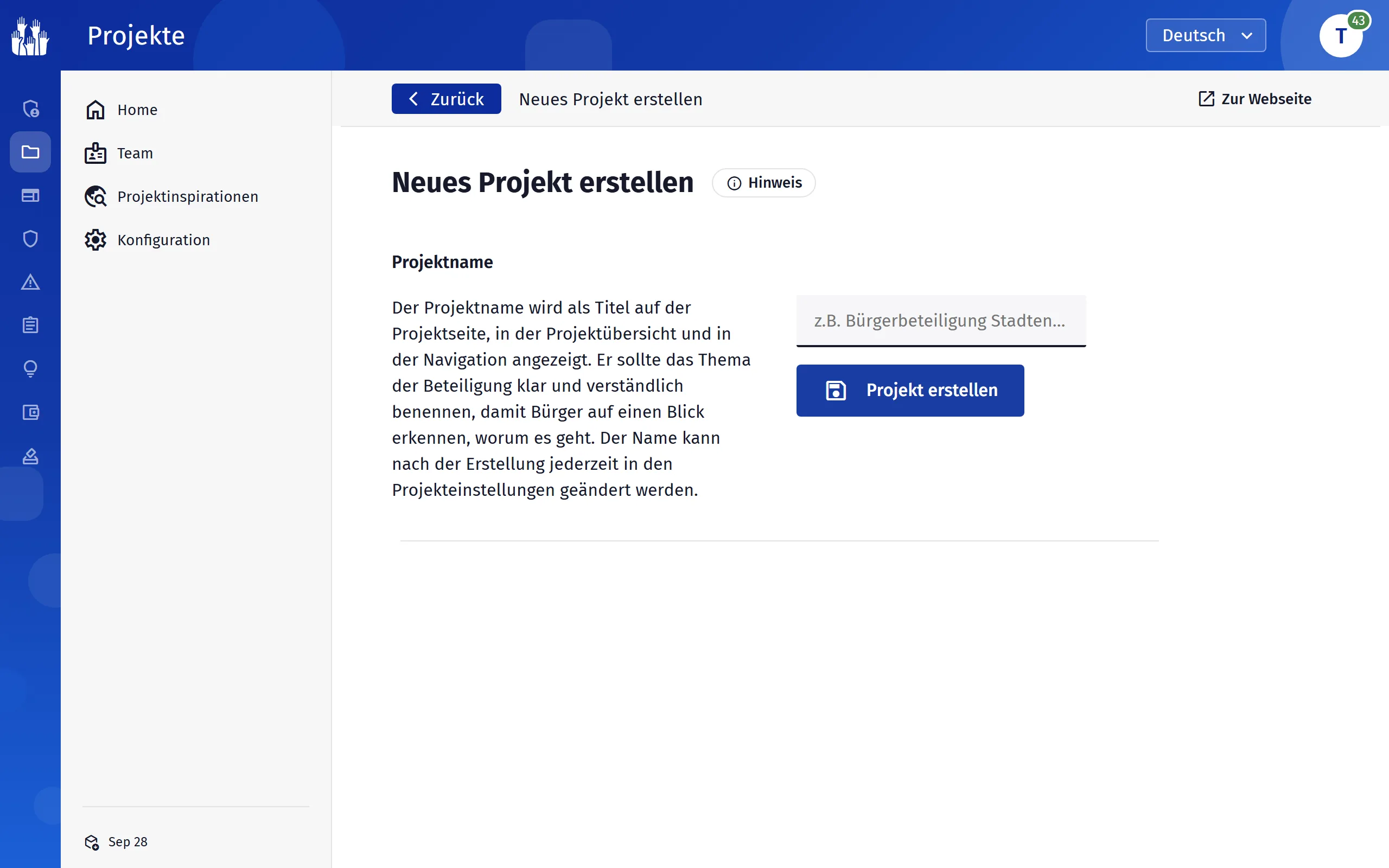
Open “New project”
What you need
- You are a project manager or administrator.
How it works
- In the project area, click “New project”.
- Enter a name. You don’t need anything else at first.
- Click “Create project”. You land on the new project page. The project is a draft and not yet visible to visitors.
- Choose how you want to fill the page (see below).
- Check the result with “User view”, the way visitors see it.
The decision: how do you start?
- You already have a concept or a call for proposals “Import file”: The AI builds the project, phases and content from the document. Import a project
- You have an idea, but no text yet “Enter prompt”: You describe the project in your own words. After about a minute, the AI creates a project page with an introduction, process, schedule and notes on how to take part.
- You want to design the page yourself “Choose template”: You put the page together from the template catalog. Content blocks and AI
- You want to start from scratch “Empty block”: no template.
The AI options are available if AI is set up on your platform.
What’s next
- Create the participation phases, for example to collect ideas or to run a poll.
- Bring colleagues into the project.
- Make the project visible once it is ready: use “Project activated” in the “Project details” and the “Visibility” tab.
Common pitfalls
You can edit all texts and images that the AI creates. Check them before you publish.
An AI cover image automatically carries the note “AI-generated image”. If you upload an image yourself that was created or edited with AI, turn on the “AI” switch. The label is required by law.