
Guides
Guide
Citizens
Citizens
You want to bring your own idea into a participation project.
Submit a proposal
Your goal
You want to bring your own idea into a participation project.
What you need
- The project has a phase with proposals running.
- You are logged in, if the project requires it.
How it works
- Open the participation project and choose the section with the proposals. The administration decides what this section is called in each project.
- Click “Create proposal”. The administration can give the button a different label.
- Enter a title and describe your idea.
- Add what the project offers: a cover image, a location on the map, labels or a mood, documents, or a link to a YouTube or Vimeo video.
- Confirm the privacy policy and terms of use and click “Submit now”. You receive an email with information about what happens next.
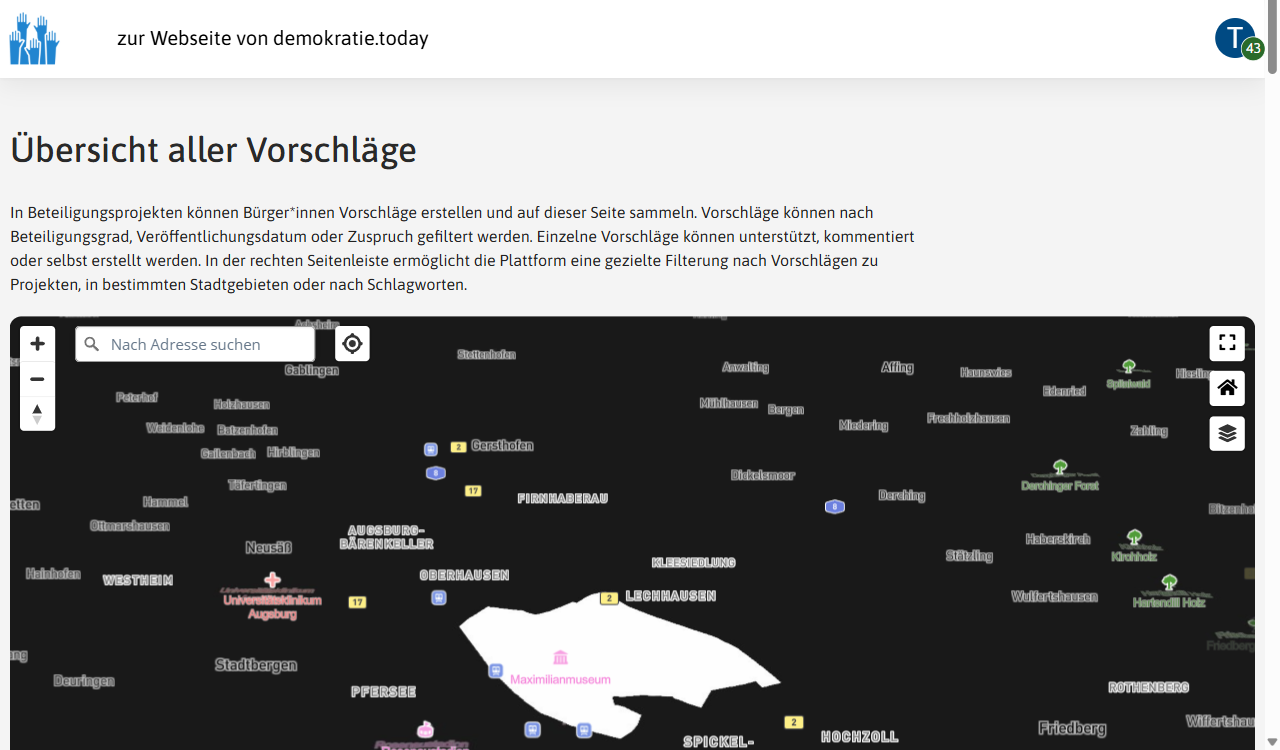
Found similar proposals?
If the project checks for similar contributions, the platform shows up to three similar proposals before you submit.
- Support
- If the project allows support, support one of the similar proposals instead.
- “Back to the form”
- You keep working on your proposal. Instead of the usual submit button, the form then shows “Show similar contributions” and “Submit anyway”.
- “Submit anyway”
- You send your proposal.
With the AI draft
If the project offers “Create AI draft”, an AI helps you write your proposal.
- Describe your idea in 600 characters or fewer and click “Create proposal draft”.
- Review and edit the draft, including the title and description. Instead of a generated image, you can upload your own.
- If the administration has set criteria, click “Continue to Evaluation” and read the AI’s notes. Then choose “Edit proposal” or “Submit proposal”.
- Without criteria, submit the draft directly with “Create”.
What happens next?
- In some projects, the administration reviews proposals before they are published. You can see your own proposal before that once you are logged in.
- Others can support and comment on your proposal. The administration can publish an official response.
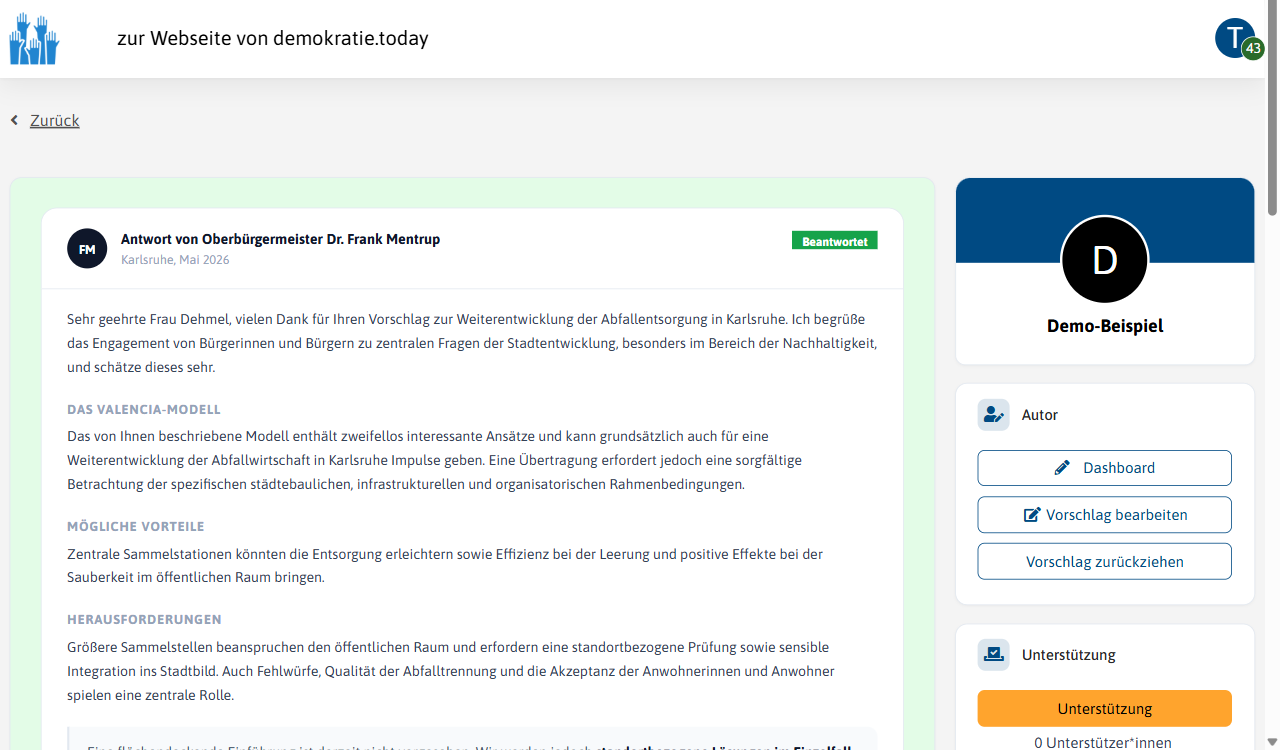
- In the “Author” card, you find “Edit proposal” and “Withdraw proposal”, where possible.
Common pitfalls
If you created or edited an image wholly or partly with AI, turn on the “AI” switch for the image. The image then publicly shows the note “AI-generated image”.
If the project offers moods, you must choose one when you submit. The description may have a character limit, and the number of proposals you can submit may be limited.