
Proposals
With proposals, you bring your own ideas into a participation project, for example an improvement for your neighborhood. You can support and comment on other people’s proposals. The administration can publish an official response to each proposal.
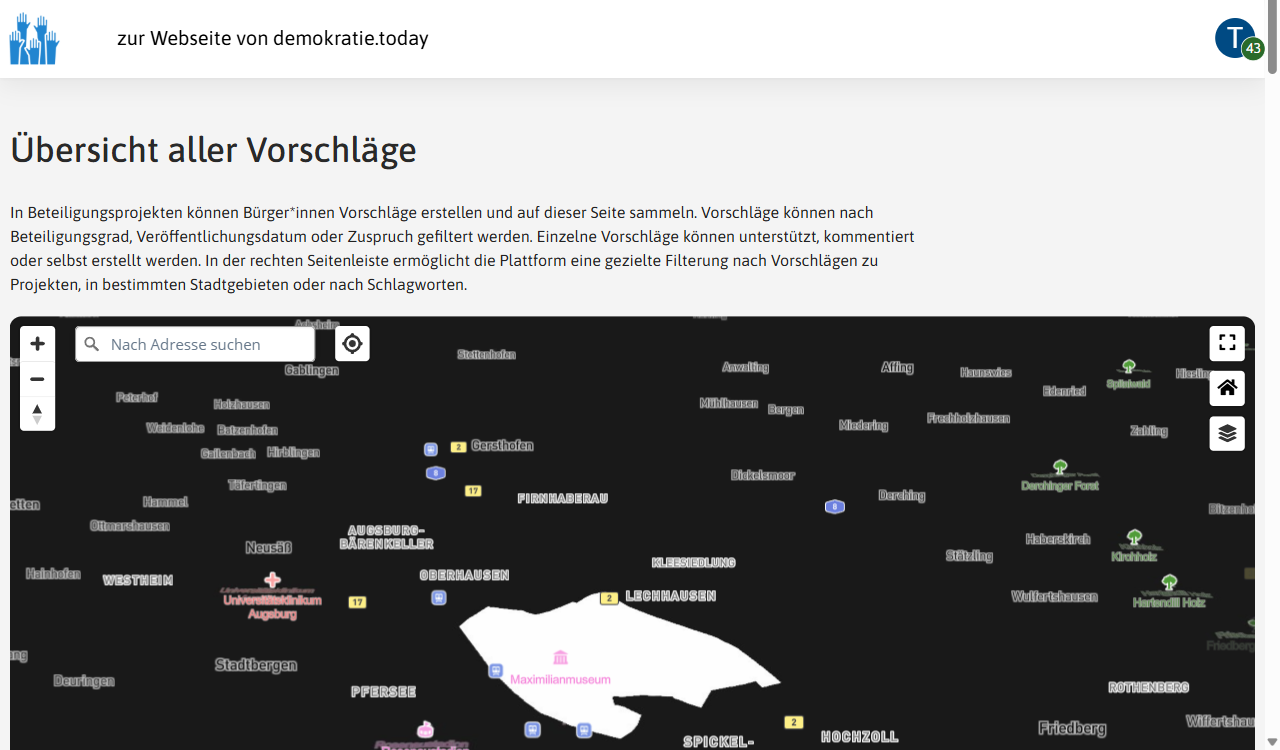
Submit a proposal
- Open the participation project and choose the section with the proposals. The administration sets the name of the section for each project.
- Click “Create proposal”. The administration can give the button different text.
- Enter a title and describe your idea. Depending on the project, you upload a cover image, mark a location on the map, choose labels or a mood, attach documents, or add a link to a YouTube or Vimeo video.
- Confirm the privacy policy and terms of use and click “Submit now”. You then receive an email with information about the next steps.
If you created or edited an image wholly or partly with artificial intelligence, turn on the “AI” switch for the image. The image then publicly shows the note “AI-generated image”.
Similar proposals
If the project checks for similar contributions, the platform compares your proposal with the existing ones after you submit it. During the check, you see a window with the message “Checking proposal …”. If the platform finds similar proposals, it shows you up to three of them.
- Support
- If the project allows support, you can support one of the similar proposals instead. The link “Go to the supported contribution” then appears in place of the other two buttons.
- “Back to the form”
- You keep working on your proposal. Instead of the normal submit button, the form then offers “Show similar contributions” (afterward “Hide similar contributions”) and “Submit anyway”.
- “Submit anyway”
- You send your proposal.
Submit with the AI draft
If the project offers the “Create AI draft” button, an AI helps you write your proposal.
- Describe your idea in a few sentences, 600 characters at most, and click “Create proposal draft”.
- The AI creates a draft with a title and description. If the project calls for a cover image, the AI also creates an image. You can upload your own image instead and edit the draft in full.
- If the administration has set criteria, click “Continue to Evaluation”. The AI checks your proposal against these criteria and gives you feedback.
- Use “Edit proposal” to revise it and “Submit proposal” to send it. If there are no criteria, you submit the draft directly with “Create”.
- You then see a confirmation with your proposal. Use “Submit another idea” to start the next one.
Support, vote, comment
- Support Open the proposal and click the button in the “Support” card. A counter shows how many people support the proposal.
- Agree or disagree In some projects, you vote instead with a thumbs up (“I agree”) or a thumbs down (“I disagree”). The share of agreement and disagreement is shown as a percentage.
- Comment Comment on proposals to start a conversation with other participants and the administration.
- Search and filter In the list of proposals, you can search, change the sorting, and filter by labels or moods using the sidebar.
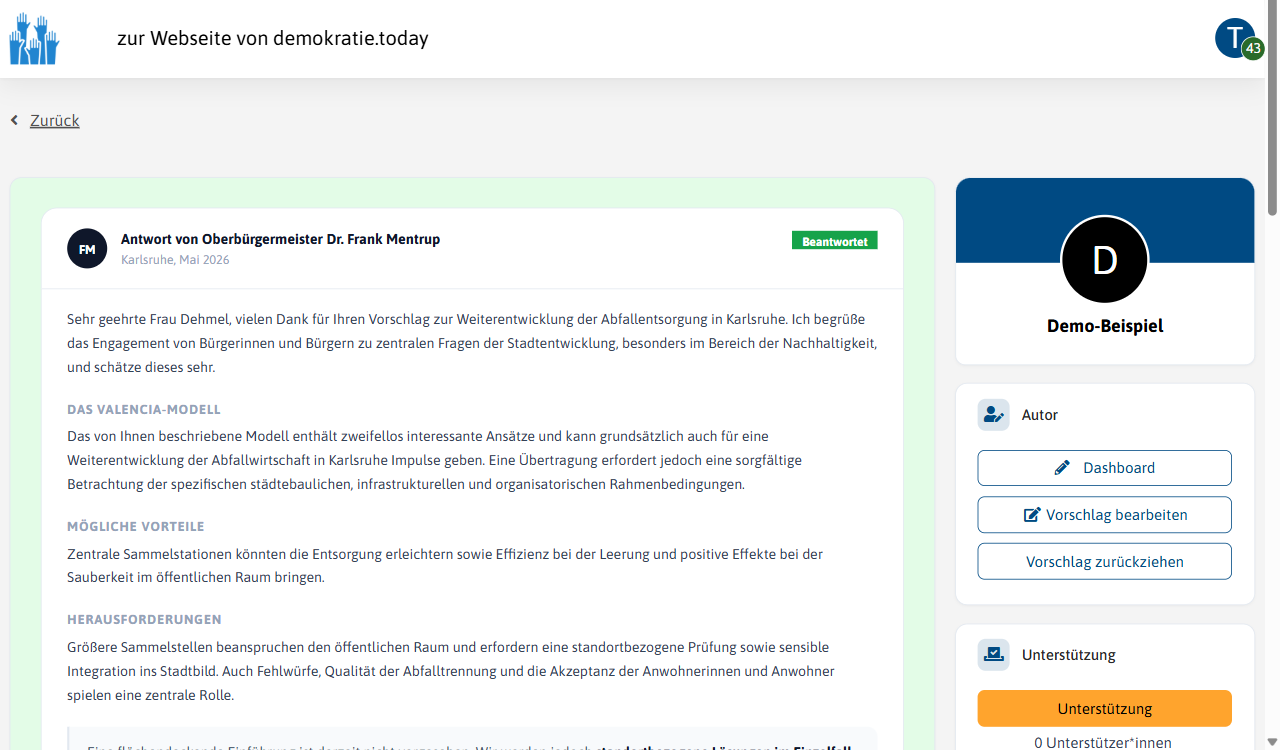
- If the project has a quorum, you also see how much support is needed, along with a progress bar.
- You can take back your support with “Remove your support”.
- When you support a proposal, you automatically follow it. If you remove your support, you stop following it too.
- In some projects, you can support a proposal before your verification is complete. Your support then counts only once you are verified.
Your own proposal
You find your own proposal in the “Author” card. There, “Edit proposal” and “Withdraw proposal” are available where possible.
In some projects, the administration reviews proposals before they are published. After you log in, you can view your own proposal beforehand.
Depending on the project
- Whether you must register or verify to participate is set by the administration for each project.
- The description may be limited to a certain number of characters. The administration sets the limit.
- The administration can set the maximum number of proposals you may submit and the maximum number you may support.
- The administration provides the labels and moods. If the project offers moods, you choose one when you submit.
- In some projects, proposals appear without the name of the author.
- In some projects, you can also submit proposals via WhatsApp, for example via a QR code on a poster.