
Guides
Guide
Citizens
Citizens
You want to change your details, set up notifications or delete your account.
Manage your account
Your goal
You want to change your details, set up notifications or delete your account.
What you need
- You have an account and are signed in.
How it works
- Click “My account” in the menu at the top.
- In the sidebar, find the right box (see below).
- Check or uncheck the boxes, then click “Update” in the same box.
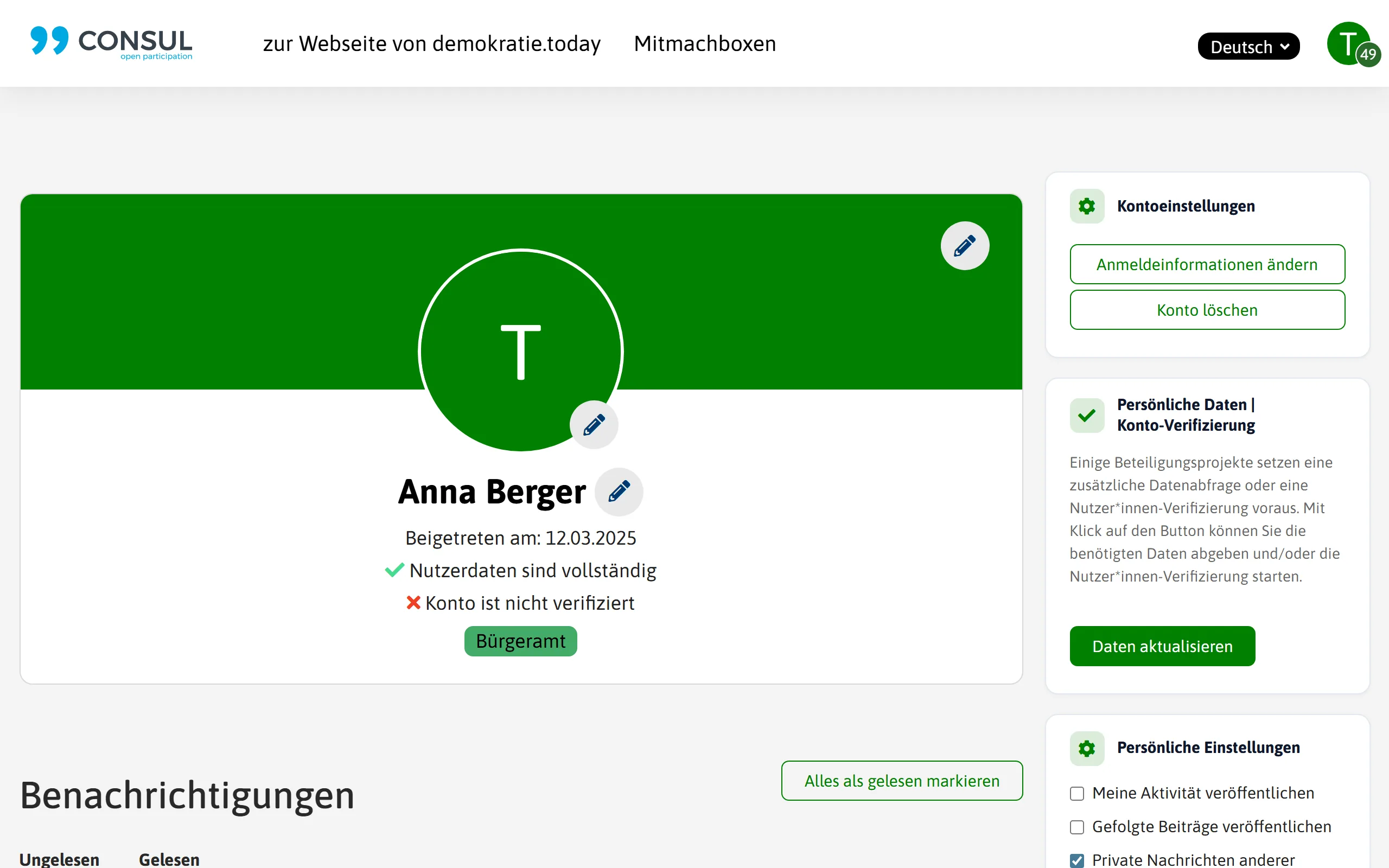
What you change where
- Username, profile picture, banner image
- At the top of the page, using the pencil icon. Save the new username with the checkmark next to it.
- “Personal settings”
- “Keep my list of activities public”, “Keep the labels of the elements I follow public”, “Receive emails about direct messages” and “Show account in the users overview”.
- “Notifications”
- Emails for “Notify me by email when someone comments on my proposals or debates”, “Notify me by email when someone replies to my comments” and “Receive by email website relevant information”.
- “WhatsApp”
- Only visible if WhatsApp is enabled in your portal. If your number is connected, turn notifications off with “Stop receiving notifications” and back on with “Enable notifications”. If no number is connected yet, start the connection by writing to the participation bot on WhatsApp.
- “Persönliche Daten | Konto-Verifizierung” (personal data | account verification)
- Some projects ask for additional details or for verification. You start either one with “Update personal information”.
Next to the sidebar, you see your notifications, split into “Unread” and “Read”. Use “Mark all as read” to tidy up the list.
Change your email address or password
- In the “Account settings” box, click “Change login information”.
- Enter the new email address, or enter a new password under “New password” and “Confirm new password”. If you only want to change the email address, leave the password fields empty.
- To confirm, enter your “Current password” and click “Update”.
A new email address only takes effect once you click the link in the confirmation email sent to that address. Until then, the page shows “Waiting for confirmation from:” with the new address.
Delete your account
- In the “Account settings” box, click “Delete account”.
- If you like, give a “Reason”.
- Click “Erase my account”. You are signed out.
Deleting cannot be undone. Your username, email address and password are removed, and any verification is canceled.
Good to know
- If you connected your account to another sign-in service, it appears in the “Connected accounts” box. Use “Disconnect” to remove the connection.