
Guides
Guide
Citizens
Citizens
You want to send an application, a registration, or a request through a form.
Fill out a form
Your goal
You want to send an application, a registration, or a request through a form.
What you need
- The form phase is not yet over.
How it works
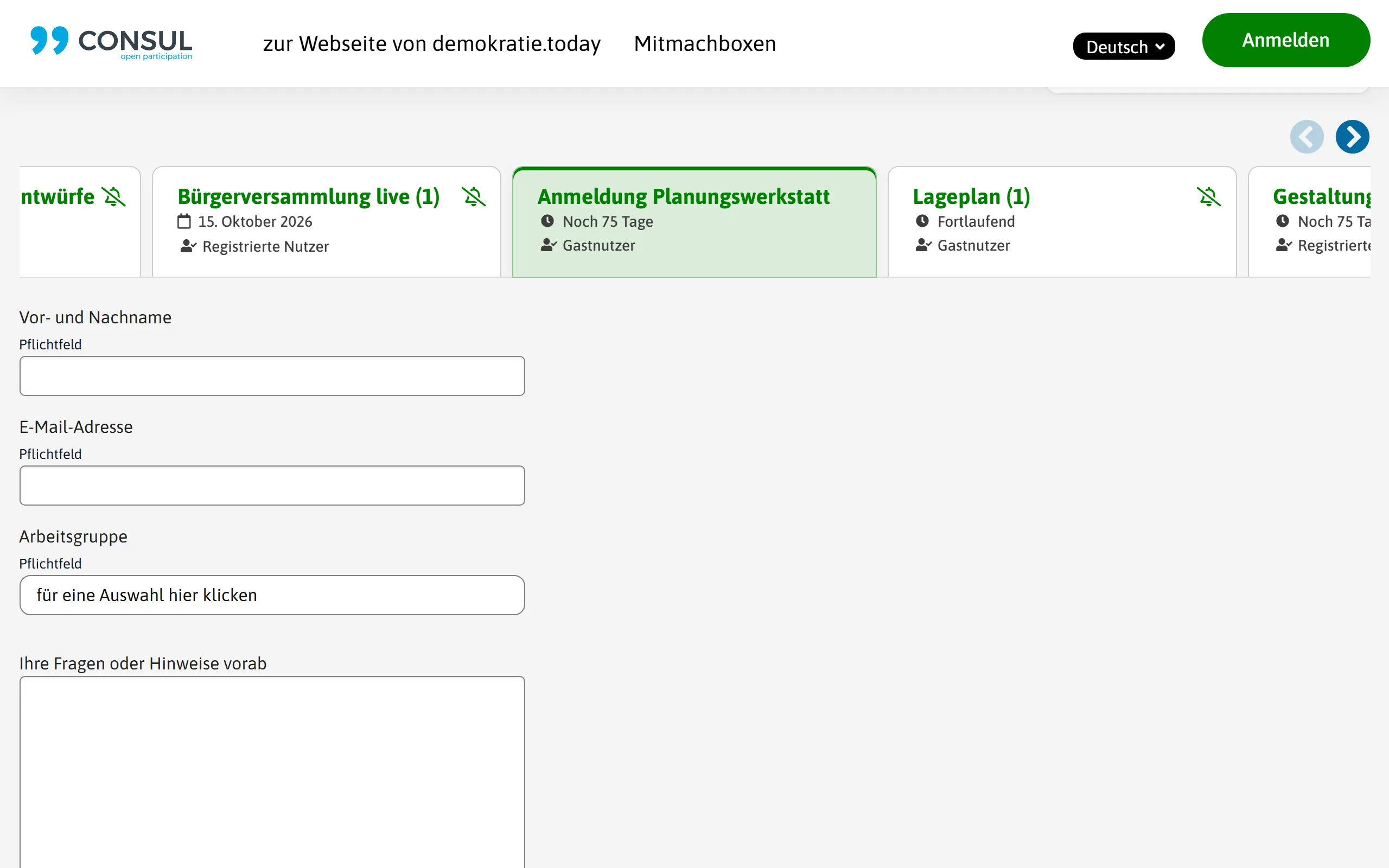
- Open the project and select the form’s tab. You can also click the button in the “Participation” box. By default, it reads “Participate now”.
- Sign in if the form requires it. The administration decides whether guests, registered users, or only verified users can take part.
- Fill in the fields. You must fill in fields marked “Required field”.
- Attach files if the form allows it: an image with “Add image” or a PDF with “Add new document”. Give the file a title.
- Click “Submit answer”. You see “Thank you! Your answer was successfully submitted.” and a summary of your entries.
What happens next?
- If you are signed in, you get a confirmation at the email address of your account.
- If the form has a field for your email address, the administration can also send a confirmation there. If the address you enter matches the email address of your account, you get only that one confirmation email, not the general receipt confirmation on top of it.
- Later, the administration can send you an email with the button “To the form”. Use it to add to your submission without signing in.
Common problems
If a required entry is missing, the field shows “Cannot be blank”. Short text fields hold 255 characters at most. Allowed file formats and the maximum file size appear right at the upload field.
The administration sets how often you can fill out a form. The default is once. When you reach the limit, you see “You have reached the maximum number of submissions allowed per user”.
After the deadline, the page shows “The participation phase has already been completed”. Then you can no longer submit anything.