
Register for an event
Your goal
You want to register yourself or someone else for a date in a participation project.
What you need
- The event accepts registrations and has not started yet.
How to do it
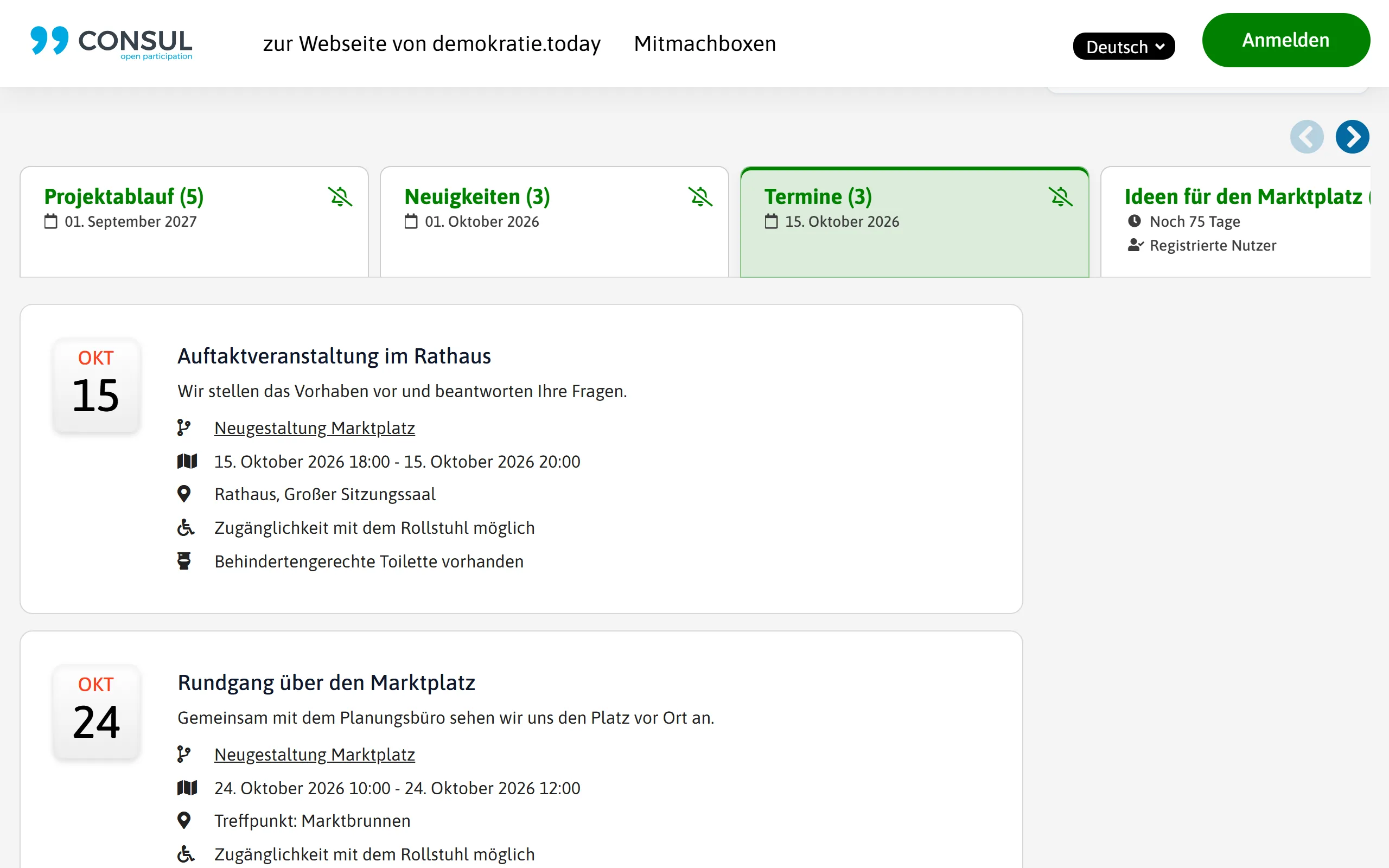
- Open the project and select the tab with the events.
- Click “Register another person” on the event. If it is fully booked, the button says “Join waitlist”.
- Enter “First name”, “Last name” and “Email”. If you are signed in, your details are already in the form.
- Click “Sign in” or “Join waitlist”.
- If you entered a different address than the one on your account, or you have no account, you get an email. Click “Confirm registration” in it.
What happens next?
- On the event, your registration shows as “Registered”, “Waitlisted” or “Pending confirmation”.
- Depending on the event, you get an email once your spot is confirmed or you are on the waitlist.
- When a spot opens up, people on the waitlist move up in the order they registered.
Register more people
After your first registration, “Register another person” appears again, with an empty form. Enter the other person’s details. They then get the confirmation email themselves.
Cancel a registration
Click “Cancel” on your registration. The registration is deleted and the spot is free. A registration marked “Pending confirmation” has no “Cancel” button.
Common pitfalls
As long as the registration is marked “Pending confirmation”, no spot is guaranteed for you. So confirm the link right away.
Without an account, you can only see and cancel your registration in the same browser session in which you registered. After that, ask the administration to cancel it for you.
You can register for an event only once with the same email address.