
Guides
Guide
Deficiency reports administration
Deficiency reports administration
Send the automatic emails to reporters and staff in your own words and under your own sender name.
Customize emails in Deficiency reports
Your goal
Send the automatic emails to reporters and staff in your own words and under your own sender name.
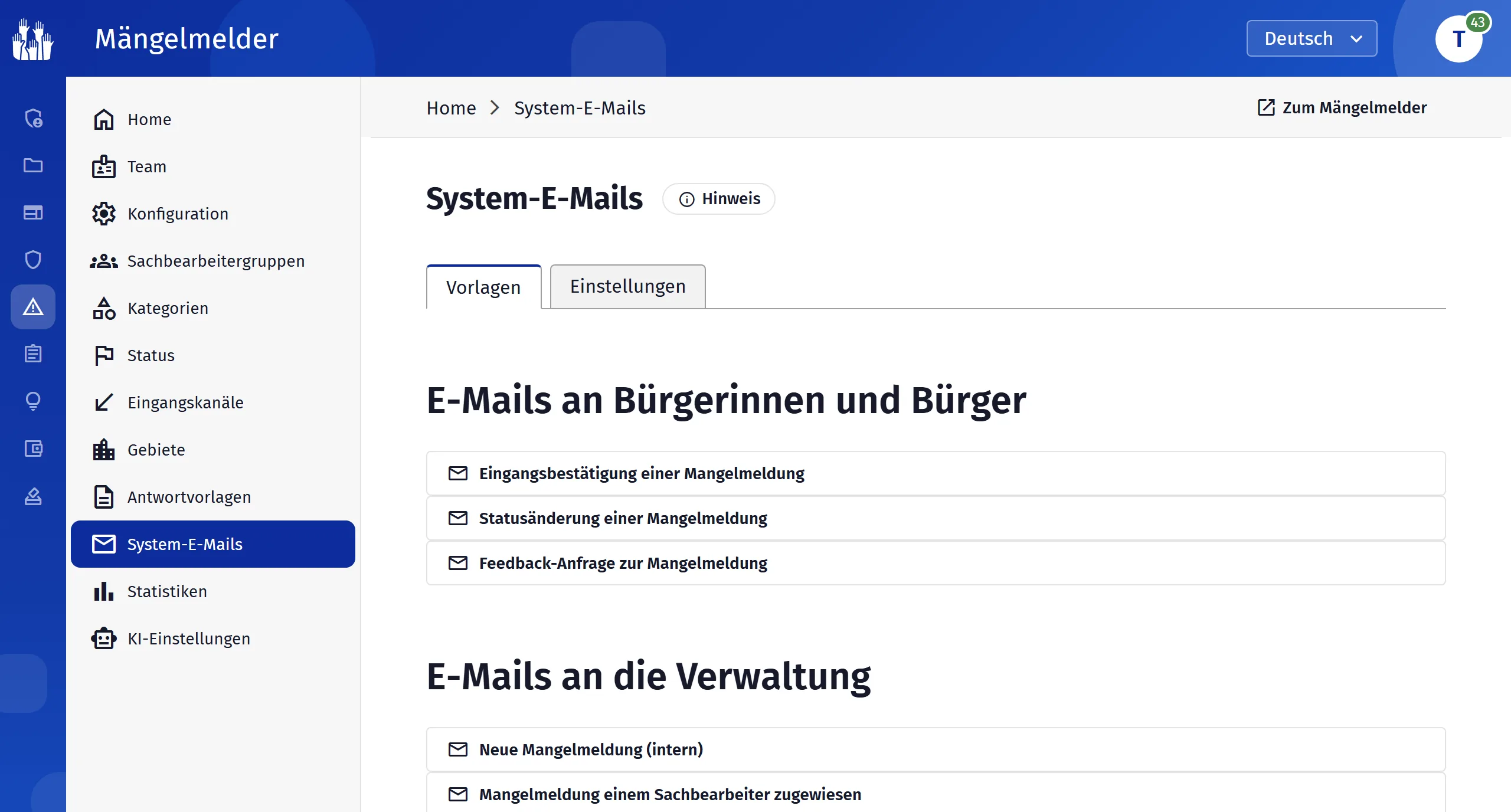
Open “System emails”
What you need
- You are an administrator or deficiency reports administrator.
How to do it
- In Deficiency reports, open “System emails” and go to the “Settings” tab.
- Check the “Sender address for deficiency report emails” and enter a shared footer.
- Switch to the “Templates” tab and expand an email. “Trigger” and “Recipients” tell you when it is sent and to whom.
- Enter the “Subject” and “Content”. Copy placeholders such as
{{ deficiency_report_url }}from “Available variables”. - Click “Save”. The email now shows the “Customized” marker.
- Click “Send test email to me” and check the result in your inbox.
The decisions
- Which emails first?
- The four to citizens: “Deficiency report submission confirmation”, “Deficiency report status change”, “Official answer to a report” and “Deficiency report feedback request”. They speak publicly for your administration.
- Status text in the template or on the status?
- Enter the text for each status under “Statuses” in “Email notification text”. In the “Deficiency report status change” template, you pull it in with
{{ status_notice_text }}and the name of the status with{{ status_name }}. - Footer or greeting in every template?
- The footer applies to all Deficiency reports emails. If you fill it in, the closing greeting of the default texts is dropped.
Common pitfalls
Your own content completely replaces the default template. Links to the deficiency report get in only through the variables, such as
{{ deficiency_report_url }}.
Only administrators can change the sender address. As a deficiency reports administrator, you see the field but cannot edit it.
An empty template keeps the default text. Delete the subject and content to go back to the default.