
Guides
Guide
Municipal plans
Municipal plans
You want to review a submitted plan or a submitted change and make it public.
Release a plan
Your goal
You want to review a submitted plan or a submitted change and make it public.
Open municipal plans
What you need
- You are an administrator.
How to do it
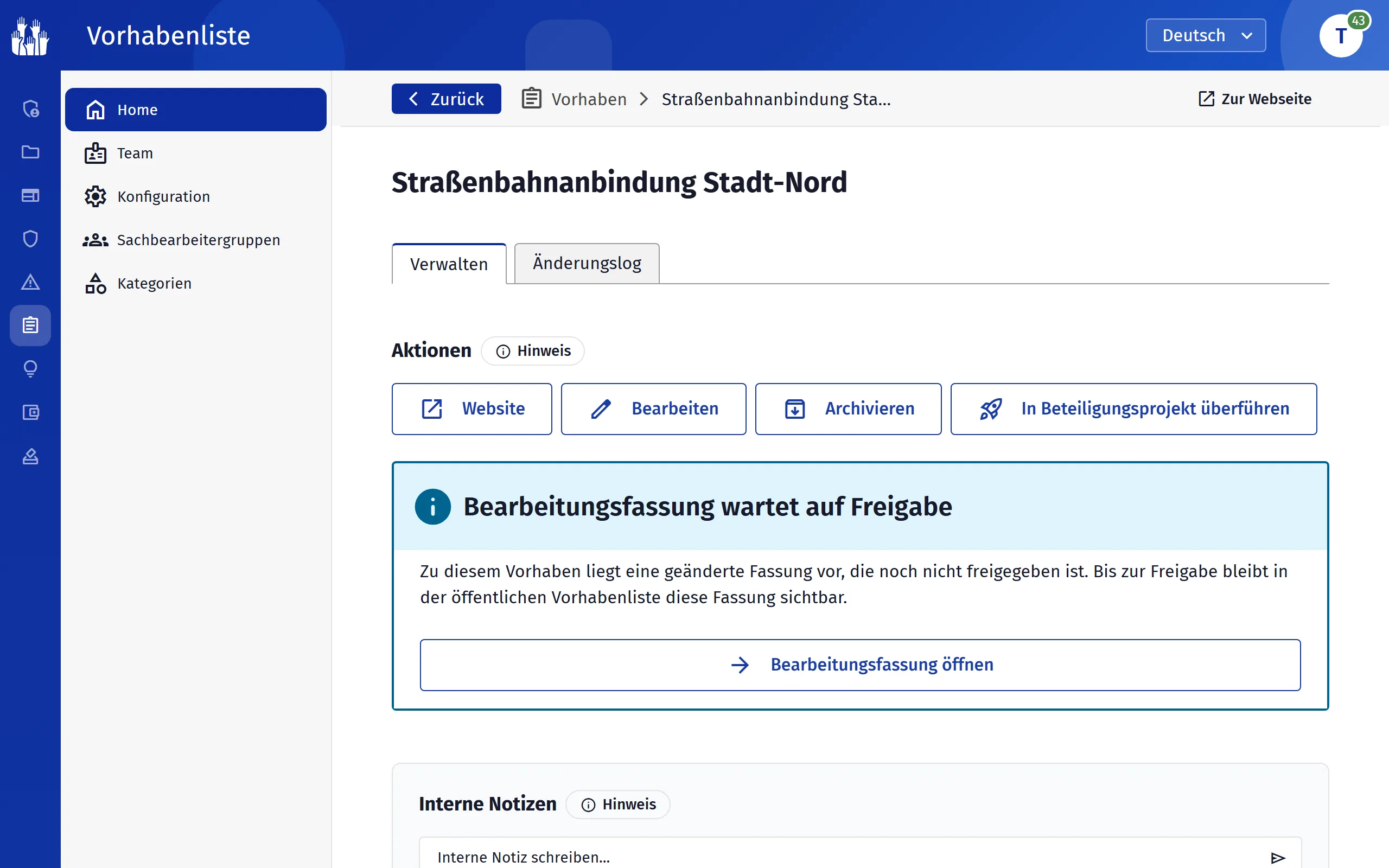
- Open the plan using the “Review and release the plan.” link in the email, or through its title on “Home”. Submitted plans show the note “This plan has been submitted for release and is waiting for a decision by the administration.”
- If it is a change, check “Changes against the released version” at the top. It shows the released version and the edited version side by side, field by field.
- If needed, correct it yourself with “Edit”, or write a note for the case officer under “Internal notes”.
- Under “Actions”, click “Release”. The plan is public immediately.
The decisions
- Release, correct, or discard?
- There is no button to reject. You release the plan, correct it yourself, or discard an edited version with “Discard changes”.
- Release without a submission?
- “Release” appears on every draft, even if nobody submitted it. The required fields must still be filled in.
What happens when you release a plan?
- A draft released for the first time becomes “Published” and gets version number 1.0.
- With an edited version, the changes are applied to the published plan. The edited version disappears. The address and order stay the same.
- With a change to the content, the version number goes up and the update date changes to today.
- An archived plan stays archived after you release a change.
Pitfalls
If “Municipal plans” is turned off in “Configuration”, even a released plan is not visible to the public.
If a required field is missing, the form with the missing information opens instead of the release.