
Guides
Guide
Topic page manager
Topic page manager
You want a project to appear on a topic page and be linked in its navigation.
Assign projects to a topic page
Your goal
You want a project to appear on a topic page and be linked in its navigation.
Open project area
What you need
- The topic page exists.
- You have the “Administer project” permission in the project, or you are an administrator.
How to do it
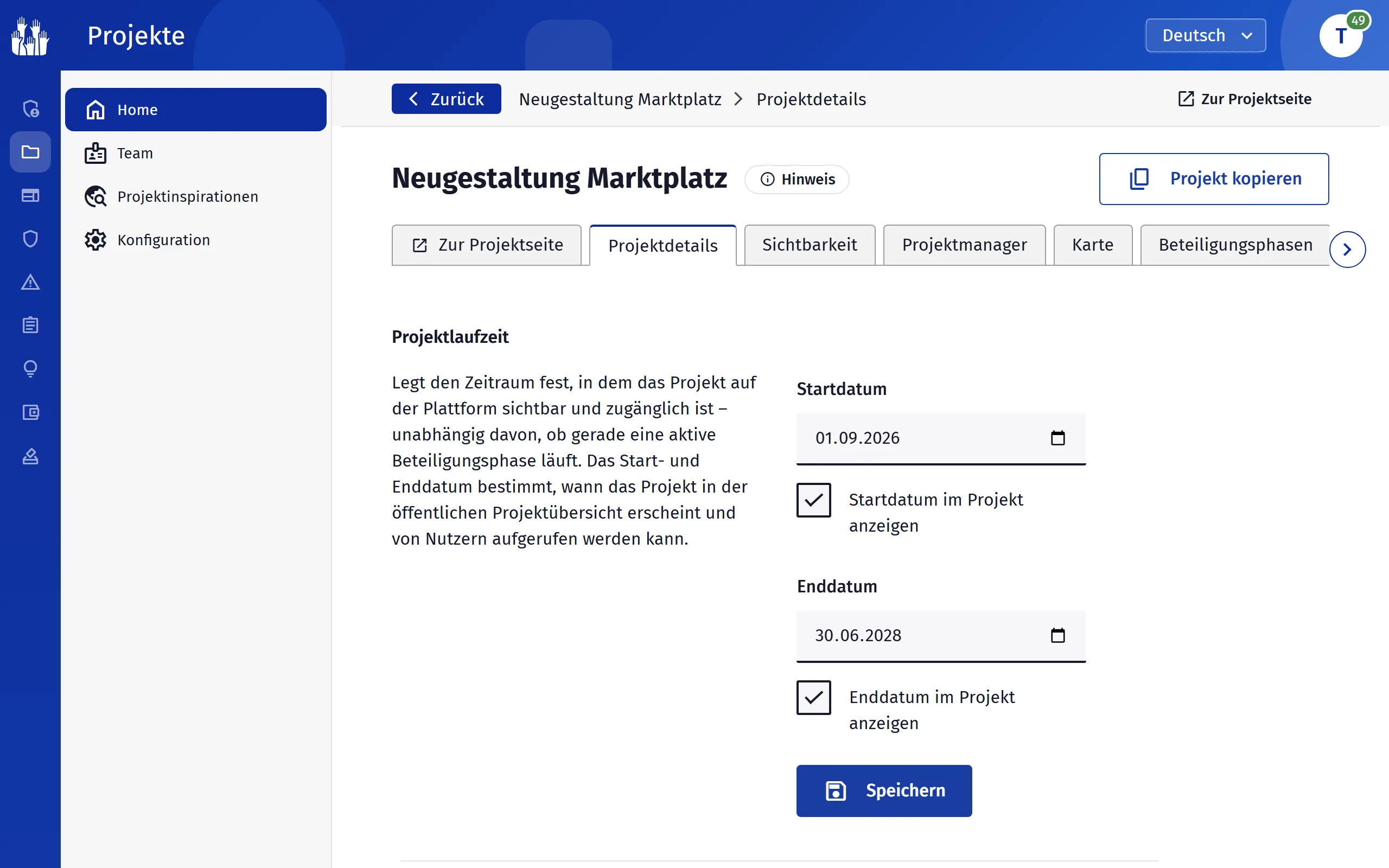
- In the project area, open the project, then “Project details”.
- Under “Assignment to topic pages”, select the topic page.
- Click “Save”.
- Check the result under topic pages. On “Edit topic page”, the project appears under “Assigned projects”. On “Home”, it is counted in the “Projects” column.
Your choices
- One topic page or several?
- A project belongs to at most one topic page. If you select another one, the project moves there.
- Undo the assignment?
- Select “— No landing page —” and save.
Pitfalls
Visitors only see the project if it is activated. See Set where the project appears.
The selection shows all topic pages, including drafts. A project on a draft page is not visible there until the topic page is published.
Don’t change anything in “Assigned projects”. If you are allowed to edit a project, its title appears there as a link to its “Project details”.