
Reference
Reference
Topic pages
Topic pages
You open the “Edit topic page” page from “Home” by selecting “Edit”. Here you set the address, logos, header, navigation and content cards of a topic page.
Edit topic page
You open the “Edit topic page” page from “Home” by selecting “Edit”. Here you set the address, logos, header, navigation and content cards of a topic page.
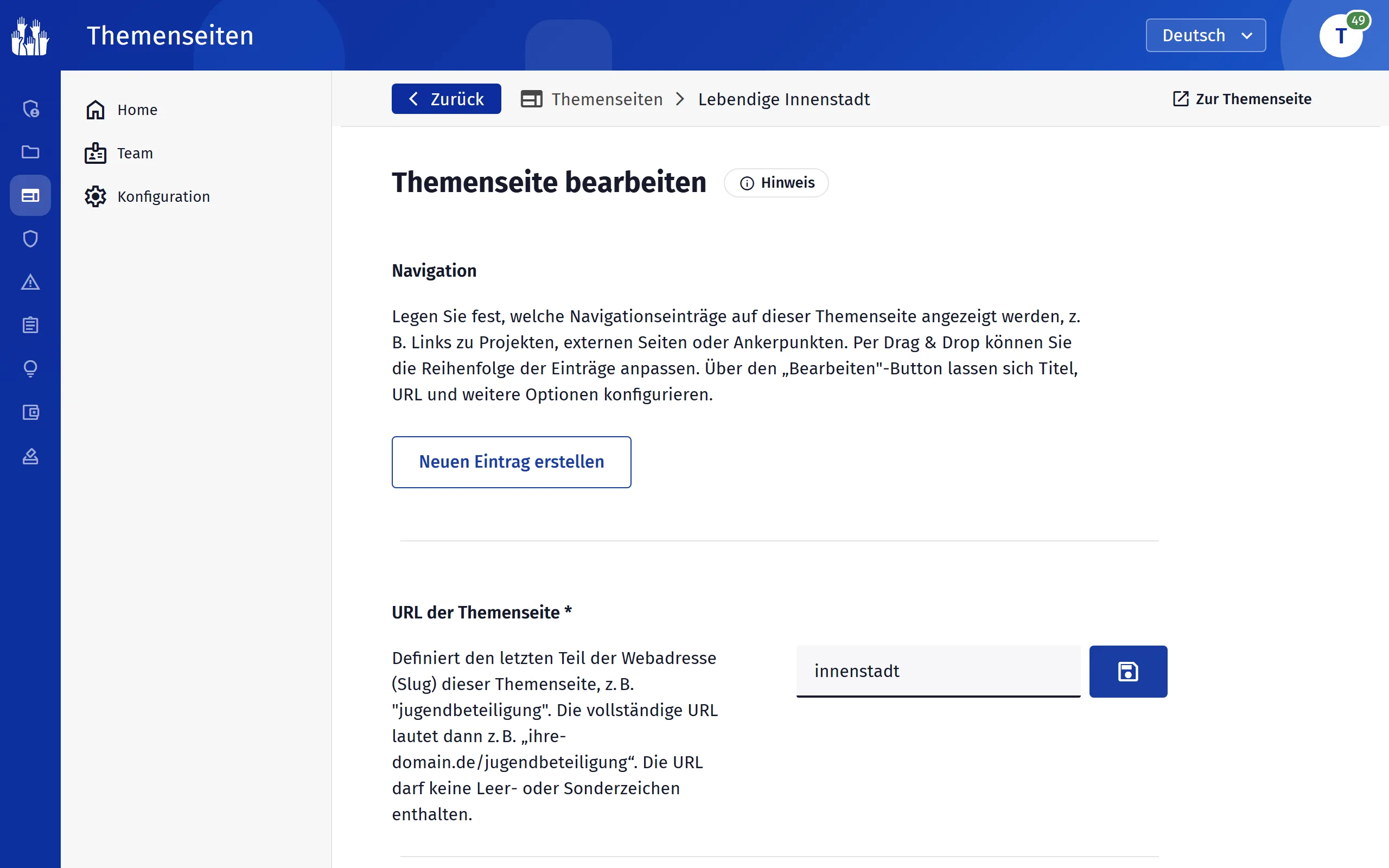
Save each text field separately with the save icon next to or below the field. Images and videos are saved right after you upload them. Switches save as soon as you flip them.
Step by step: Create and design a topic page
Navigation
The menu entries of the topic page are at the top. Use “Create new entry” to add one. Use the pencil to edit an entry and the trash can to delete it.
- “System pages”
- Overviews of the platform: “Projects overview”, “Events”, “Budget overview”, “Proposals overview” and “Polls overview”. You can only choose the ones that are turned on for your platform.
- “Projects”
- Only projects assigned to this topic page.
- “Topic pages”
- Another published topic page.
- “Custom link”
- Any address, for example the contact page of your administration.
- “Display name (optional)”, “Open in new tab”
- The first replaces the default title of the entry. The second opens the link in a new tab.
Step by step: Set up the navigation of a topic page
Address, logos and header
- “Topic page URL”
- The last part of the address, for example jugendbeteiligung for ihre-domain.de/jugendbeteiligung. No spaces or special characters.
- “Logo on transparent background”, “Logo on white background”
- The first logo appears in the navigation above the background image. As soon as visitors scroll, the navigation turns white and the second logo appears.
- “Background image for desktop”, “Background image for mobile”
- We recommend 1920 × 760 pixels for desktop and 470 × 246 pixels for mobile devices.
- “Background video for desktop”, “Background video for mobile”
- Play muted in an endless loop instead of the image. MP4 and WebM files up to 50 MB are allowed. If both an image and a video are set, the video takes priority.
- “Topic page title”
- Name of the topic page in the navigation, browser tab and cards. It does not appear above the background image.
- “Header title”, “Topic page subtitle”
- The large heading above the background image and the line below it. If a field is empty, that line does not appear.
- “Hide title and subtitle on topic page”
- Hides both lines.
- “Click on logo leads to this landing page”
- A click on the logo stays on the topic page instead of going to the start page of the platform.
- “Color of links in the top navigation”
- Choose a color that is easy to read on your background image.
- “AI context for this landing page”
- Background knowledge for this topic page only, such as the name and form of address of a municipality. The text is not public anywhere. For all analyses of this topic page, it replaces the platform-wide AI context.
Team, cards, projects
- “Topic-page managers”
- Which managers edit this topic page. Select the checkboxes and click “Save”. Only administrators and managers with “Manage all”
- “Content cards”
- Which cards the topic page shows. In the “Statuses” column, you turn a card on or off. Use the pencil to change the title and number of items, and drag and drop to change the order. Only administrators
- “Assigned projects”
- The projects of this topic page with their status. You change the assignment on the project: Assign projects to a topic page
- “Delete topic page”
- Removes the topic page along with its navigation entries and content cards. The projects stay and belong to the main page again. Only administrators and managers with “Manage all”
The platform saves the order of navigation entries by drag and drop only for administrators. For topic page managers, the previous order stays in place.