
Create and design a topic page
Your goal
You want to set up a separate area with its own look for an audience, a topic, or an area.
Open topic pages
What you need
- You are a topic page manager with “Manage all” or an administrator.
How to do it
- On “Home”, click “New topic page”.
- Enter a title and a URL path, for example jugendbeteiligung. The address is then your-domain.de/jugendbeteiligung.
- Click “Create topic page”. You land on “Edit topic page”. The new page is a draft.
- Upload “Logo on transparent background”, “Logo on white background”, “Background image for desktop”, and “Background image for mobile”.
- Enter “Header title” and “Topic page subtitle”. Both appear above the background image.
- Under “Navigation”, create the menu entries with “Create new entry”. See Set up the navigation of a topic page.
- Under “Content cards”, turn on the cards the page should show. Only administrators can do this.
- Publish the page: On “Home”, switch the toggle in the “Statuses” column.
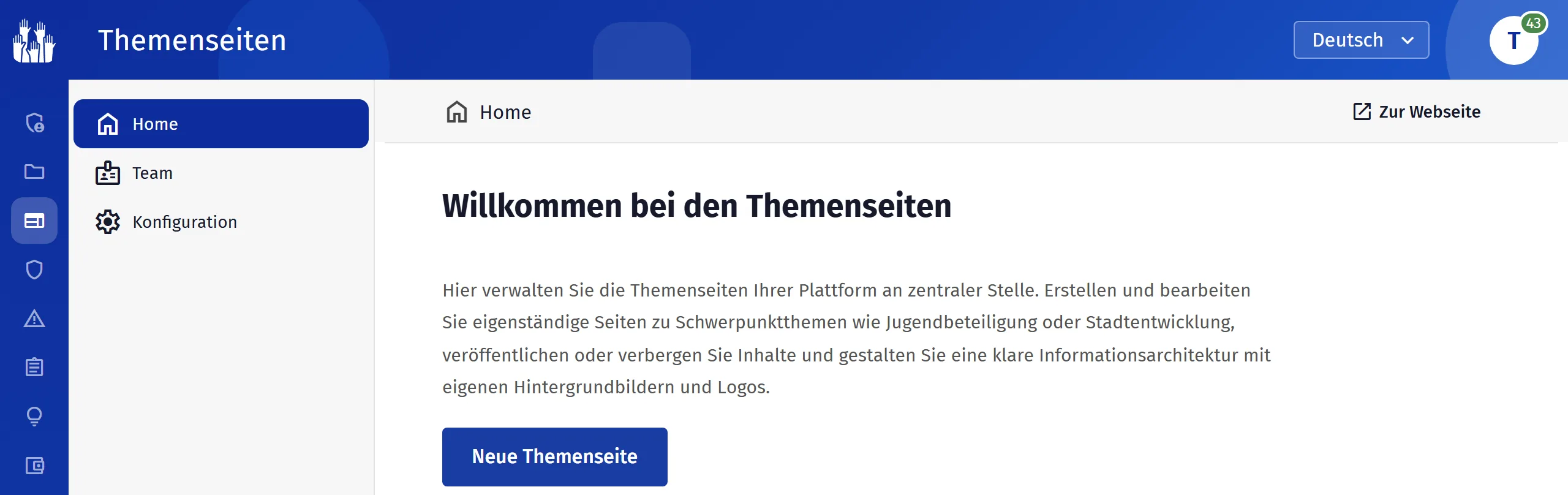
The decisions
- Image or video in the header?
- Instead of the images, you can upload “Background video for desktop” and “Background video for mobile”. If both are set, the video takes priority.
- Show the heading or not?
- “Hide title and subtitle on topic page” hides the header title and the subtitle.
- Where does the logo lead?
- With “Click on logo leads to this landing page”, clicking the logo keeps people on the topic page instead of taking them to the home page. If the link color doesn’t match the background image, change “Color of links in the top navigation”.
- Who maintains the page?
- Under “Topic-page managers”, you choose which managers may edit this topic page. How to add managers to the team is explained in Manage the topic pages team.
Pitfalls
You save each text field on “Edit topic page” individually with the save icon next to or below the field. Images are saved right after you upload them.
All topic page managers see the “New topic page” button. But only administrators and managers with “Manage all” can create a page.
The “Topic page title” appears in the navigation, the browser tab, and cards, but not above the background image. That is what the “Header title” is for.
You decide which projects appear on a topic page in the project itself: Assign projects to a topic page. “Assigned projects” shows the current status.
Topic page managers without “Manage all” design the pages assigned to them with the same steps, starting at step 4. An administrator turns on the content cards from step 7 for them.