
Guides
Guide
Topic page manager
Topic page manager
You want to decide which menu items visitors see at the top of a topic page.
Set up the navigation of a topic page
Your goal
You want to decide which menu items visitors see at the top of a topic page.
Open topic pages
What you need
- You are an administrator or listed as a topic page manager for this topic page.
How to do it
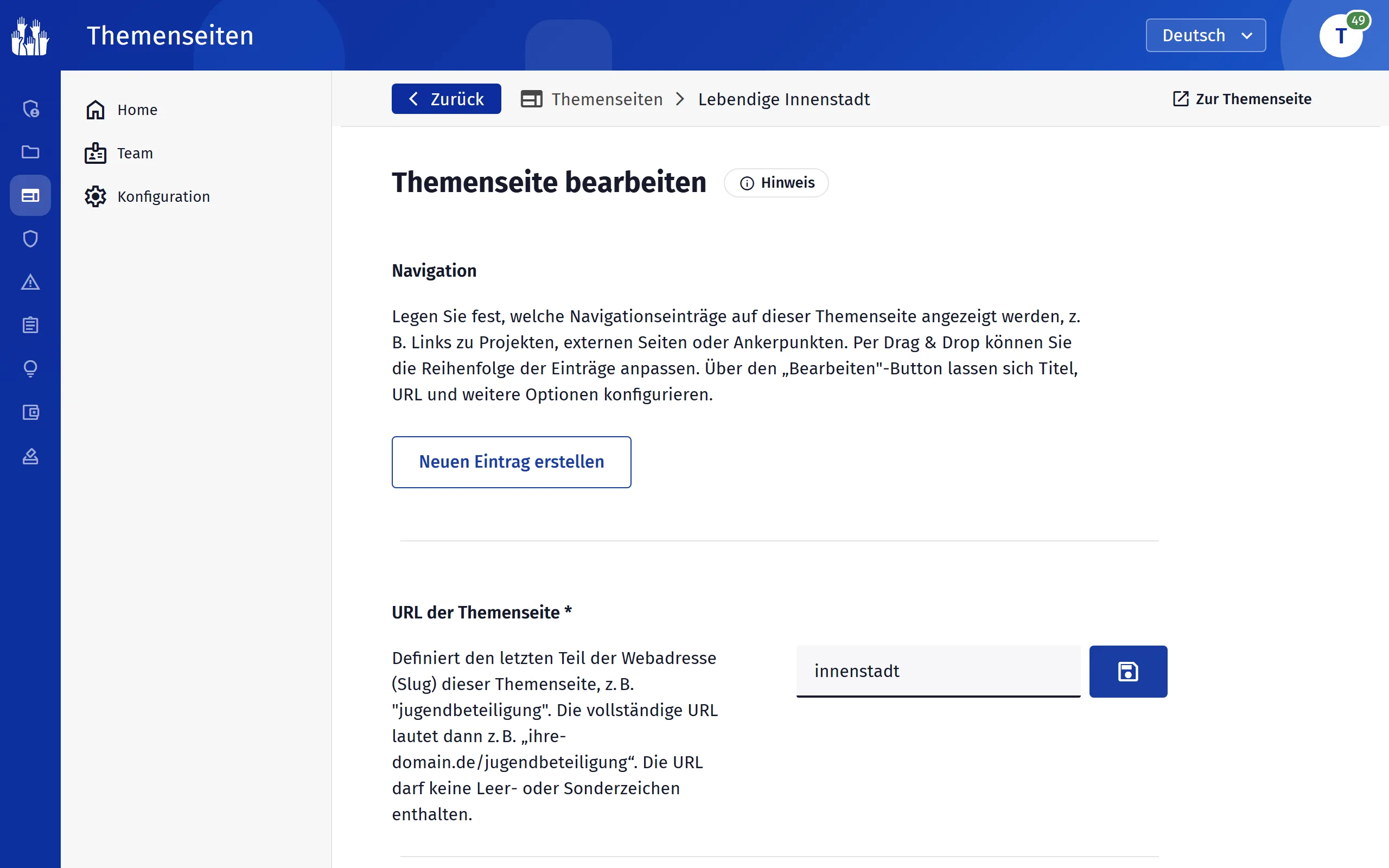
- Under “Home”, click “Edit” next to the topic page.
- At the very top, under “Navigation”, click “Create new entry”.
- Choose the type: “System pages”, “Projects”, “Topic pages” or “Custom link”.
- Select the page or project. For a custom link, enter the full address.
- If you like, enter a “Display name (optional)” and set “Open in new tab”.
- Click “Create navbar item”. You return to “Edit topic page”, and the new entry appears under “Navigation”.
The decisions
- Which type?
- “System pages” links to overviews of the platform, such as the “Projects overview” or “Events”. “Projects” links to a project of this topic page, “Topic pages” links to another published topic page, and “Custom link” links to any other address.
- Custom name or default title?
- If you leave “Display name (optional)” empty, the entry is named after the page or project.
Common pitfalls
Under “Projects” you only see projects that are assigned to this topic page. Assign a project first: Assign projects to a topic page.
You change the order of the entries by drag and drop. The platform only saves the new order if an administrator drags. For topic page managers, the previous order stays.
Under “System pages” you only see overviews that are switched on for your platform. Under “Topic pages” you only see published topic pages. Otherwise it says “No published landing pages available”.
You edit an entry with the pencil. You delete it with the trash can, after a confirmation prompt.